Visitors
Visitors:
Add Visitor Details:
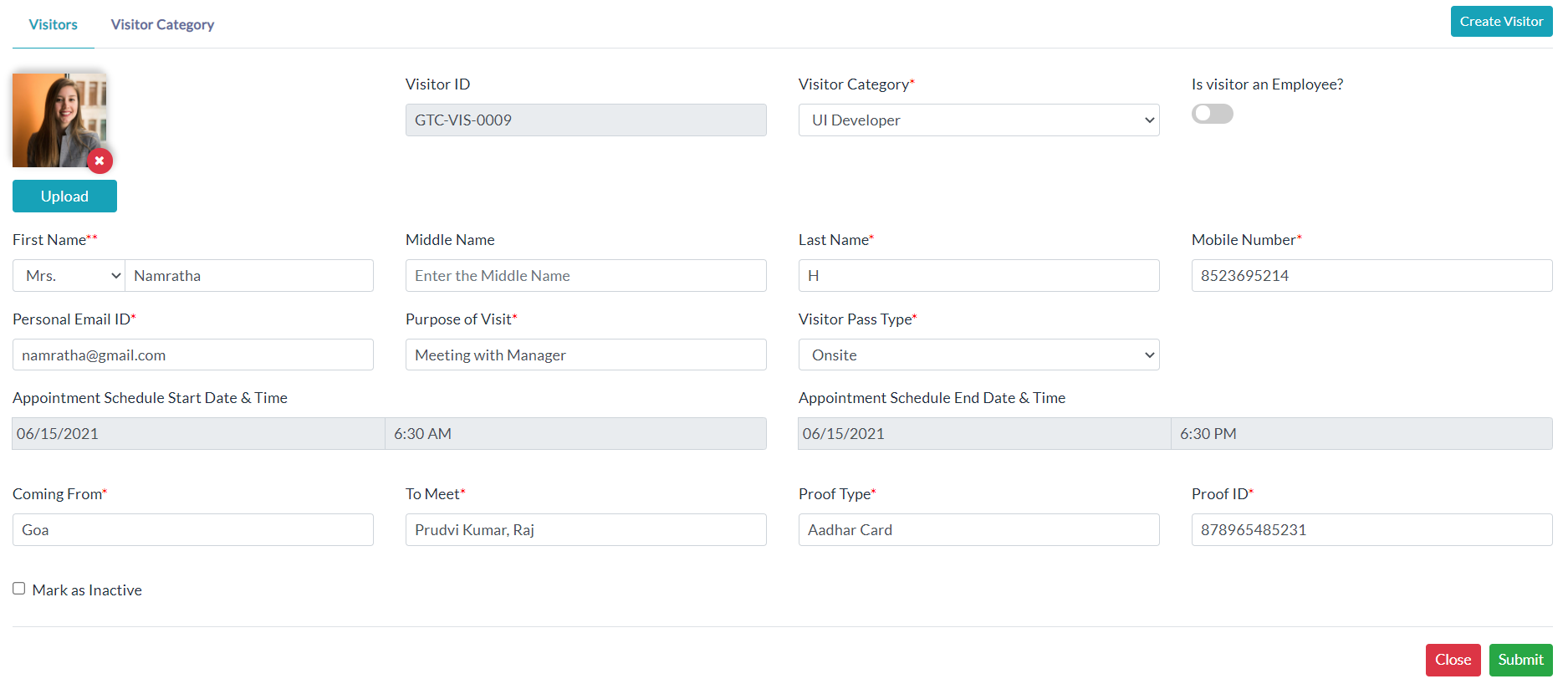
In the HRM menu, click VMS Option. For adding visitor details follow the below steps.
- Click Create Visitor.
- Enter details of a visitor.
- If a list of visitor category doesn't exist, then go to Visitor Category and add category details there.
- Click Submit.
Visitor's List:
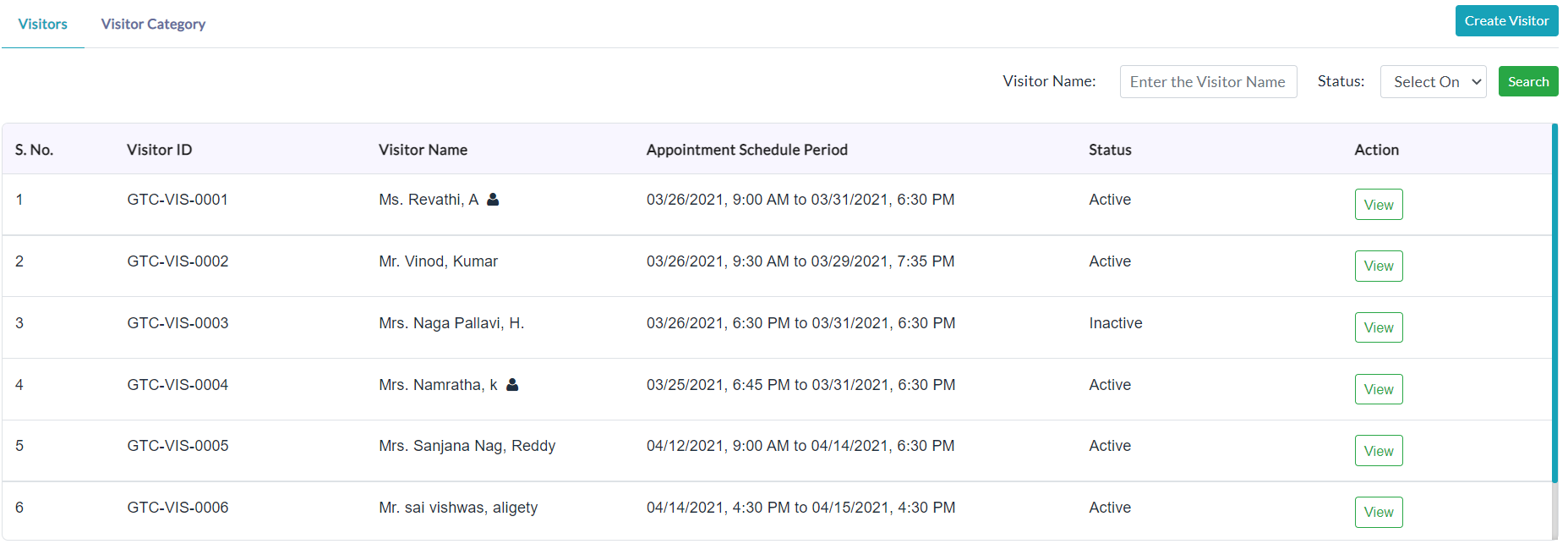
The list of visitor details is displayed in the Visitor's Details section.
View Visitor Details:
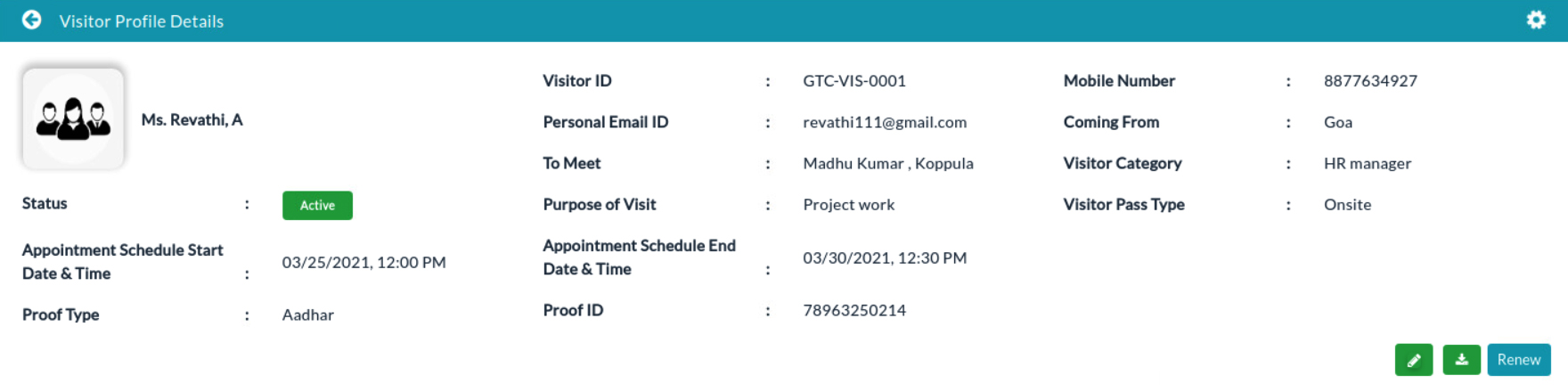
For anyone of the visitor details in the list, click View (Eye Icon) option in the column of Action and able to view complete visitor details.
Edit Visitor Details:
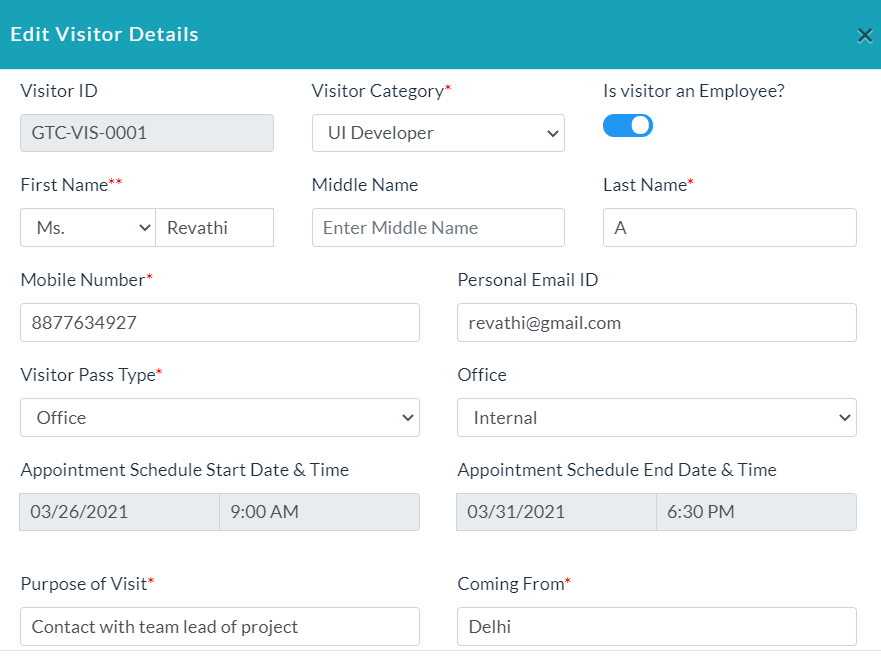
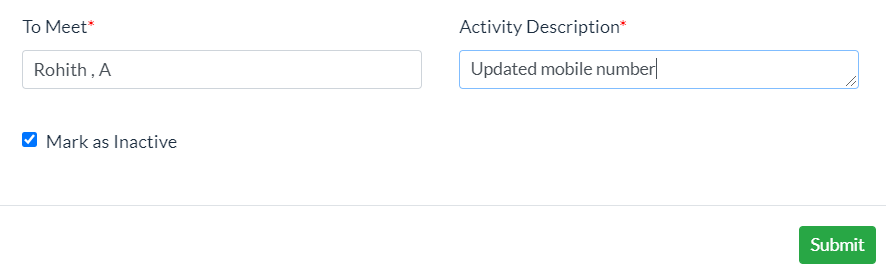
- Click Edit (Pencil Icon) option to update details of visitor.
- Make changes in details of a visitor.
- Click Submit.
Download Visitor Pass:
Click Download (Download Icon) option to download the visitor pass with specific visitor details.
Renew Visitor Pass:
Click Renew button to extend the end date of visitor pass for renewing visitor's pass with valid reason.
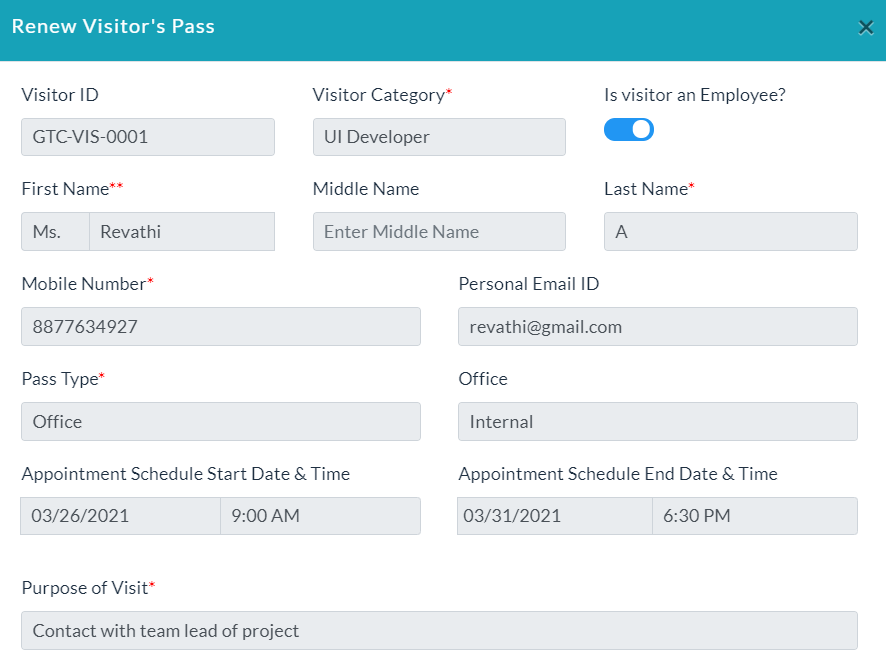
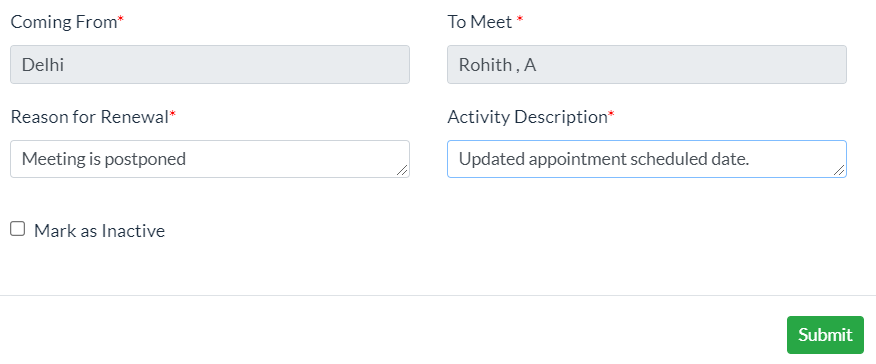
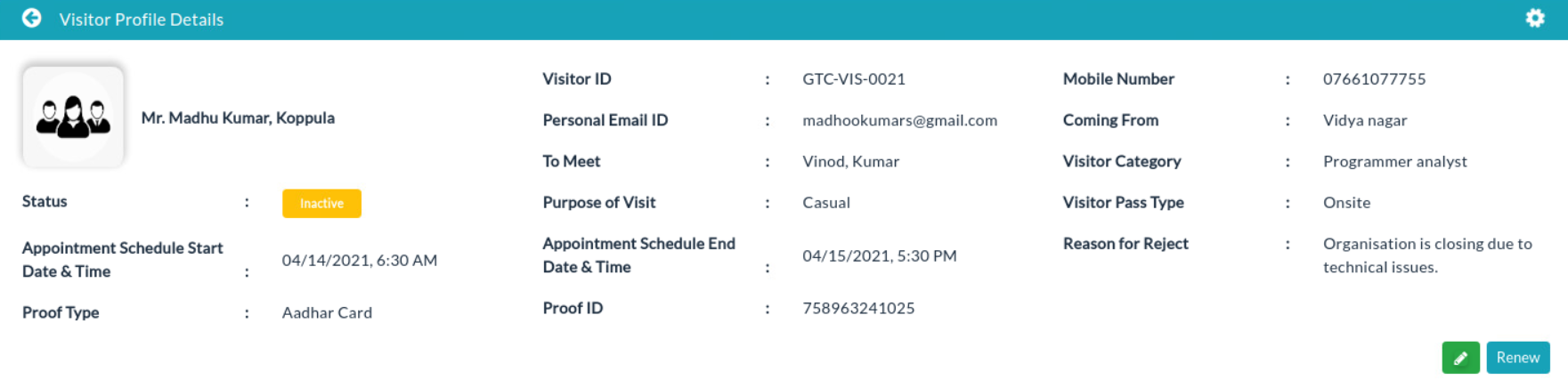
After click on Submit button, email is triggered for approval. Only the HR Manager can have the right to approve the renewal. Till that time the renew button is disabled. If the HR manager can reject the renewal, reason for rejection of visitor's pass renewal is displayed as follows.
Delete Visitor Details:
In the Action section, click the Delete (Bin Icon) option to delete the details of the individual visitor.

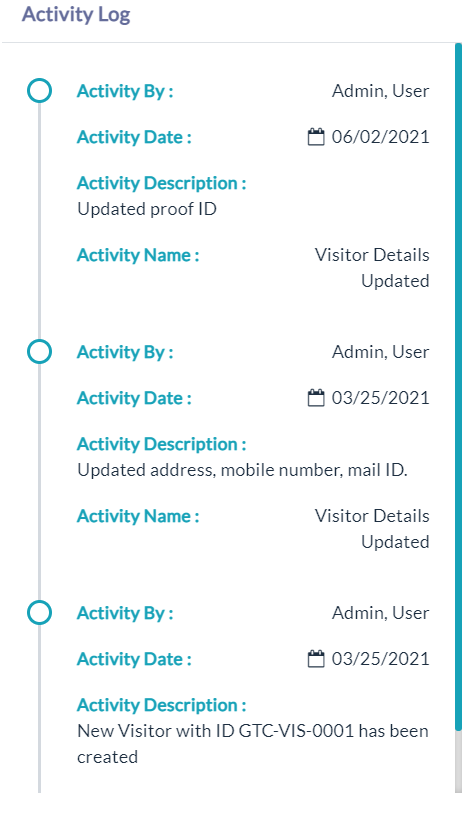
Activity Log:
- Click the View(Gear Icon) option to view details of activity log.
Created with the Personal Edition of HelpNDoc: Full-featured multi-format Help generator