Purchase Proposals
Purchase Proposals:
Purchase Proposals Creation:
In the Material Management menu, click Purchase Proposals Option. For adding purchase proposal details follow the below steps.
- Click the New Purchase Proposal tab.
- Enter the details of the purchase proposal.
- Click Submit.
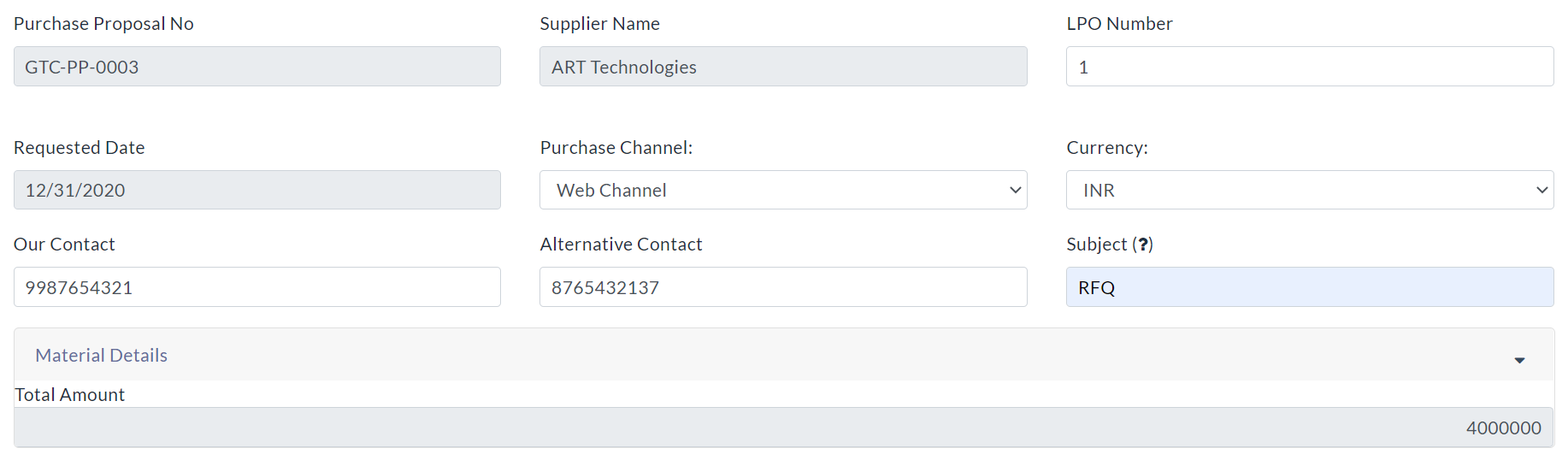
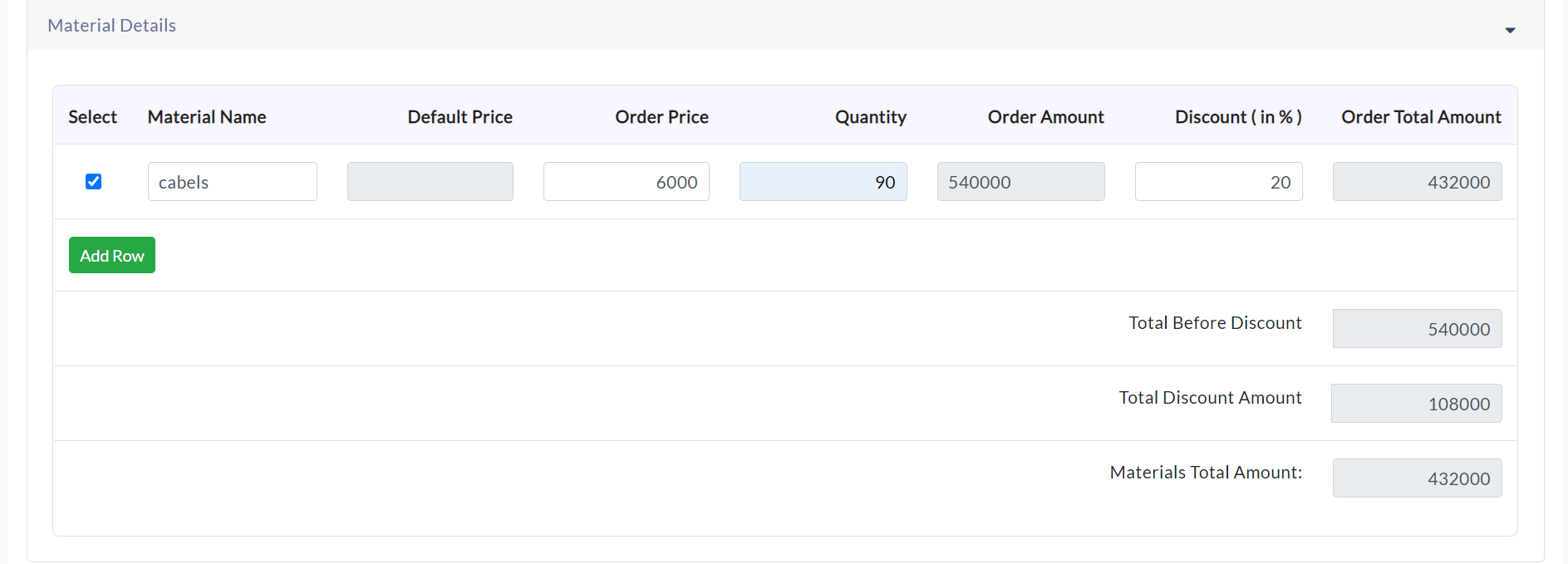
Material Details:
- Enter details of the material and quantity of specific material.
- If you didn’t get the store name and material name, then go to the Material Management menu and click Stores then add stores there. And click Materials, add materials there.
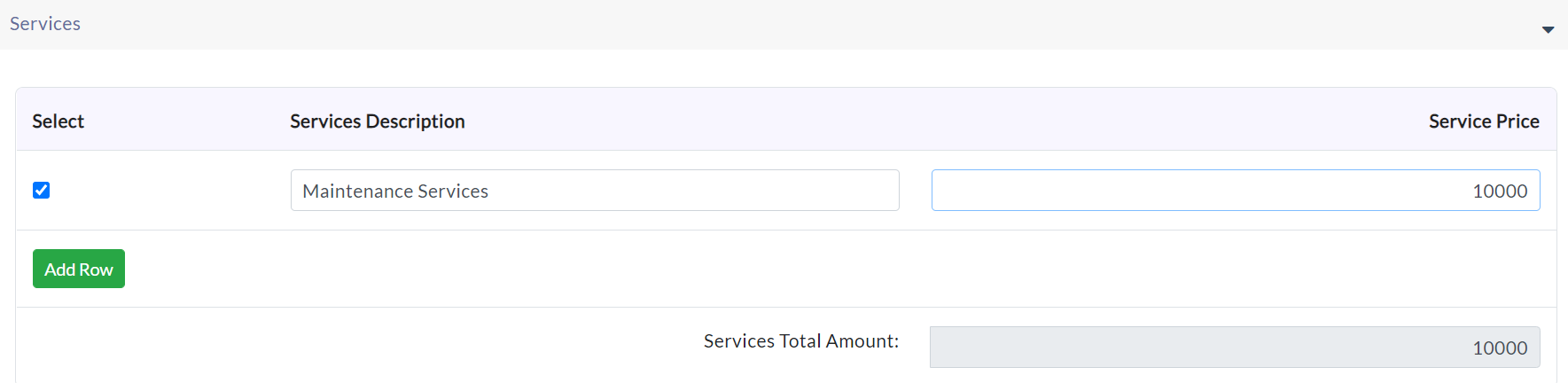
Services: Enter details of services in this section.
The Total amount of details:
View the total amount of details of material and service.

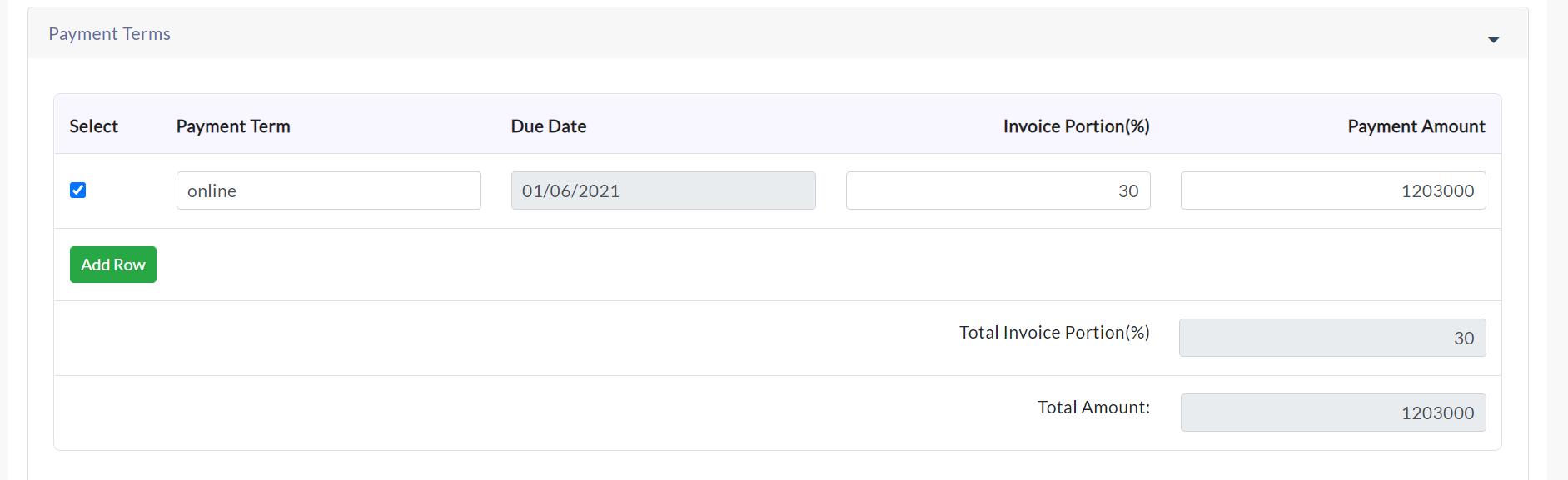
Payment Terms:
Enter details of the payment term, due date, invoice portion in percentage. Click Add Row for adding extra rows to the payment terms.
Terms and conditions:
Click the checkbox to apply terms and conditions for specific purchase proposal.

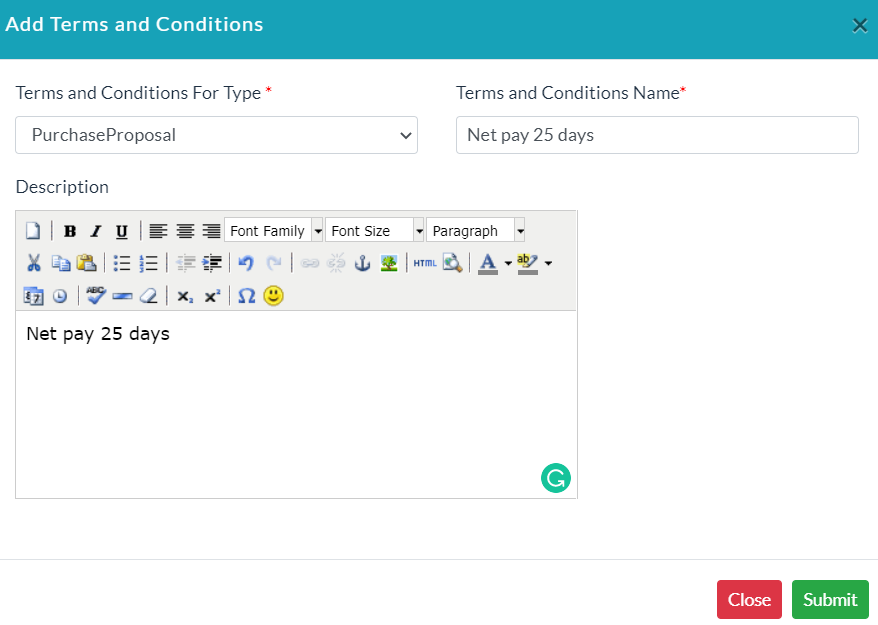
If the list of terms & conditions does not exist then click on Add Terms and Conditions button. Enter relevant data and click Submit.
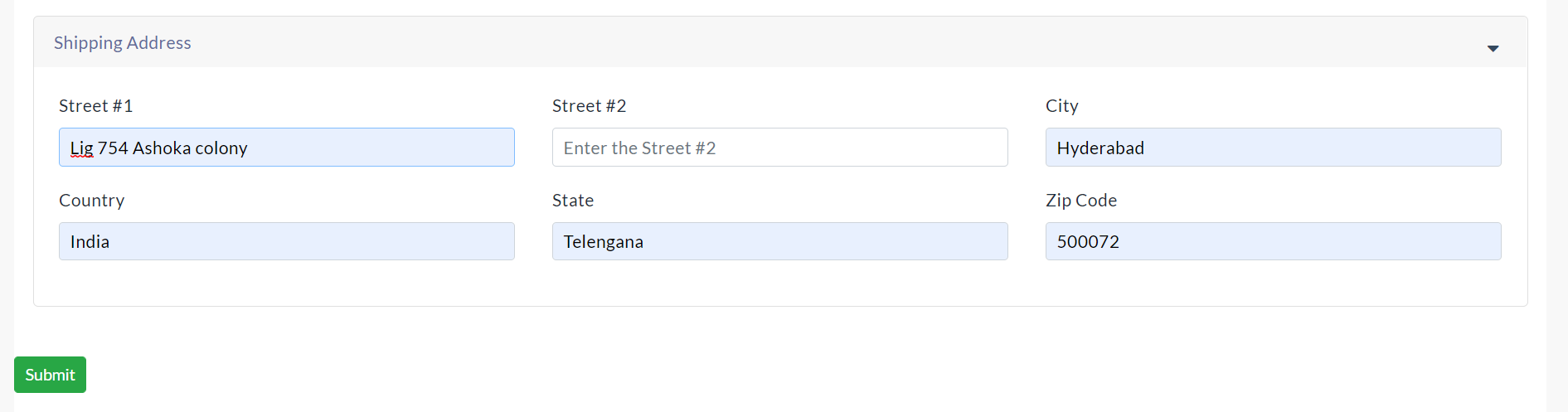
Shipping Address: Enter details of the shipping address.
Purchase Proposal Details:
The list of existing purchase proposal details is displayed in the Purchase Proposal Details section.
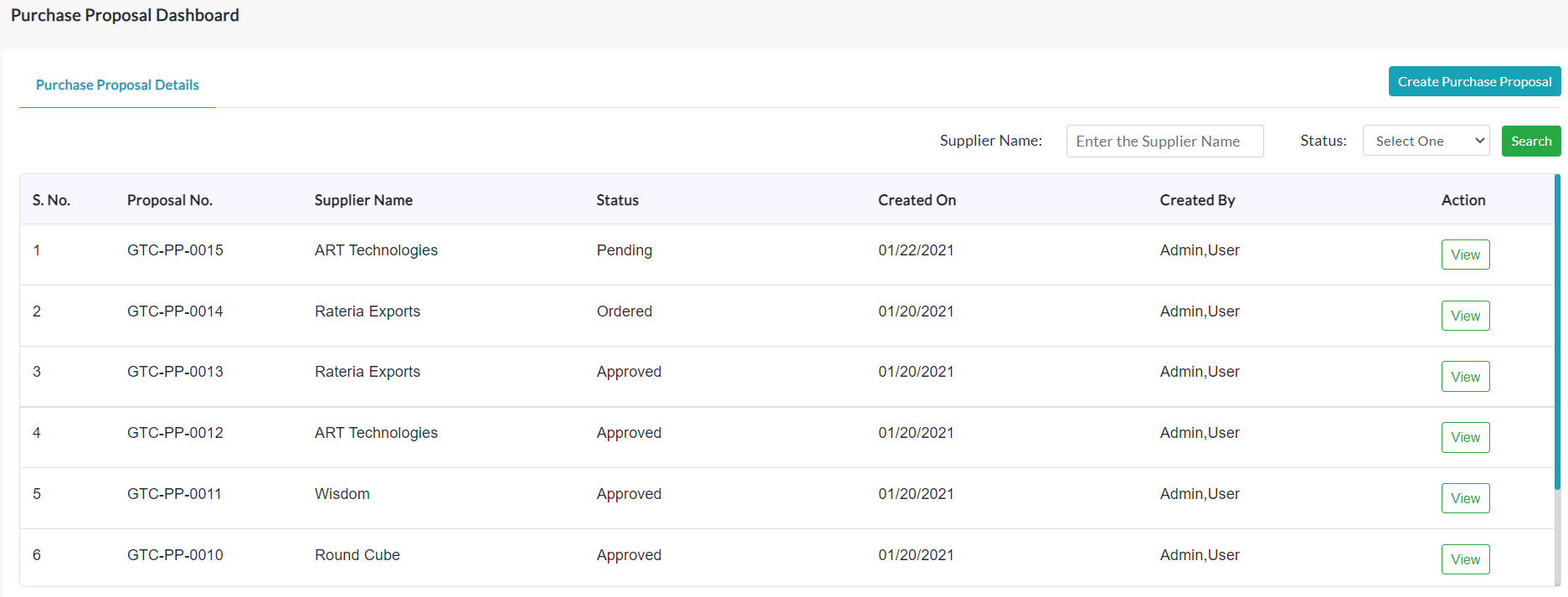
In the Action section, click View to view individual purchase proposal details.
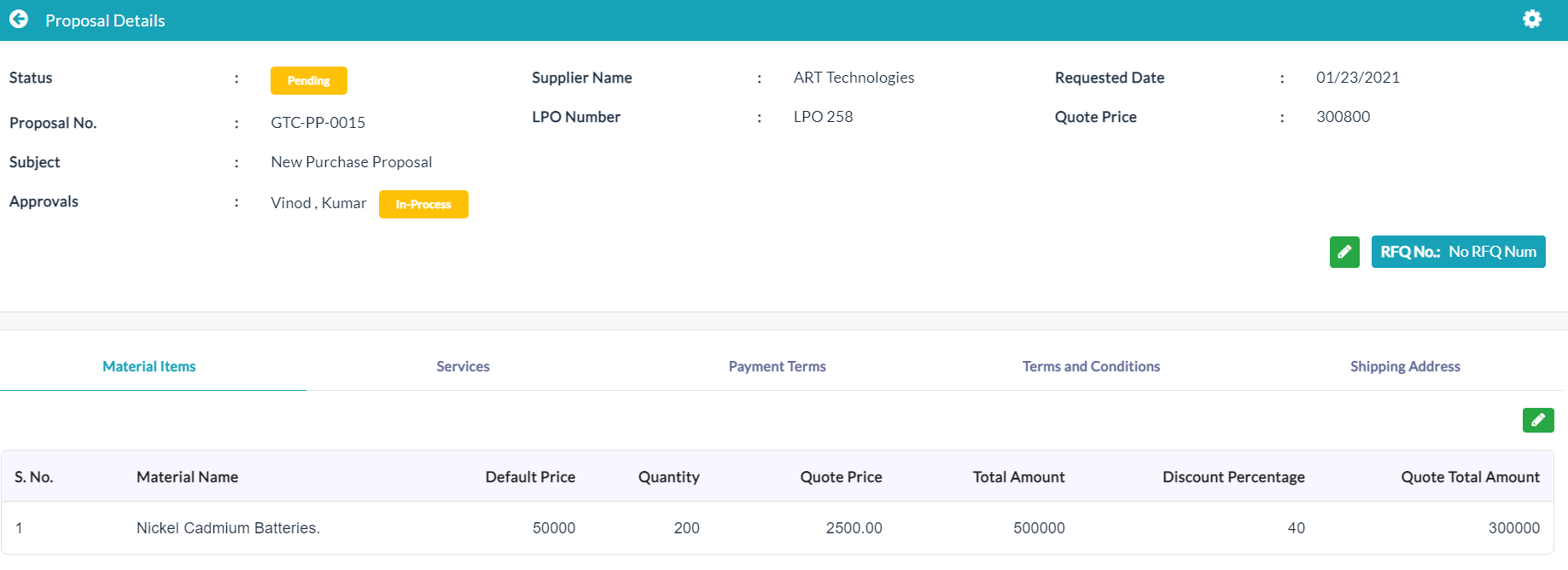
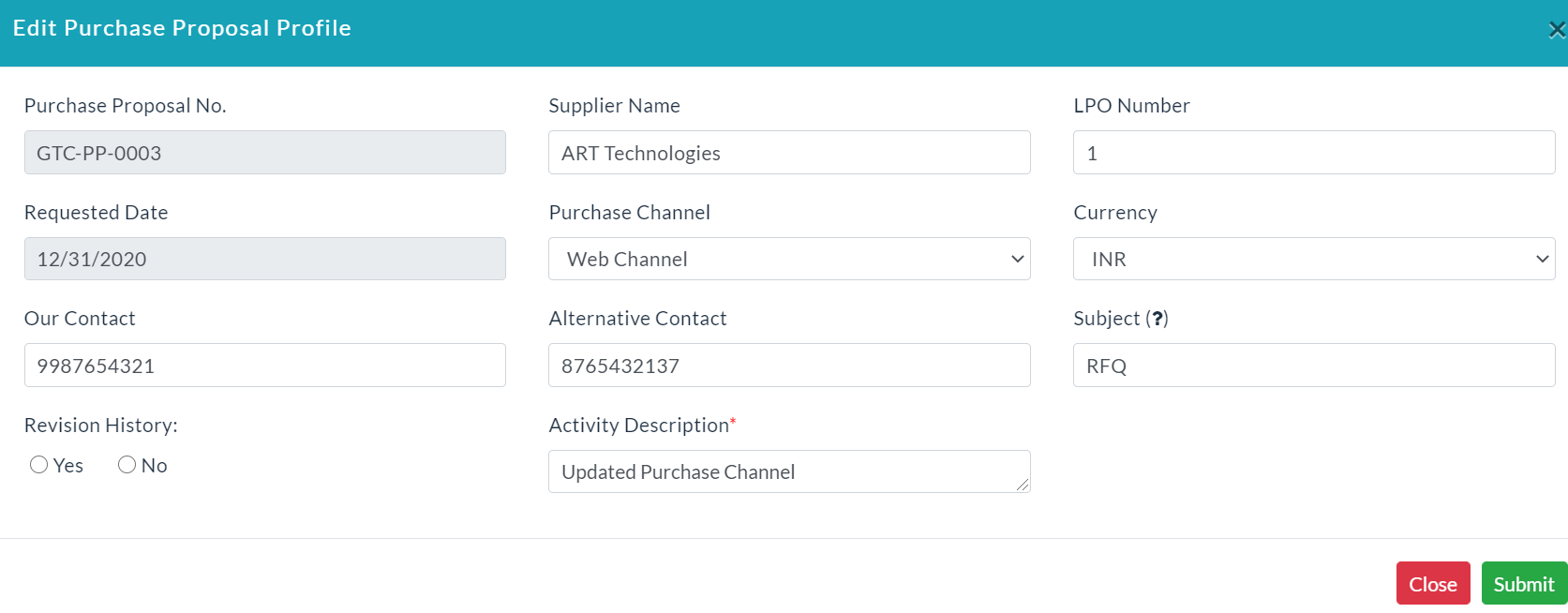
Edit Purchase Proposal Details:
- Click the Edit(Pencil Icon) option to edit or update purchase proposal details. If you want Revision History (i.e., to capture edited information), click on check-boxes Yes. Otherwise No.
- Click Submit.
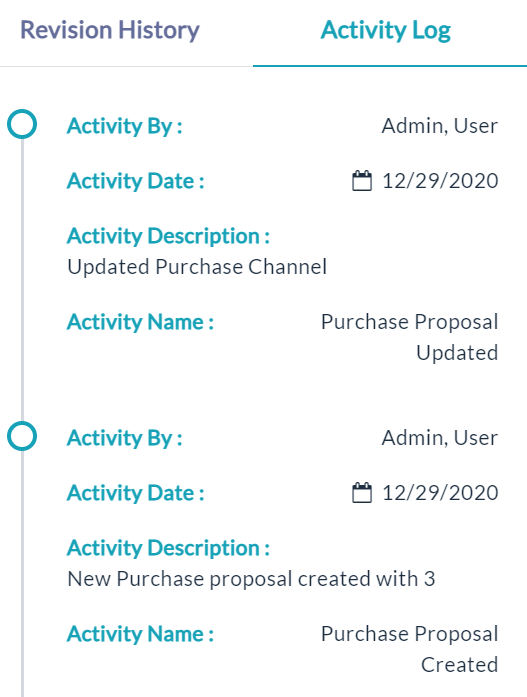
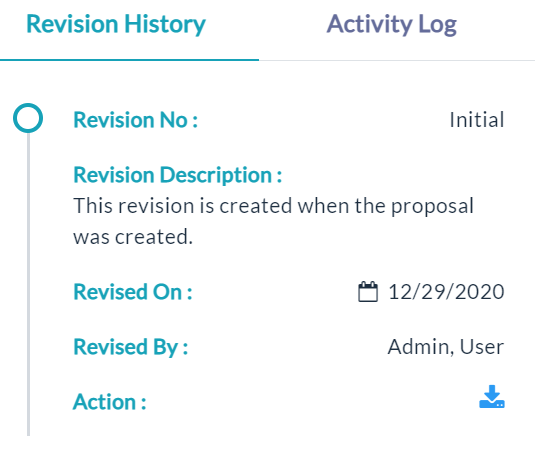
- Click the View(Gear Icon) option to view details of revision history, and activity log.
Created with the Personal Edition of HelpNDoc: Single source CHM, PDF, DOC and HTML Help creation