Purchase Orders
Purchase Orders:
In the Material Management menu, click Purchase Orders.
Purchase Order Creation:
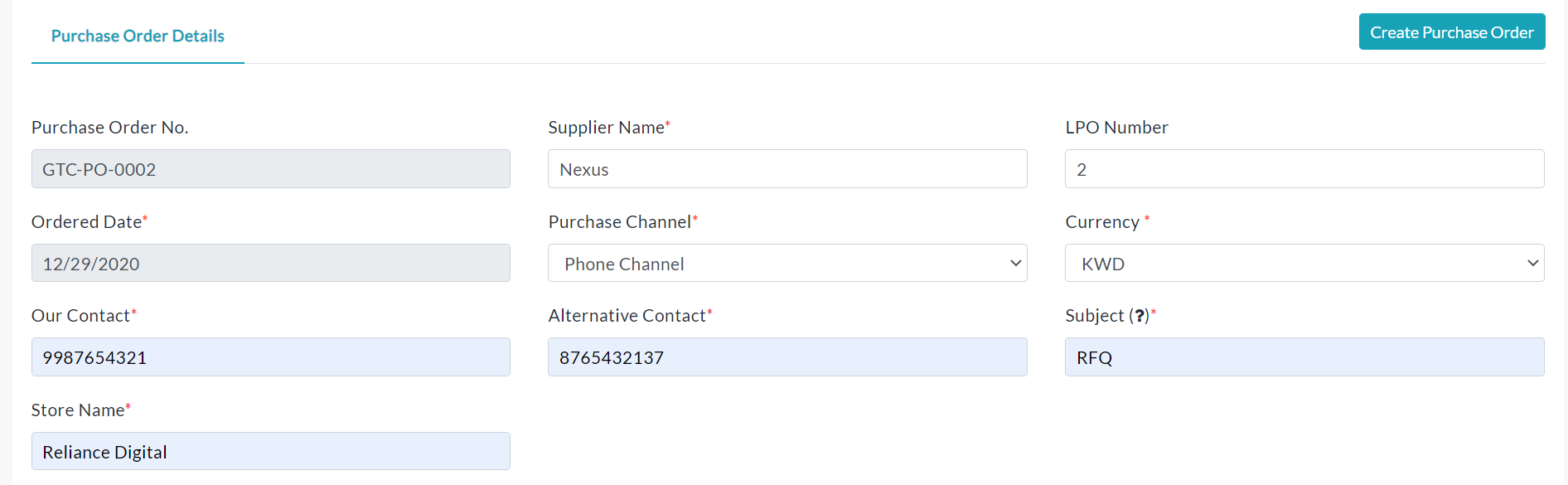
- Click the Create Purchase Order tab.
- Enter the details of the purchase order.
- Click Submit.
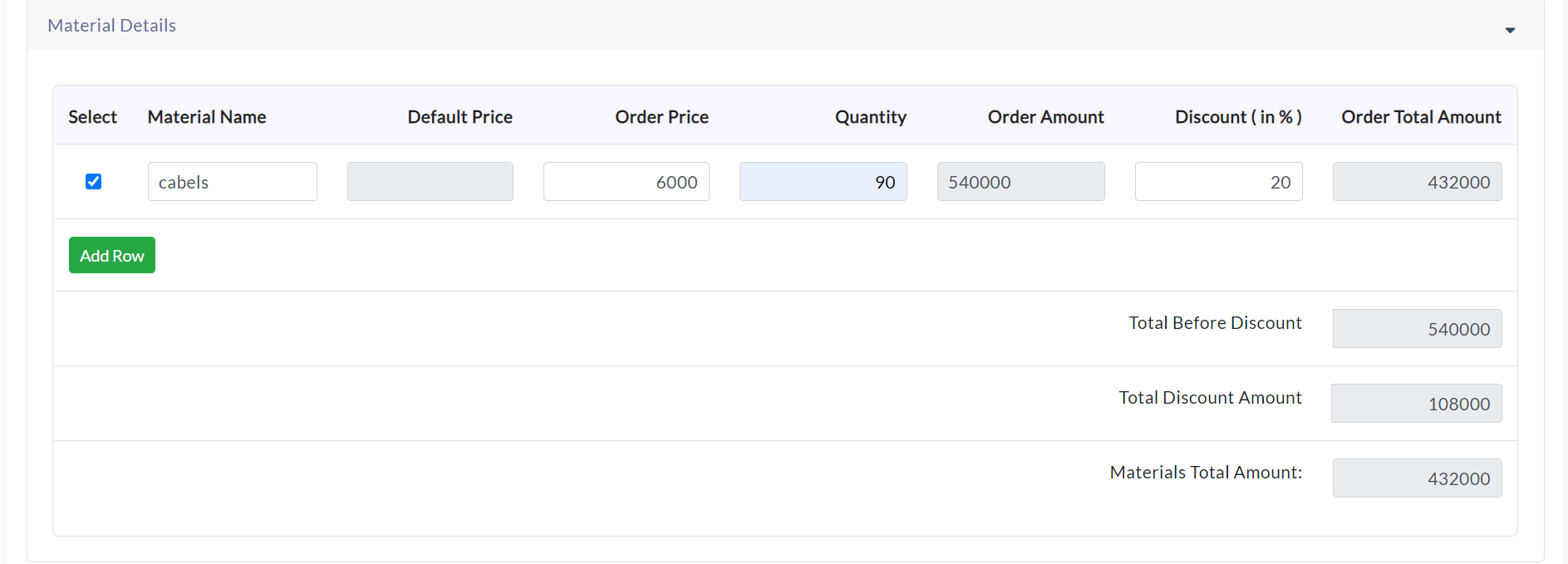
Material Details:
- Enter details of the material and quantity of specific material.
- If you didn’t get the store name and material name, then go to the Material Management menu and click Stores then add stores there. And click Materials, add materials there.
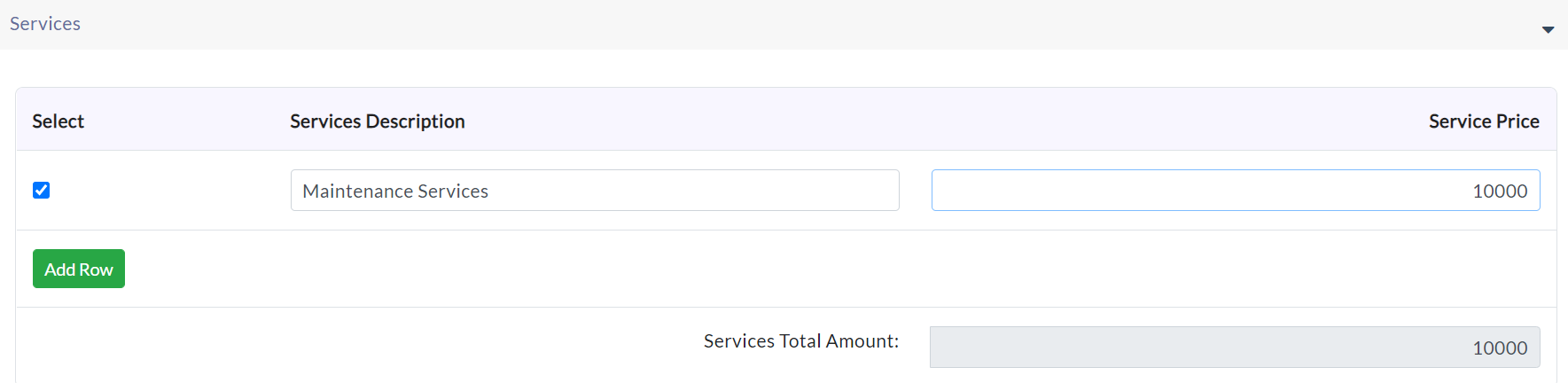
Services: Enter details of services for transferring materials.
Total Amount Details:
View the total amount of details of material and service.

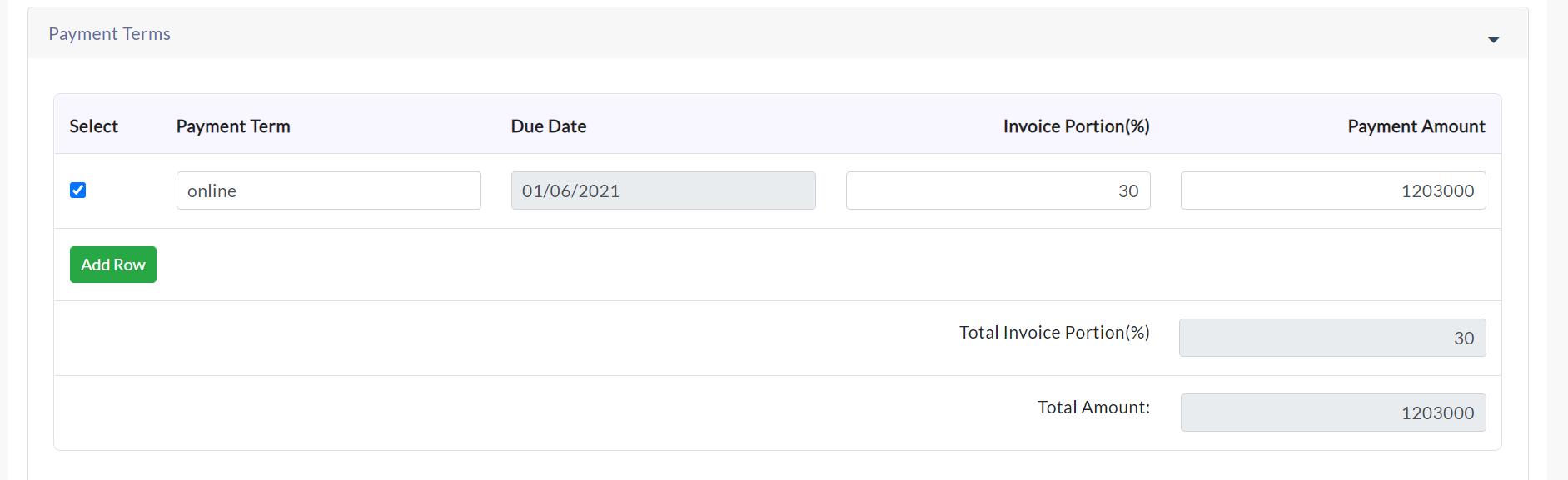
Payment Terms:
Enter details of the payment term, due date, invoice portion in percentage. Click Add Row for adding extra rows to the payment terms.
Terms and Conditions:
Click the checkbox to apply terms and conditions for specific purchase order.

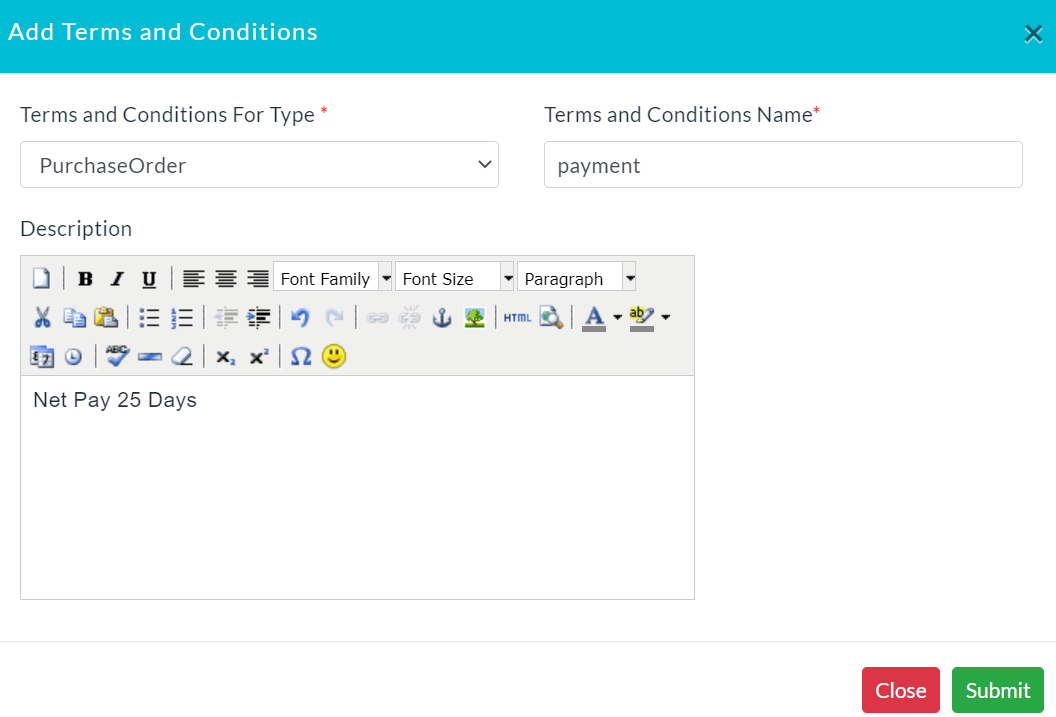
If the list of terms & conditions does not exist then click on Add Terms and Conditions button. Enter relevant data and click Submit.
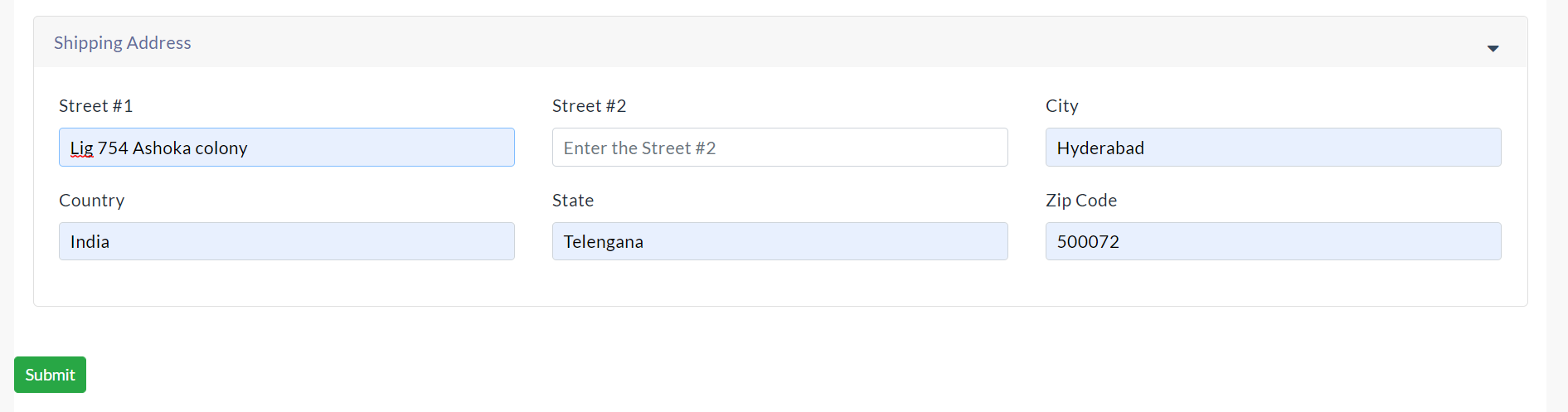
Shipping Address: Enter details of the shipping address.
Purchase Orders Details:
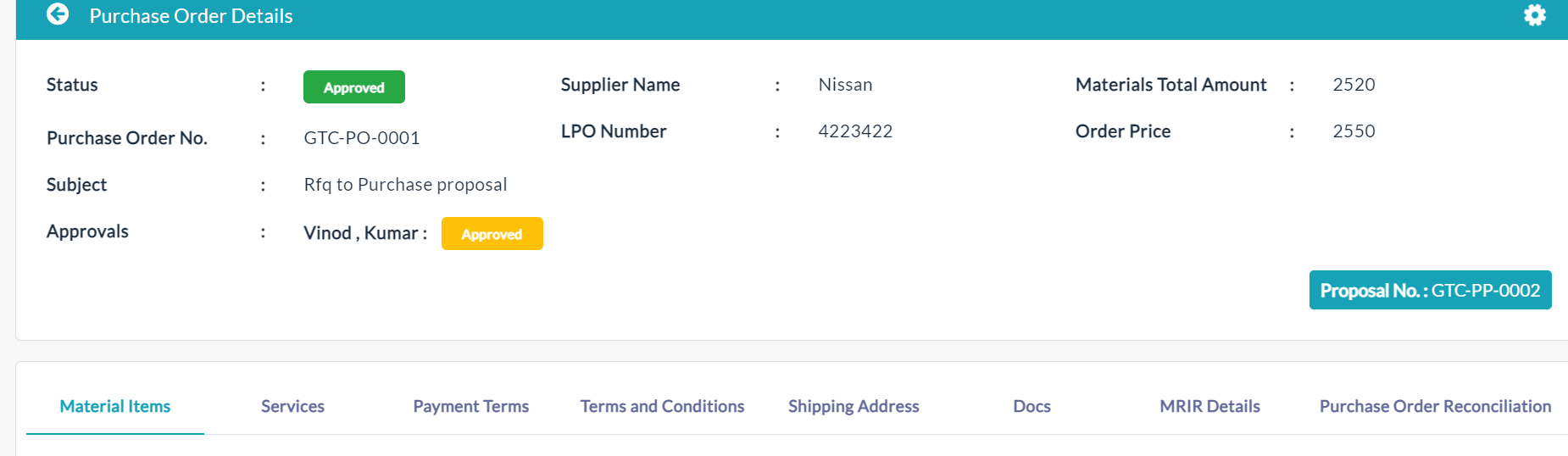
The list of existing purchase order details is displayed in the Purchase Order Details section.

In the Action section, click View to view individual purchase proposal details.
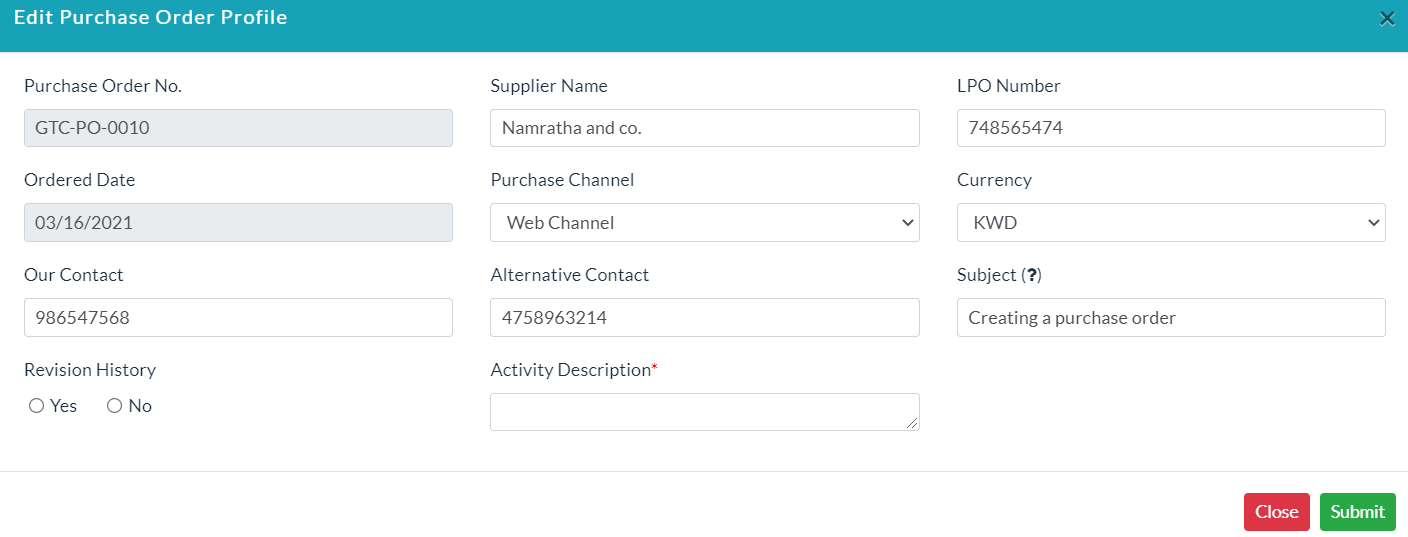
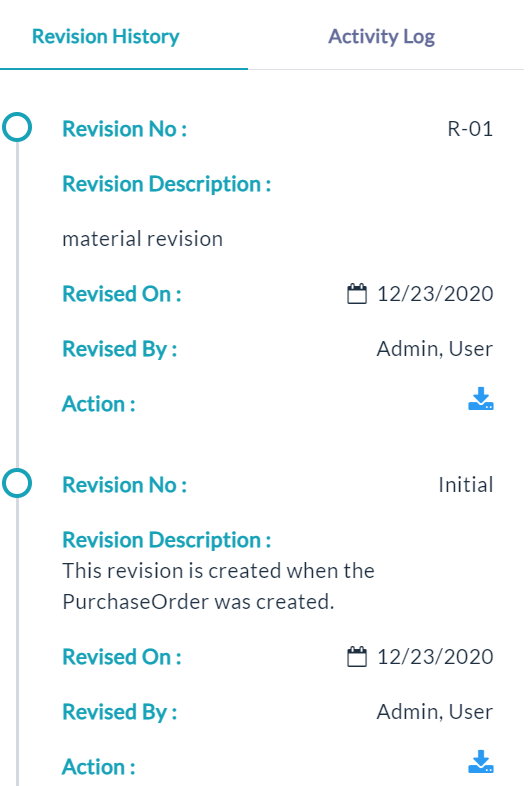
- Click the Edit (Pencil Icon) option to update purchase proposal details. If you want Revision History (i.e., to capture edited information), click on checkbox Yes. Otherwise No.
- Click Submit.
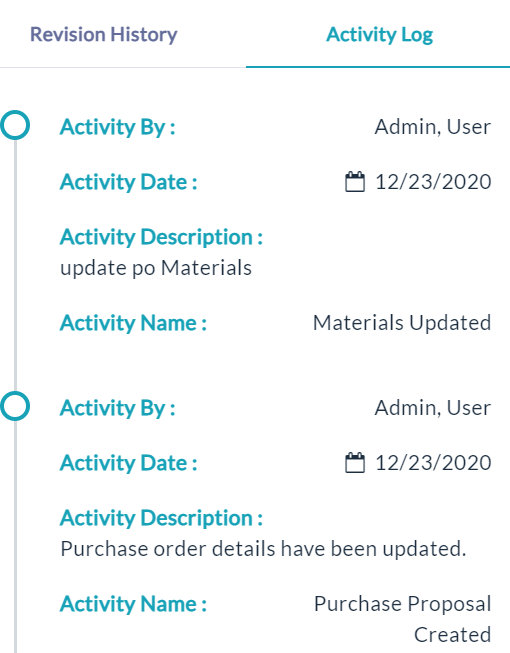
Click the View(Gear Icon) option to view details of revision history, and activity log.
Created with the Personal Edition of HelpNDoc: Easily create PDF Help documents