Suppliers Creation
Suppliers:
Create Supplier:
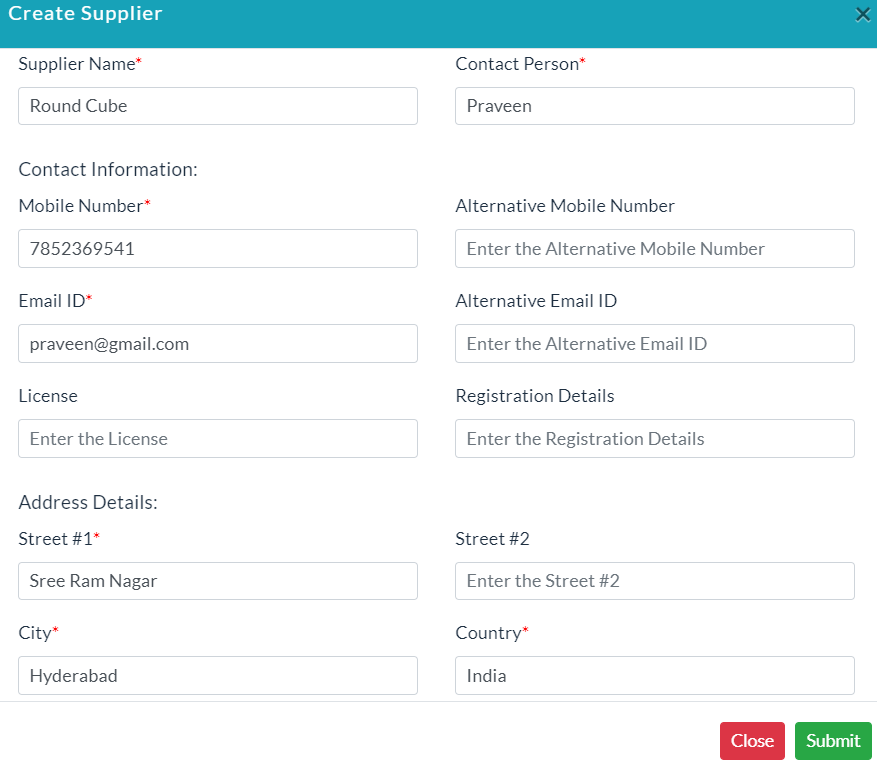
In the Material Management menu, click Suppliers Option. For adding supplier details follow the below steps.
- Click Create Supplier.
- Enter the details of the supplier.
- Click Submit.
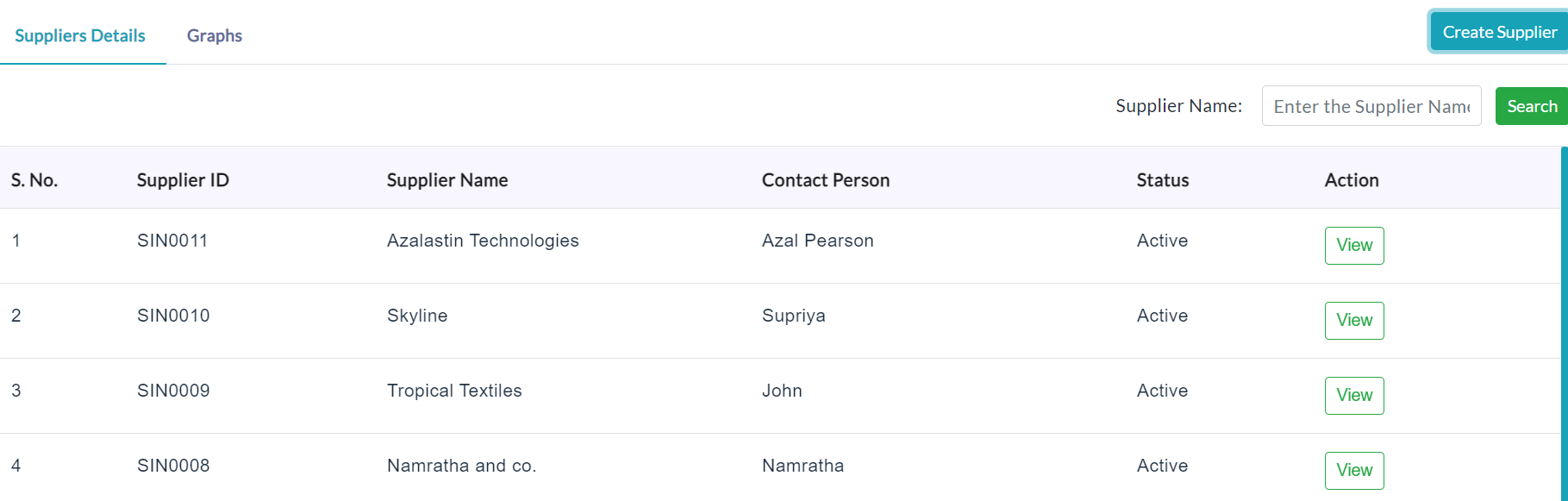
Suppliers List:
The list of existing supplier details is displayed in the Suppliers Details section.
View Supplier Details:
Click the View button in the Action column, individual details of a supplier are displayed.
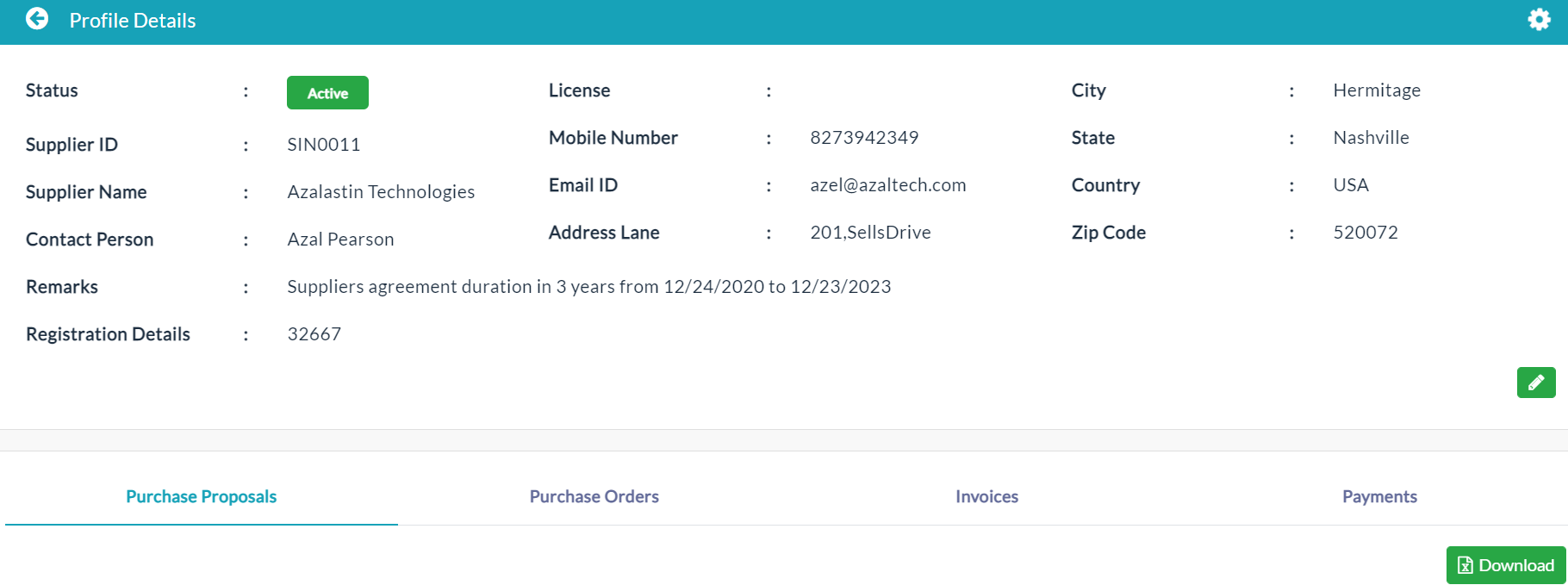
If you want to inactive a supplier, click on Active button at status column.

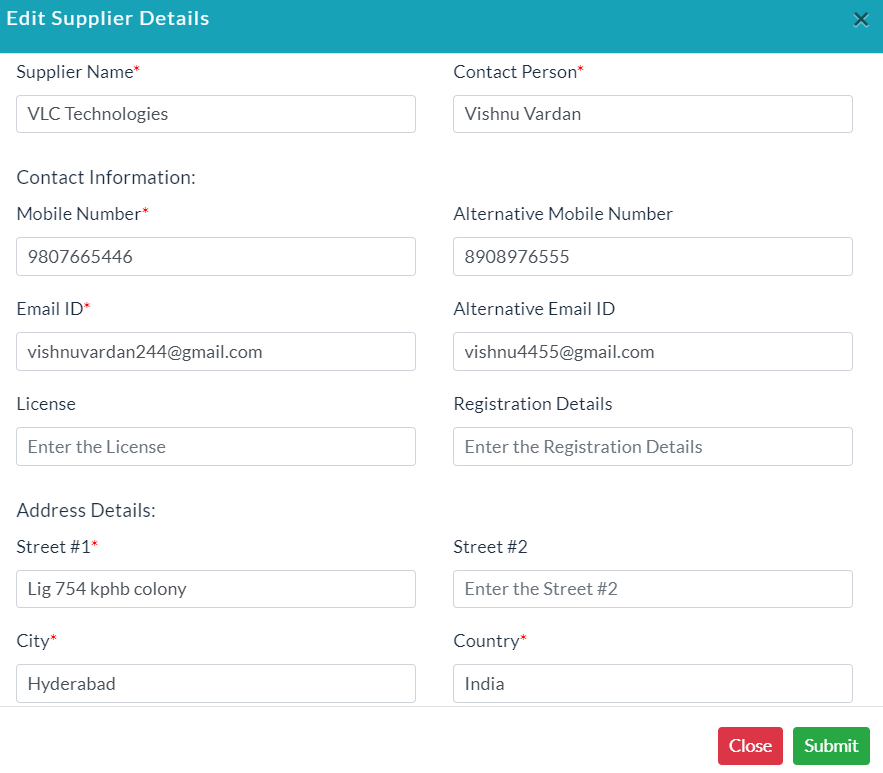
Edit Supplier Details:
To edit supplier details:
- In the supplier profile details, click on the Edit (Pencil Icon) button.
- Edit supplier details form will be displayed.
- Make your changes, then click Submit.
Purchase Proposals:
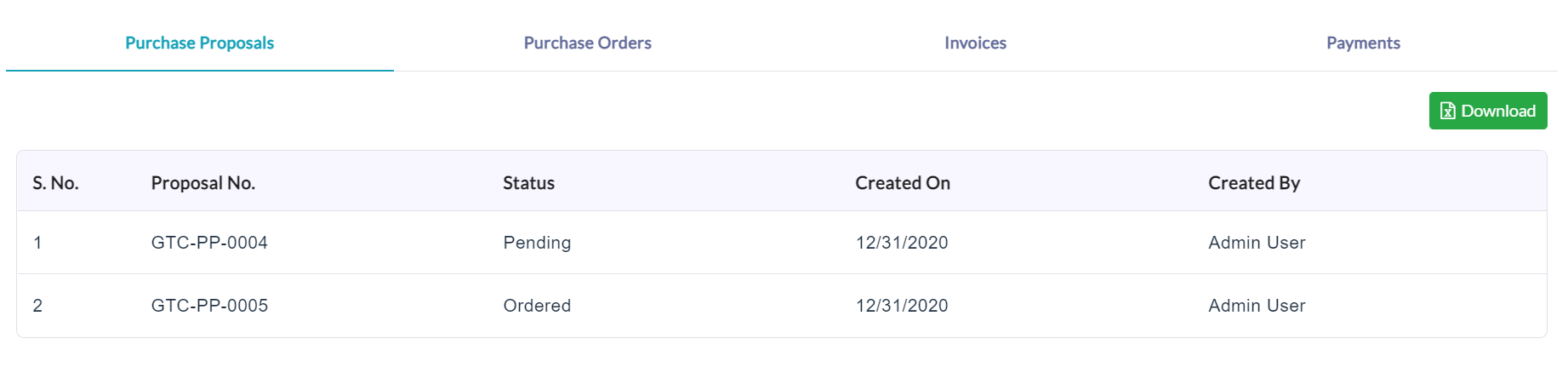
On clicking the Purchase Proposals tab, the complete details of the specific supplier-related purchase proposals will be displayed.
Purchase Orders:
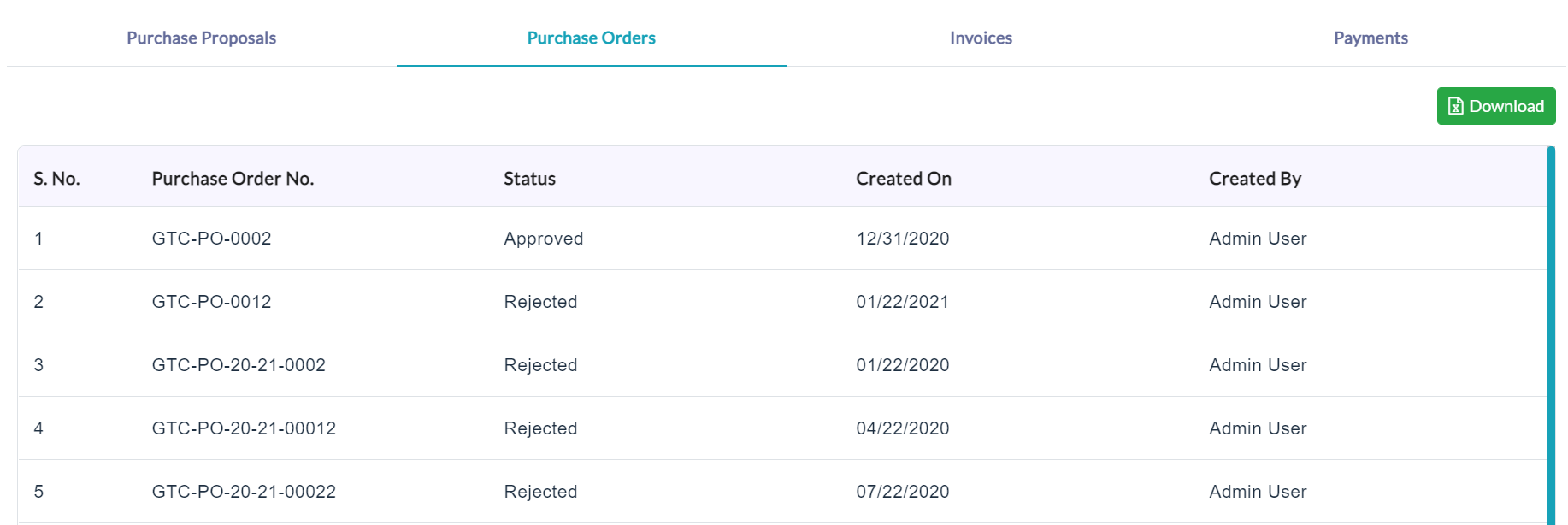
On clicking the Purchase Orders tab, the complete details of the specific supplier-related purchase orders will be displayed.
Invoices:
On clicking the Invoices tab, the complete details of the specific supplier-related invoices will be displayed.

Activity Log:
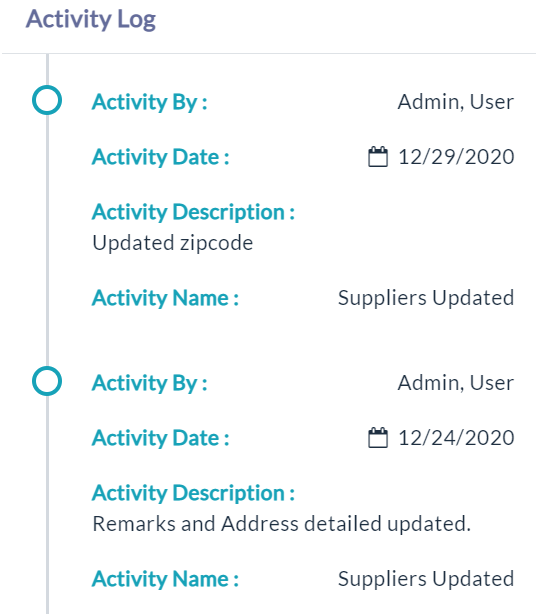
Click the View(Gear Icon) option to view details of activity log.
Created with the Personal Edition of HelpNDoc: Free help authoring tool