Project Summary
Project Summary:
On clicking a specific project name, the complete details of that project are displayed.
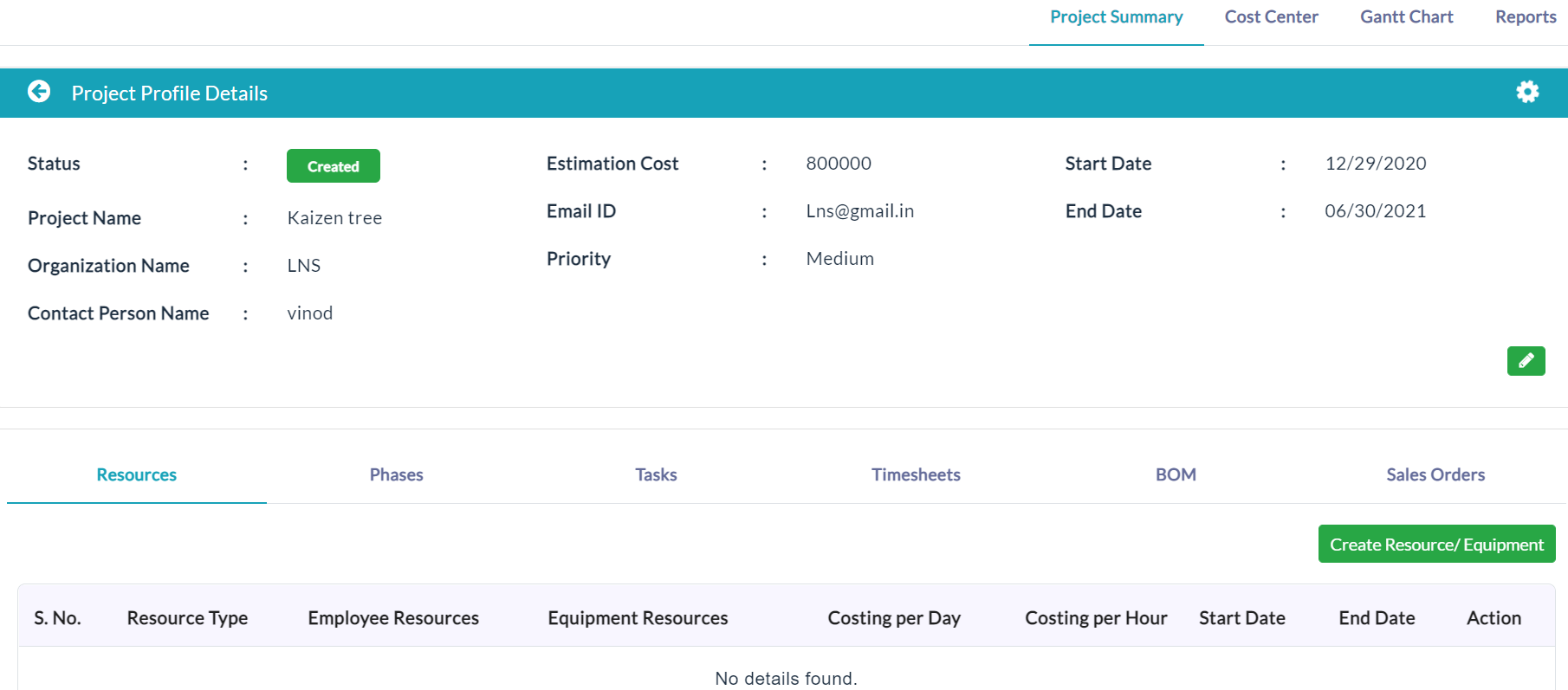
Resources:
Create Resource:
- Click on Create Resource/ Equipment button.
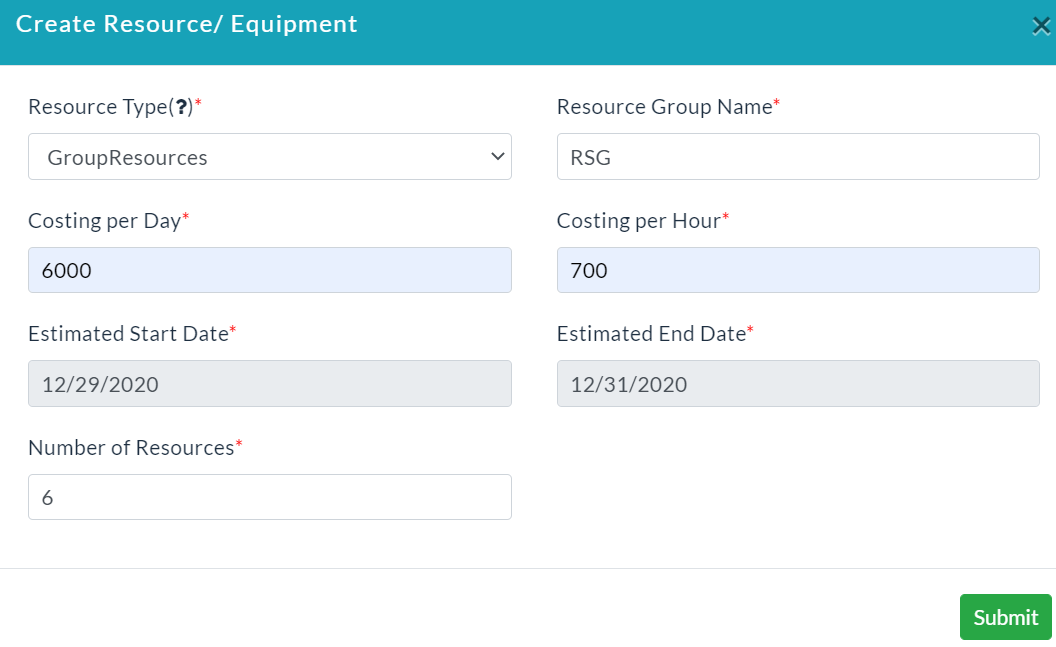
- Enter the details of resource/ equipment.
- Click Submit.
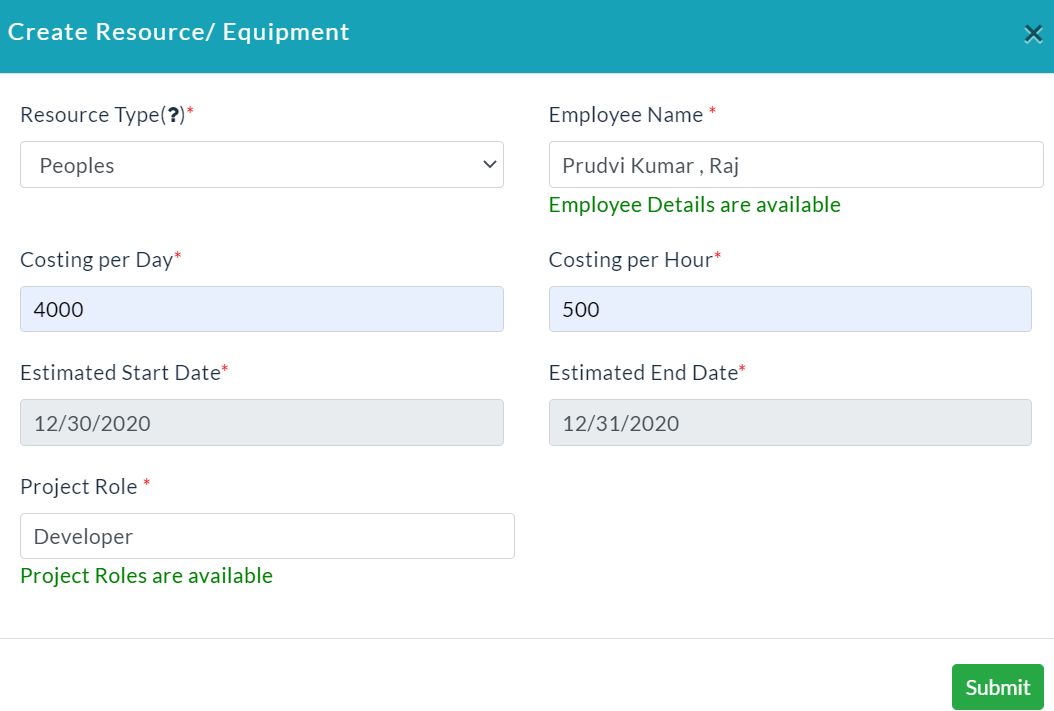
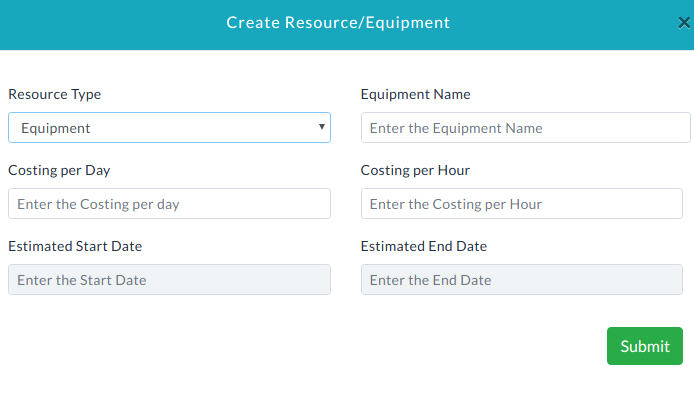
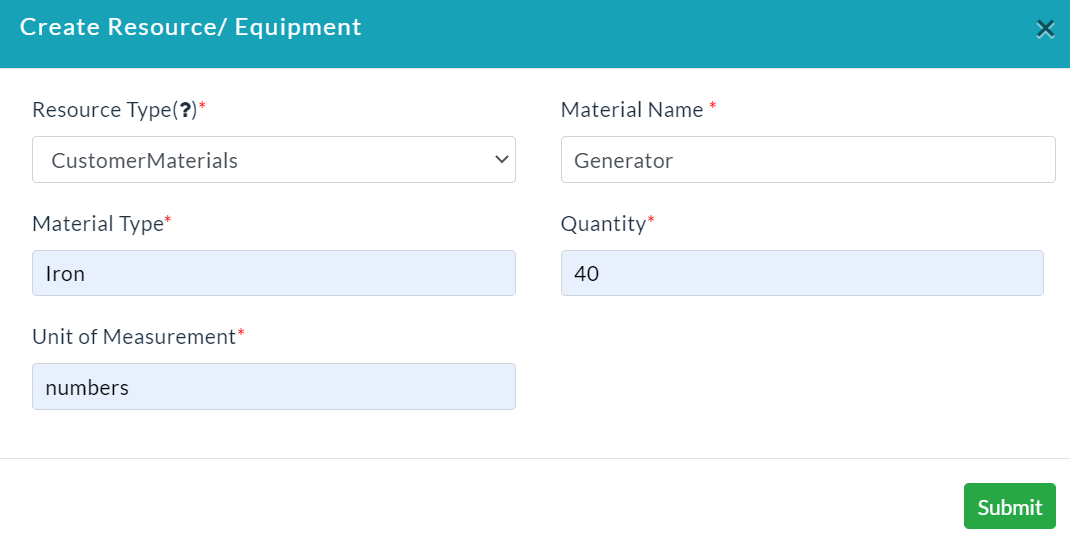
In the create resource/ equipment form, depending on the selection of Resource Type, the form changes.
On selecting a Peoples in the Resource Type drop-down, you will be able to add details to that particular resource.
On selecting an Equipment in the Resource Type drop-down, you will be able to add details to that particular resource.
On selecting a Customer Materials in the Resource Type drop-down, you will be able to add details to that particular resource.
On selecting a Group Resources in the Resource Type drop-down, you will be able to add details to that particular resource.
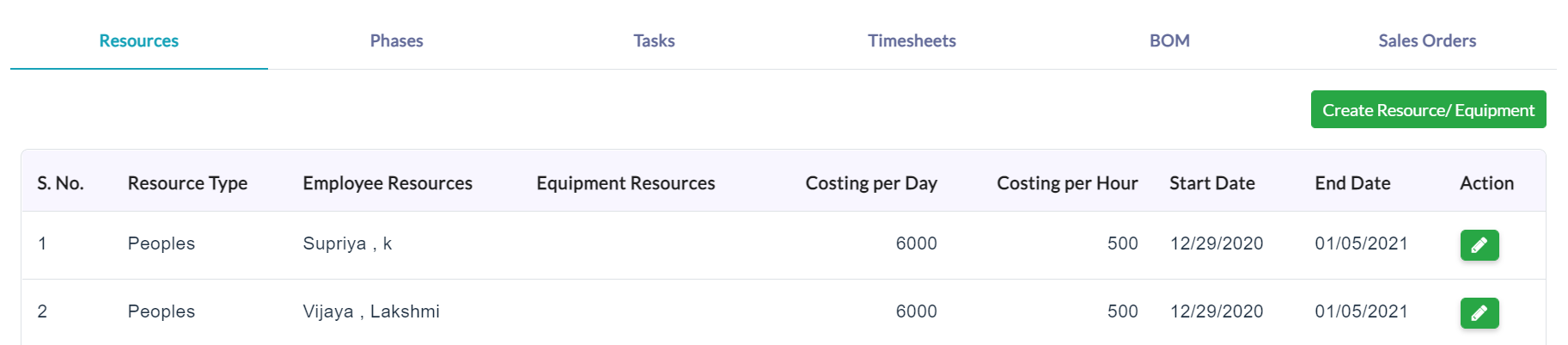
On clicking the Resources tab, a list of the resource or equipment details is displayed.
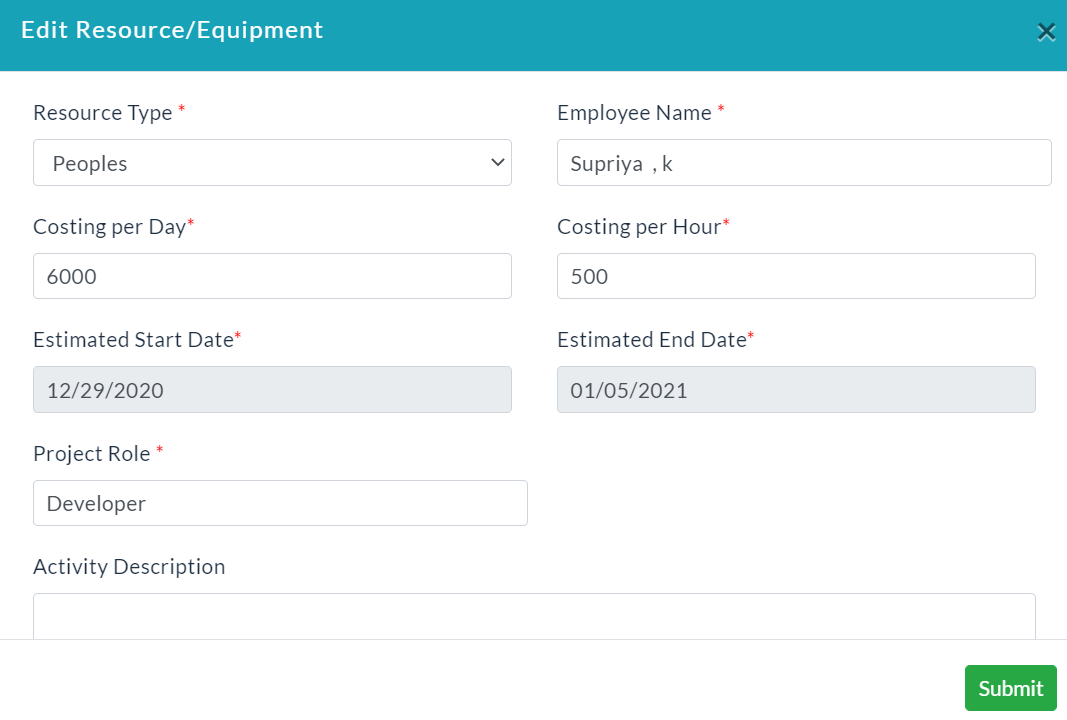
Edit Resource:
- Click Edit (Pencil Icon) button in Action section.
- Make changes in the form.
- Click Submit.
Phases:
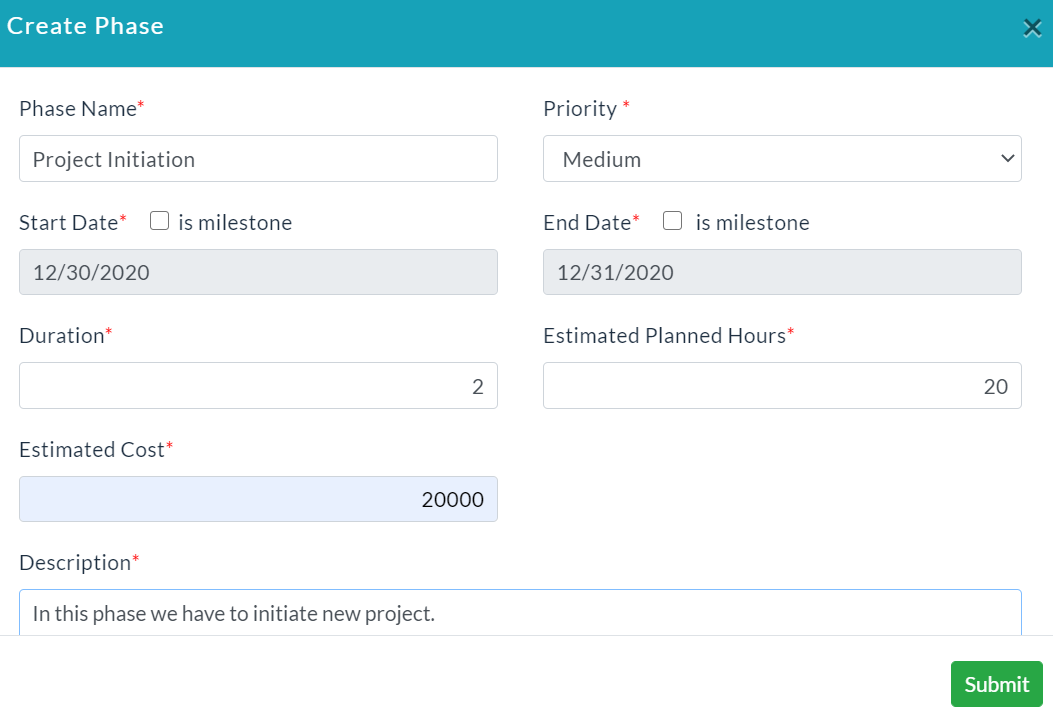
Phase Creation:
- Click Create Phase.
- Enter the details of a phase.
- Click Submit.
On clicking the phases tab, a list of phase details is displayed.
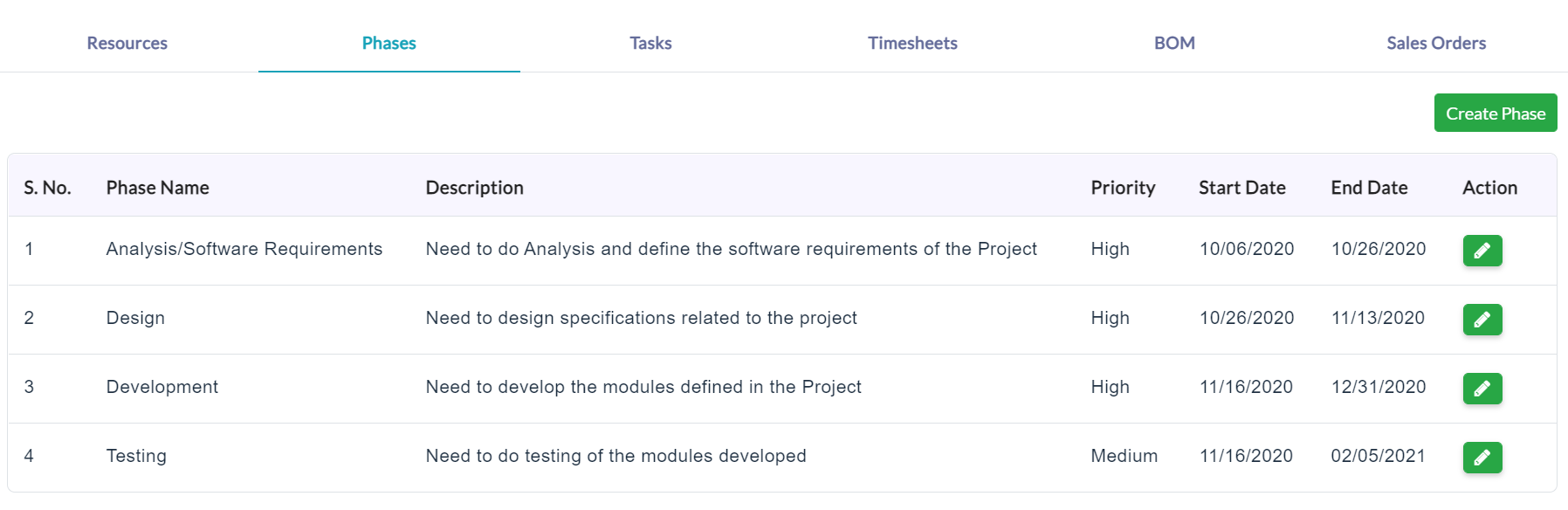
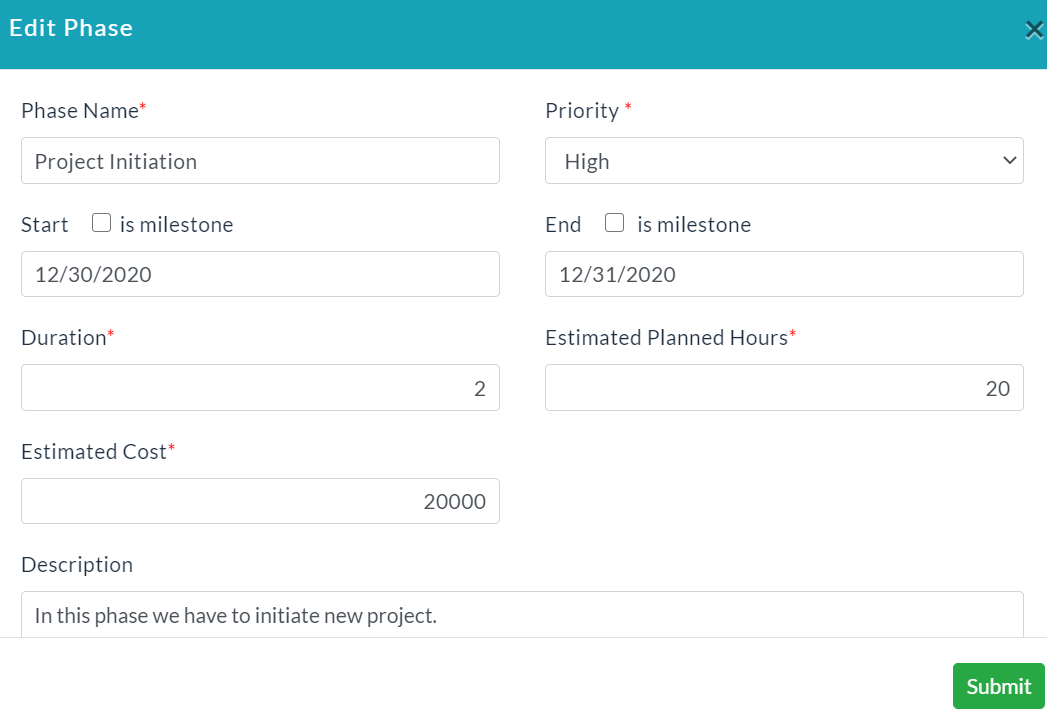
Edit Phase Information:
- In the Action section, click the Edit (Pencil Icon) option.
- Edit phase form will be displayed.
- Make your changes, then click Submit.
Tasks:
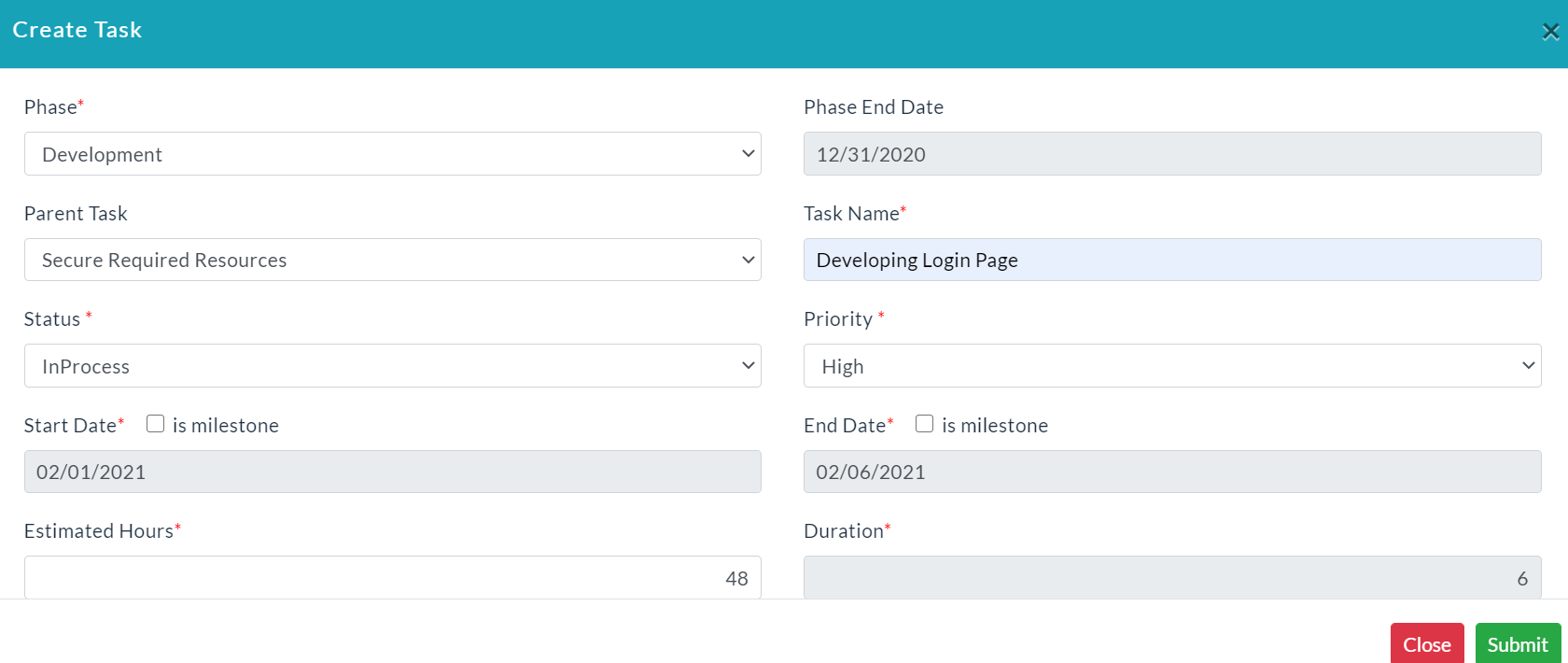
Add Tasks:
- Click Create Task.
- Enter the details of the task.
- Click Submit.
On clicking the Tasks tab, a list of task details is displayed.
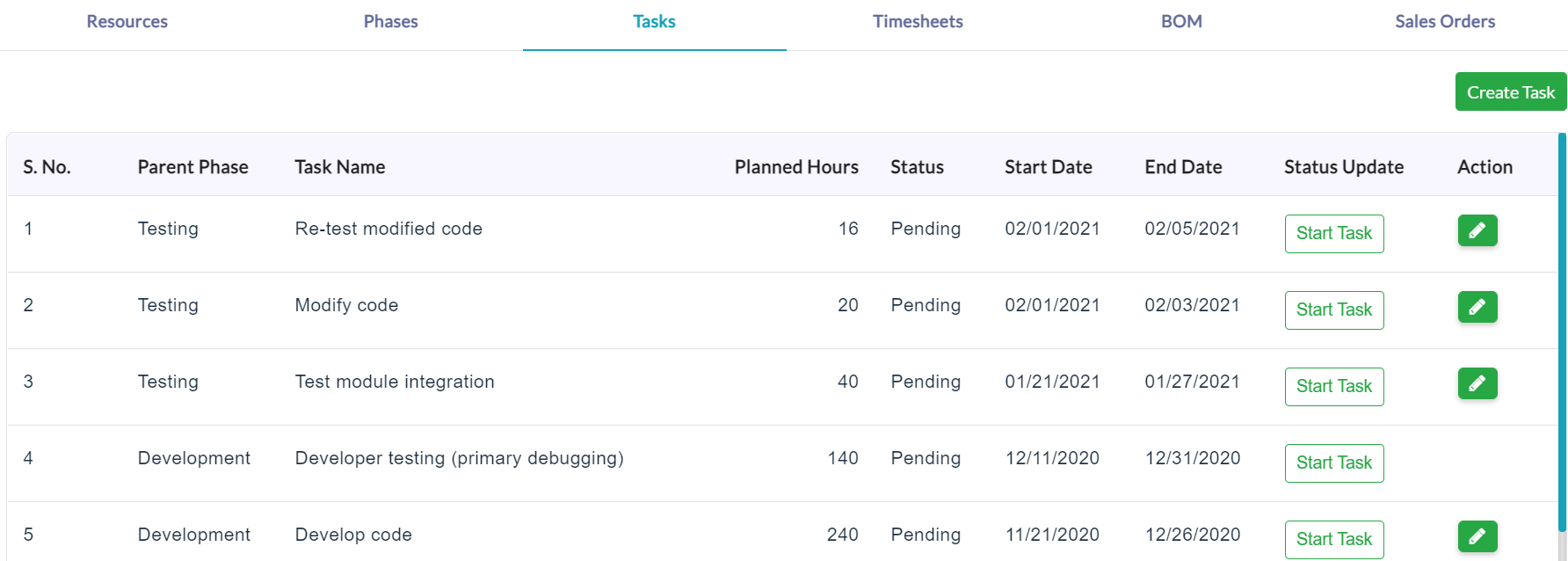
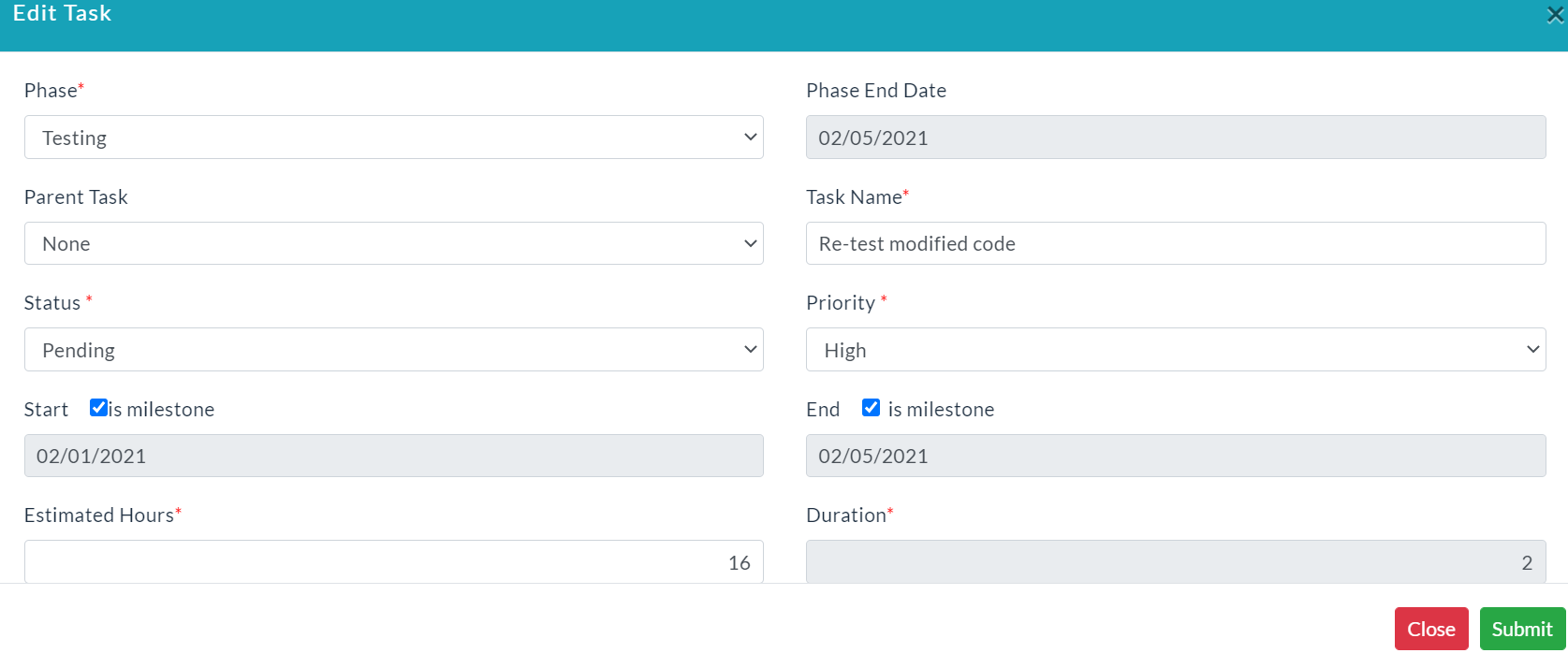
To Edit Task:
- In the Action section, click the Edit (Pencil Icon) option.
- Edit task form will be displayed.
- Make your changes, then click Submit.
Timesheets: In this section, add timesheets for the tasks.
Add Timesheets:
- Click Add Timesheet.
- Enter the details of a timesheet.
- Click Submit.
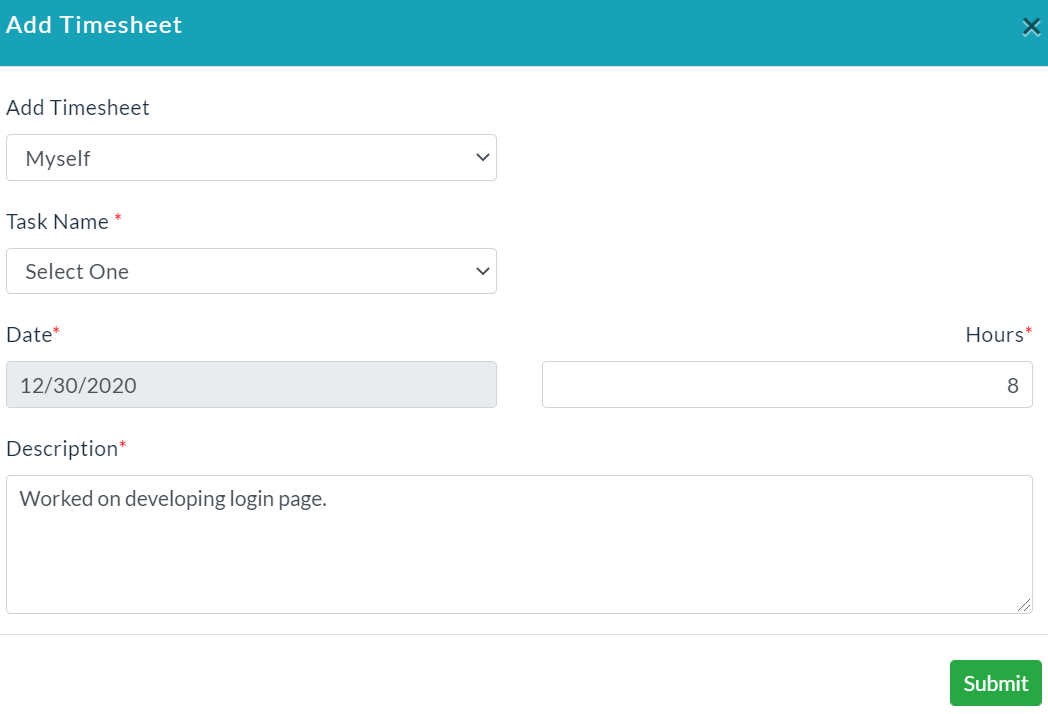
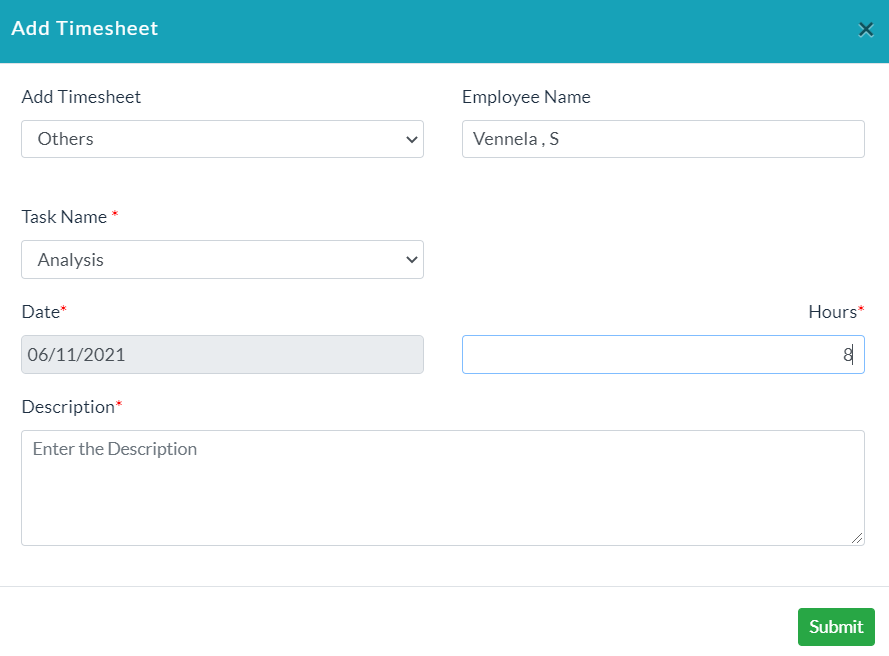
In the add time sheet form, depending on the selection of the Add Timesheet, the form changes.
On selecting a Myself in the Add Timesheet drop-down, you will be able to add details to that particular timesheet.
On selecting a Others in the Add Timesheet drop-down, you will be able to add details to that particular timesheet.
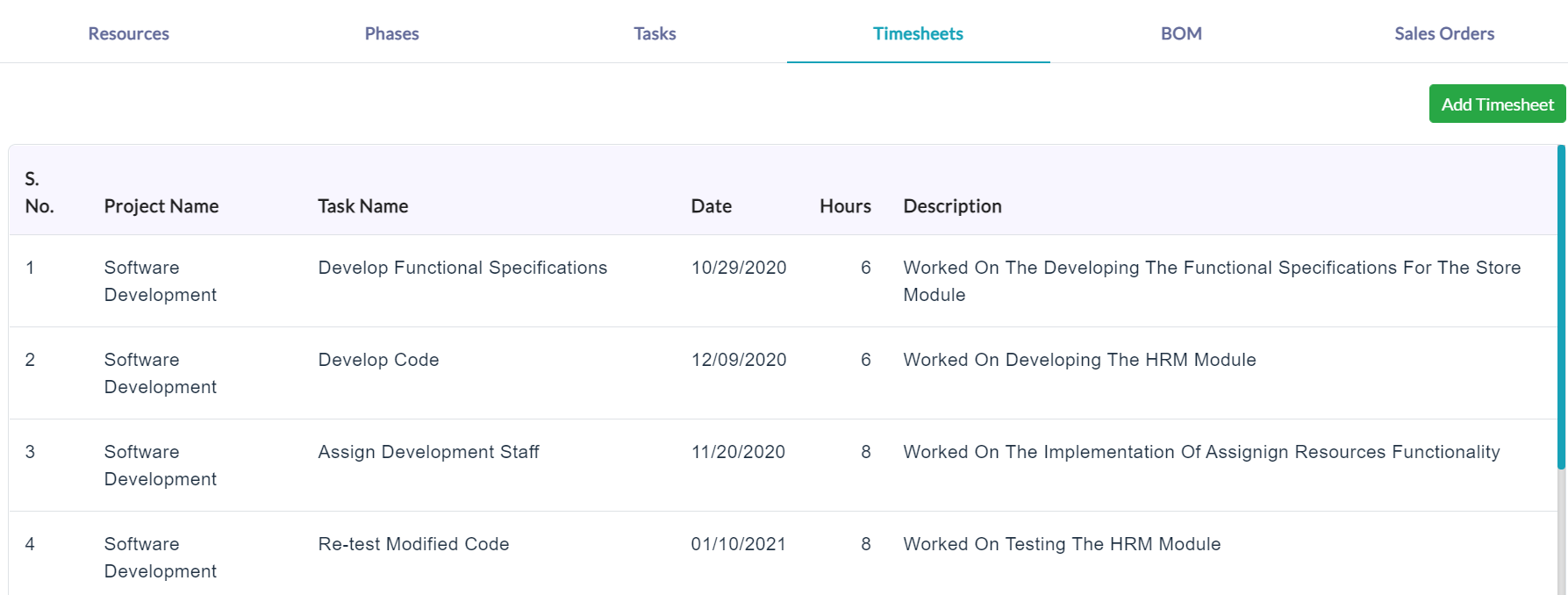
On clicking the Timesheets tab, a list of timesheets will be displayed.
BOM:
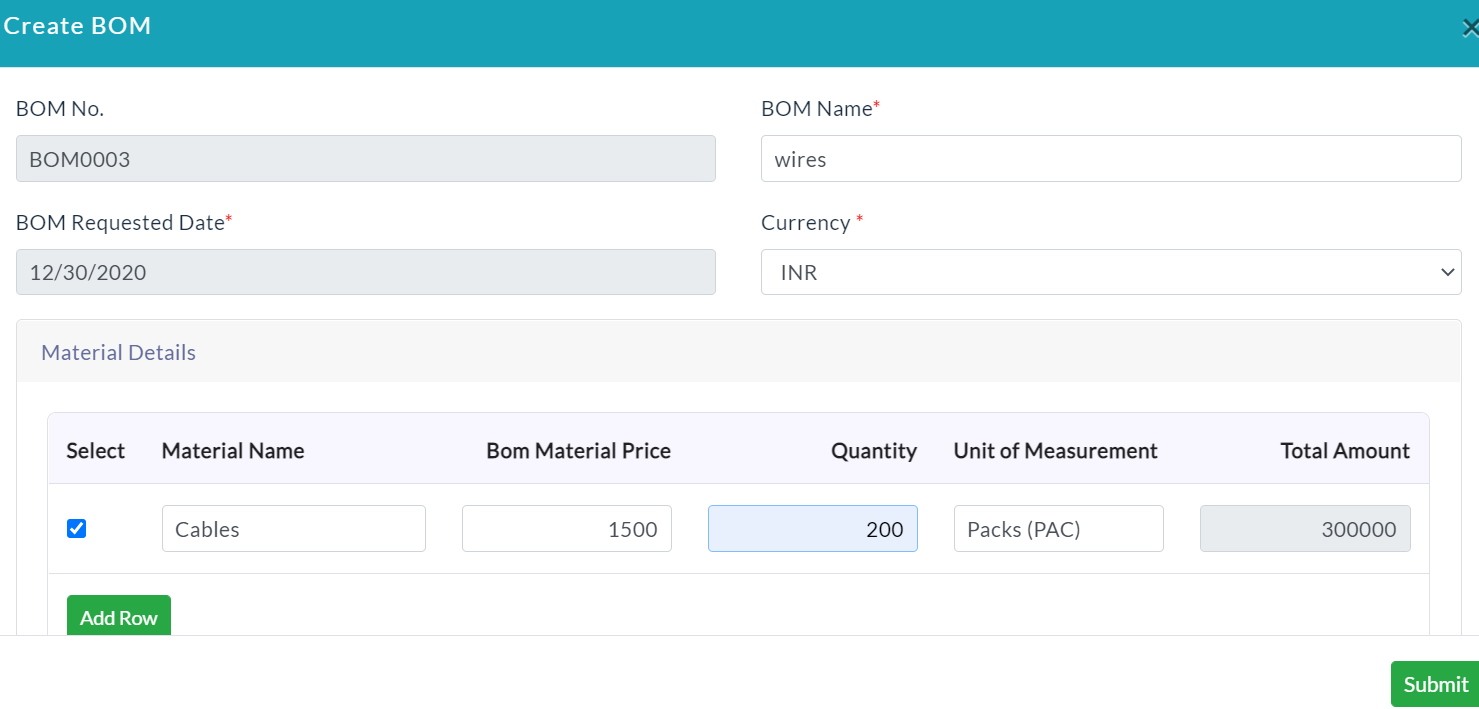
Create BOM:
- Click the Create BOM button.
- Enter the details of a BOM.
- Click Submit.
On selecting the BOM details radio button, a list of the BOM details is displayed.
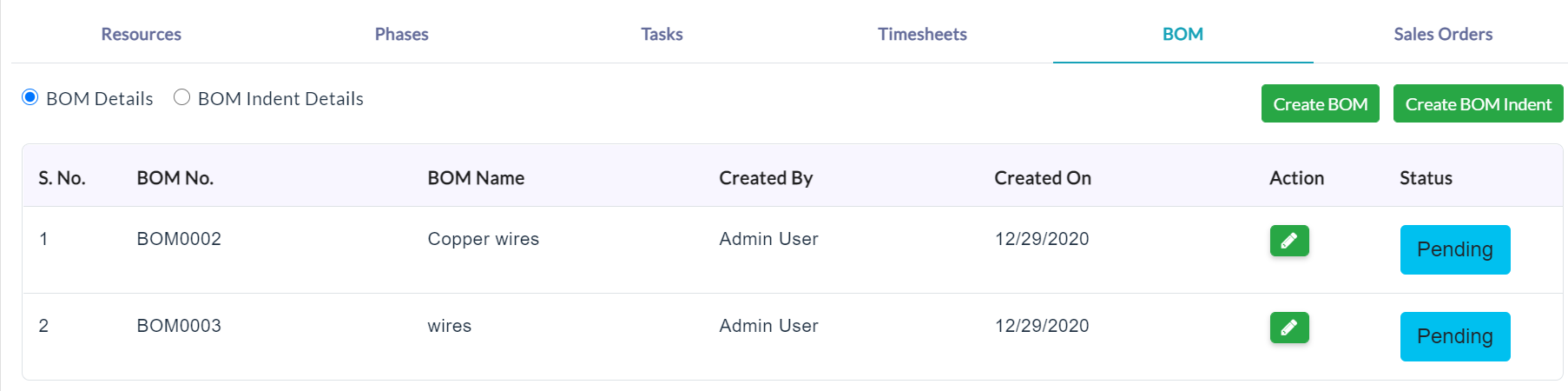
On clicking the Approve button in the individual list item, the BOM will be sent to the approval to the project manager.
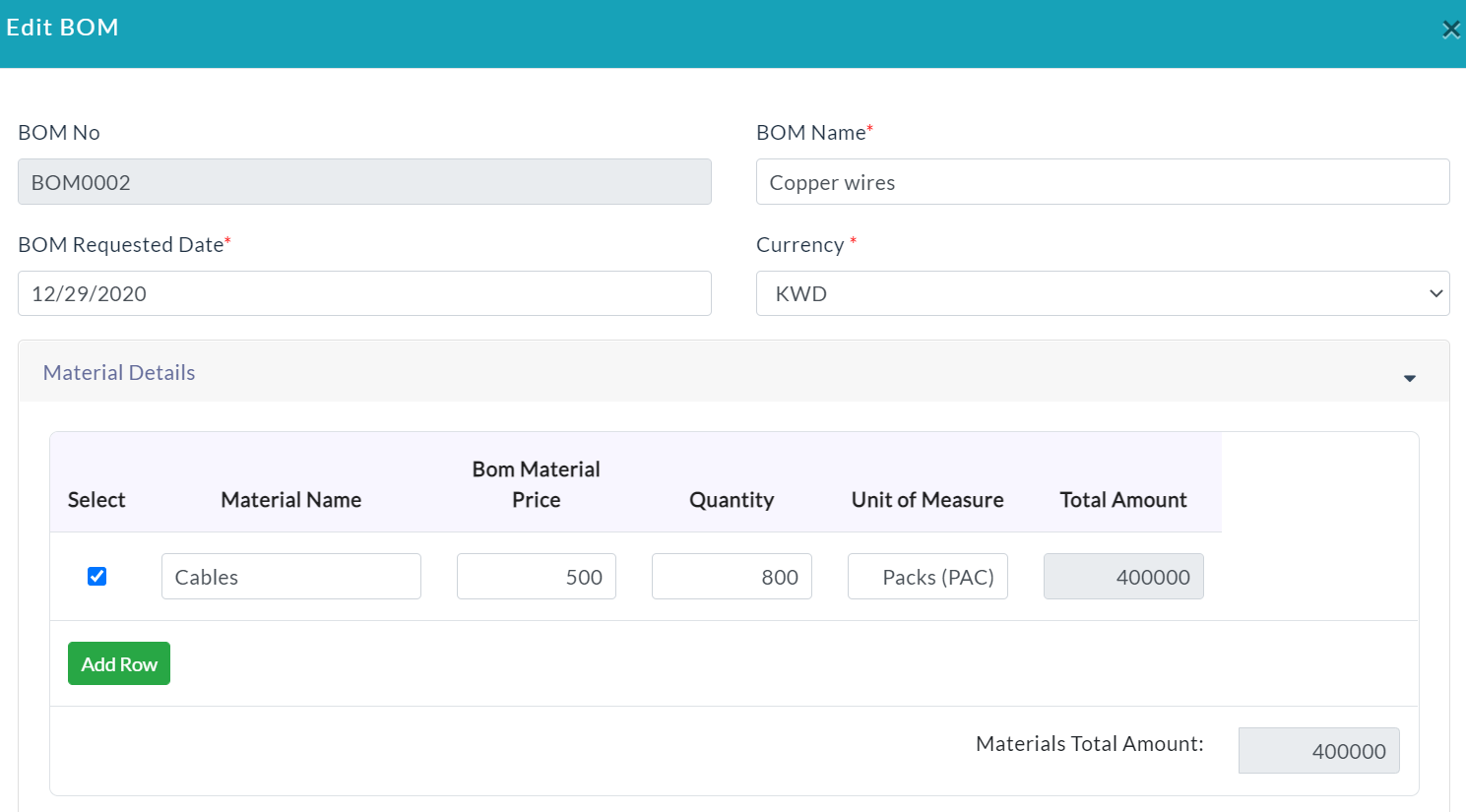
Edit BOM Details:
If the status of the BOM is pending, then edit the BOM details.
- In the Action section, click the Edit (Pencil Icon) option.
- Edit task form will be displayed.
- Make your changes, then click Submit.
BOM Indent:
Follow the below steps to create BOM Indent.
- Click the Create BOM Indent button.
- Enter the details of a BOM.
- Click Submit.
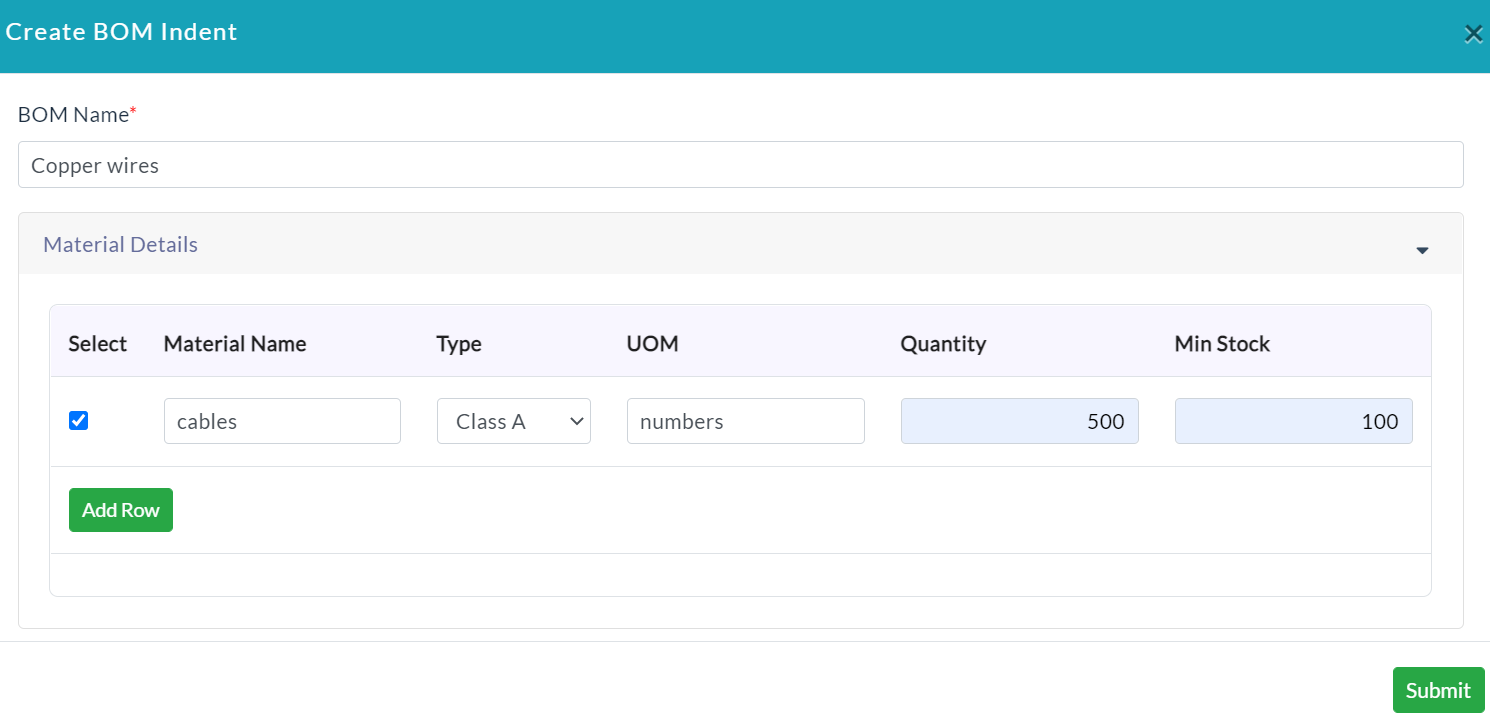
On selecting the BOM indent details radio button, a list of the BOM details is displayed.

Sales Orders:
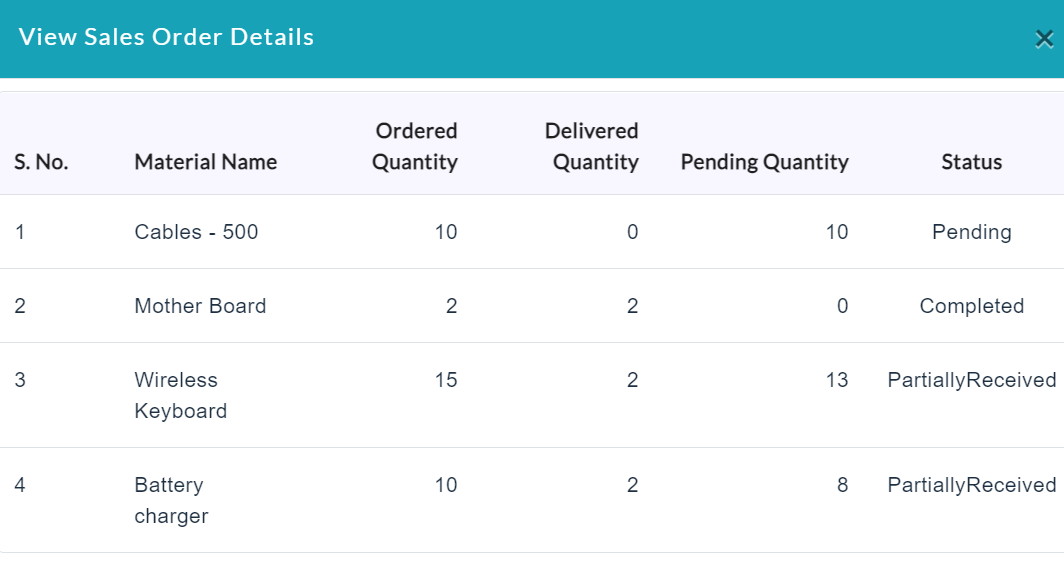
On clicking the Sales Order tab, a list of sales order details of the particular project.

In Action section, click the View (Pencil Icon) button for viewing sales order details.
Created with the Personal Edition of HelpNDoc: Easily create CHM Help documents