Employees
Employees:
In the HRM menu, in order to add a new employee click Employees option.
New Employee:
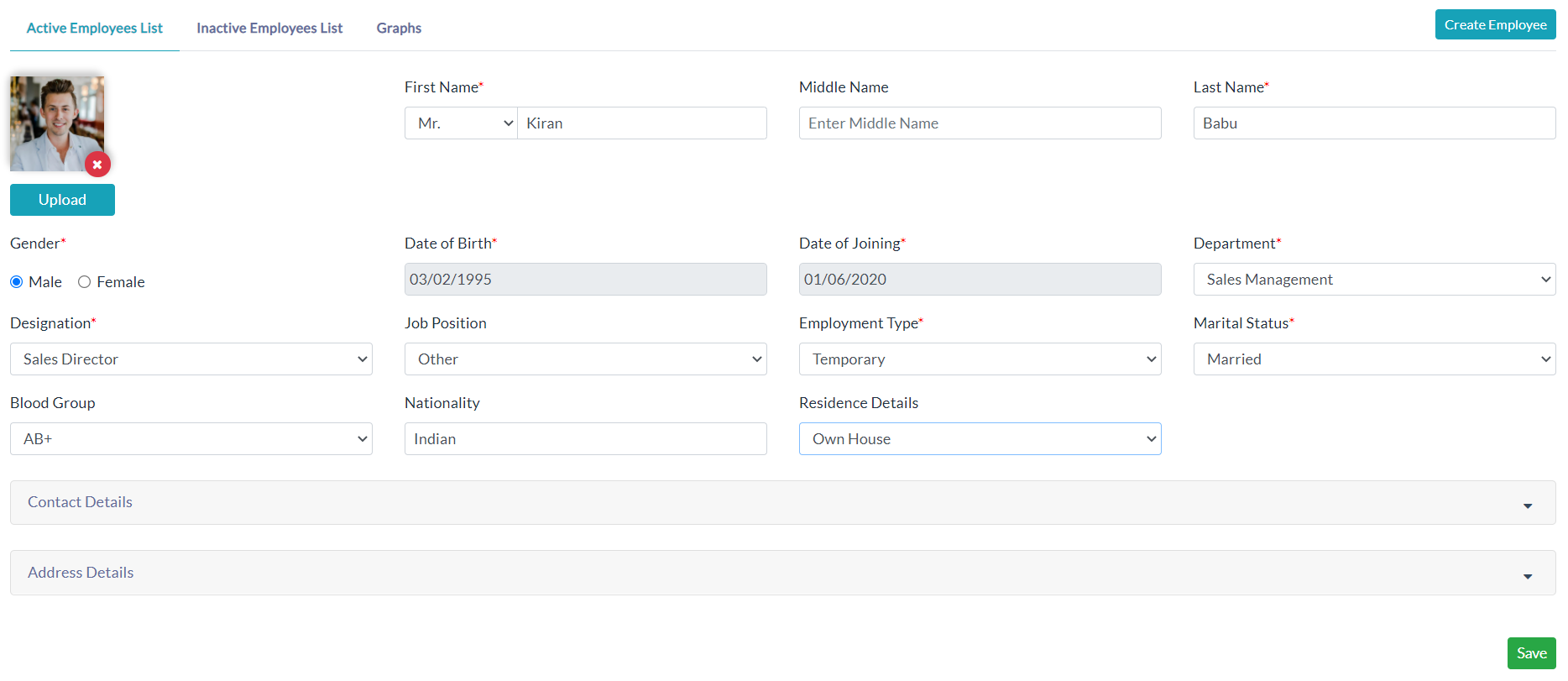
Add employee details to HRM follow the below steps.
- Click New Employee.
- Enter the details of an employee.
- Click Save.
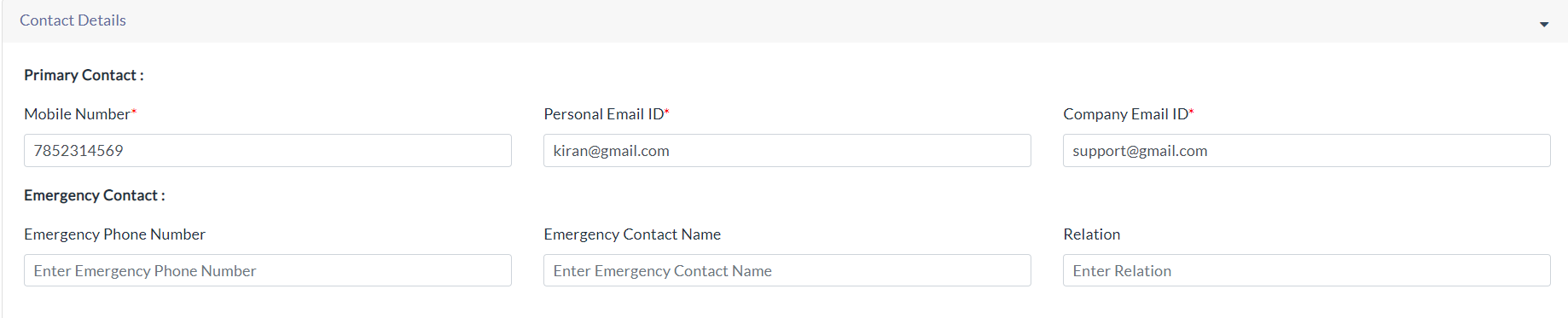
Contact Details:
Enter the contact details of an employee.
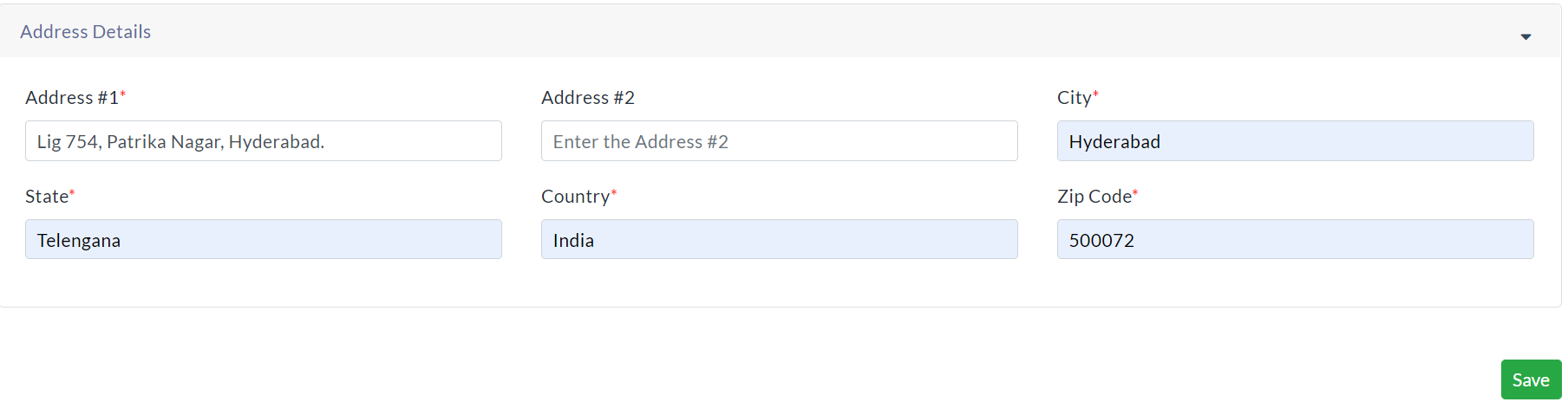
Address Details:
Enter the address details of an employee.
Active Employee List:
- The list of employees whose status has Active is displayed.
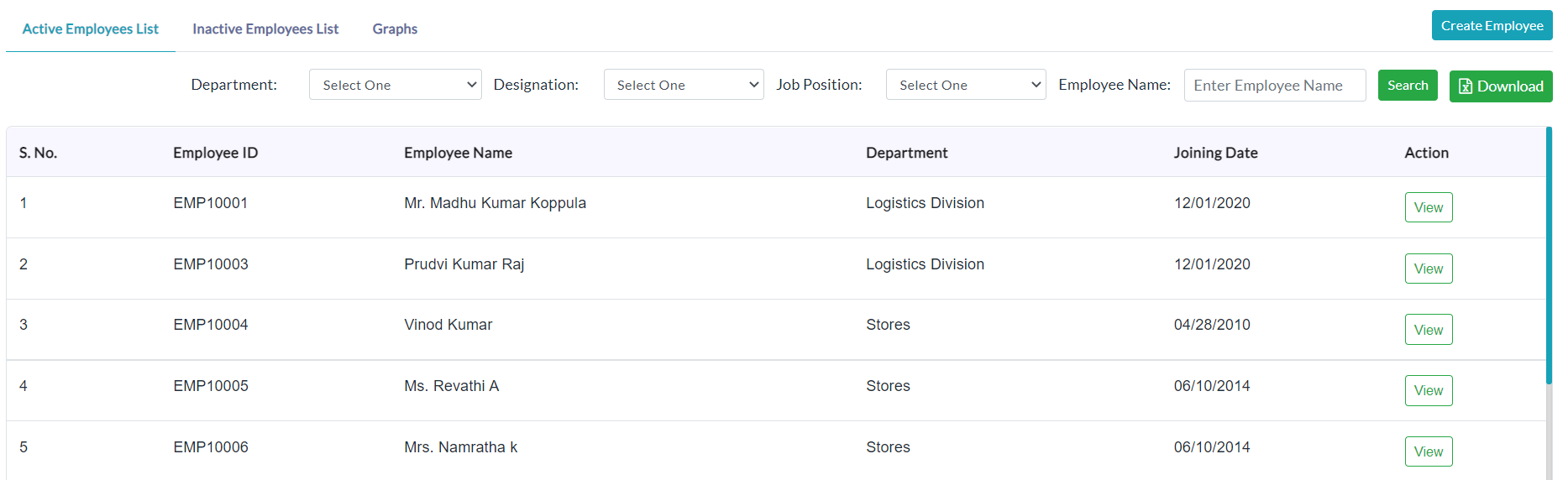
- For anyone of the employee details in the list, click View in the column of Action and able to view complete employee details.
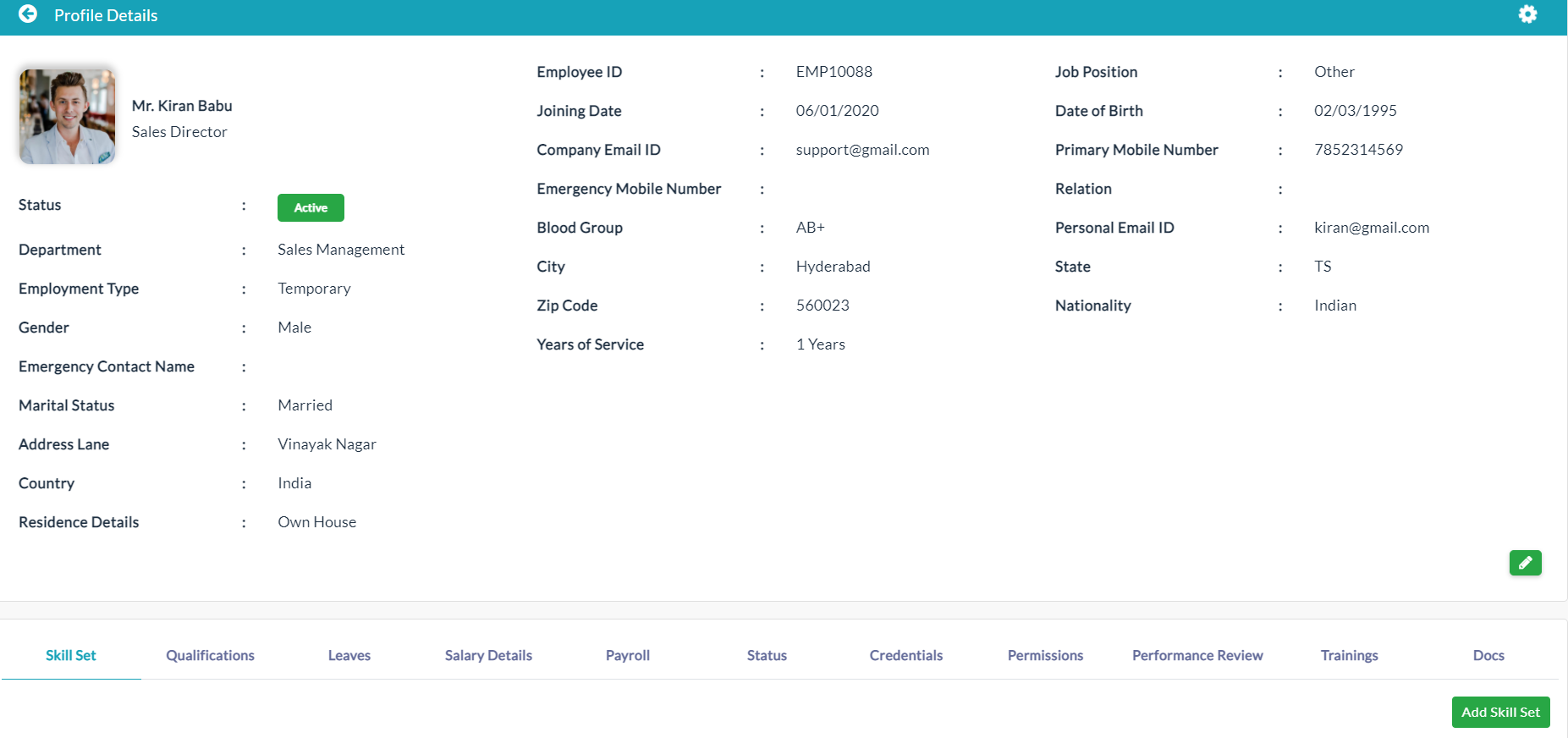
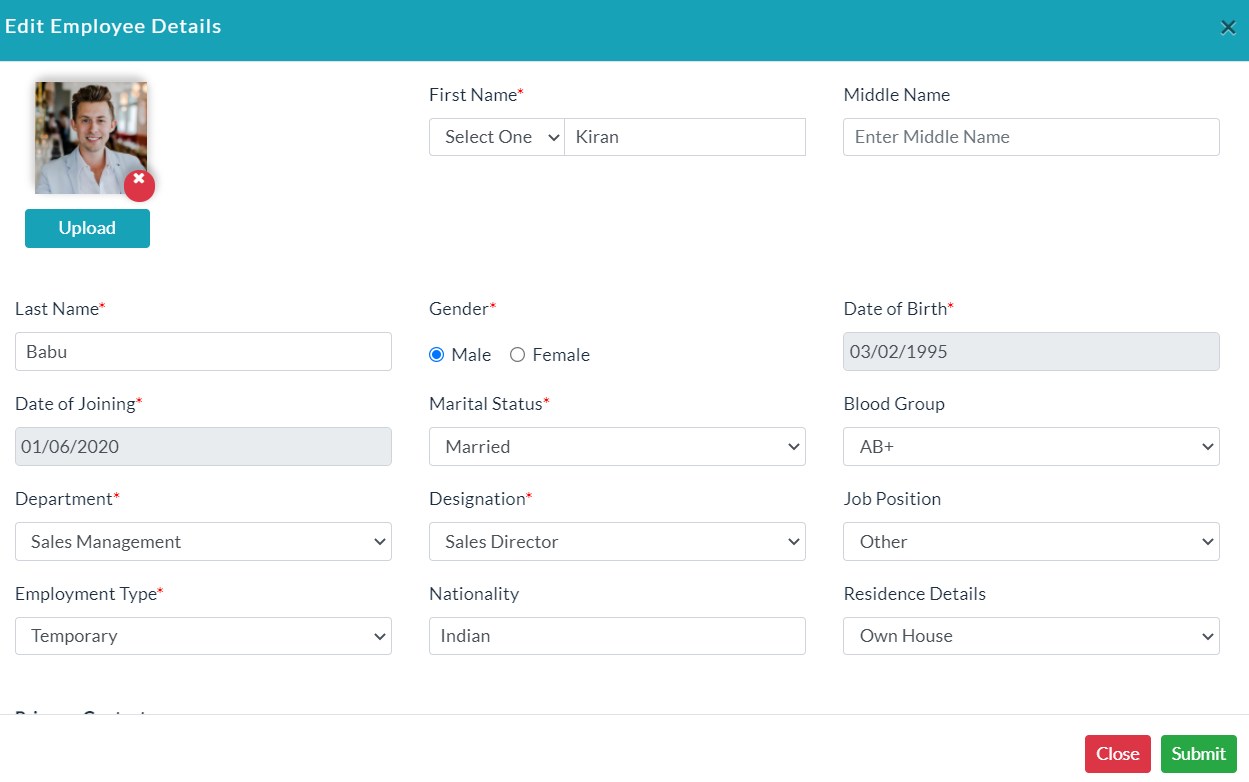
- Click the Edit (Pencil Icon) option to edit employee details.
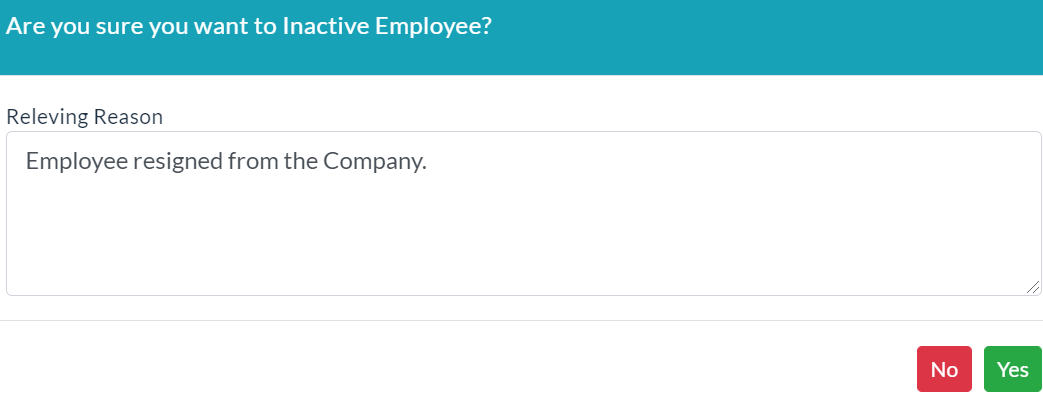
- Click Active in status to convert a specific active employee into an inactive employee.
- Enter a relevant reason for inactive an employee.
- Click Yes.
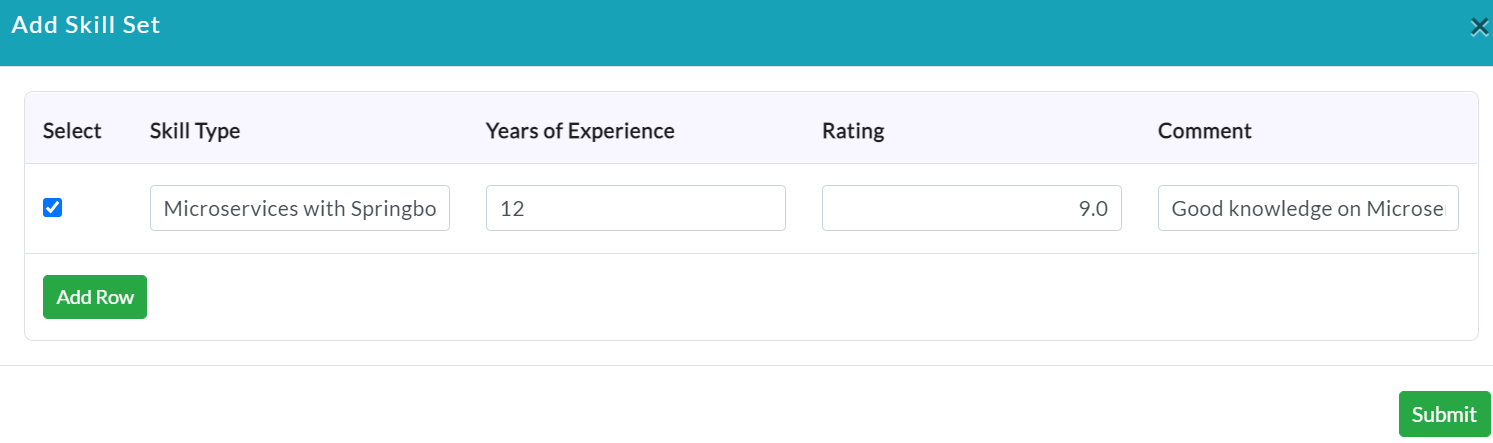
Skill Set:
- Click Add Skill Set. Enter details of skills in which an employee has.
- Click Submit.
- Lists of specific employee skills are displayed.
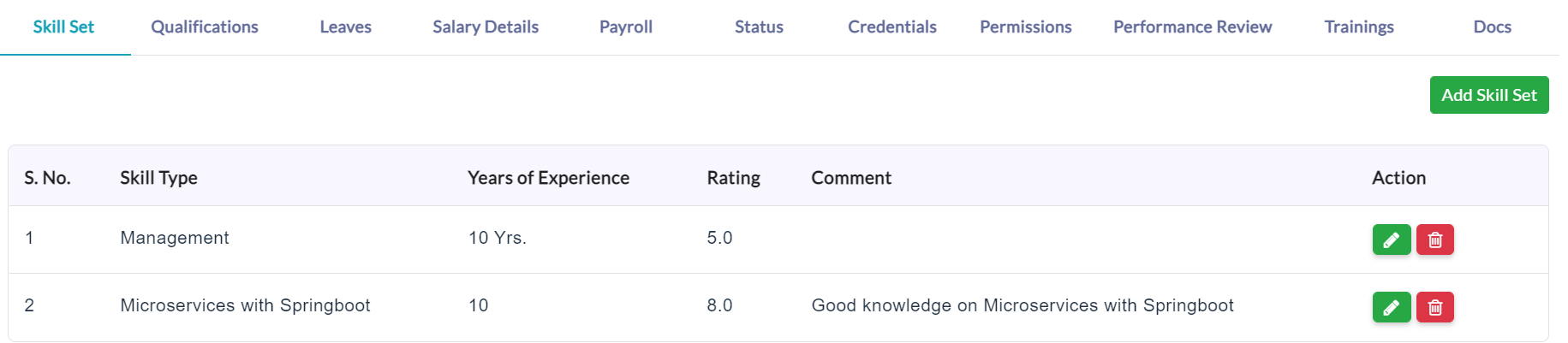
Edit Skill Set:
a. In the Action section, click the Edit (Pencil Icon) option for editing details of skills.
b. Click Submit.
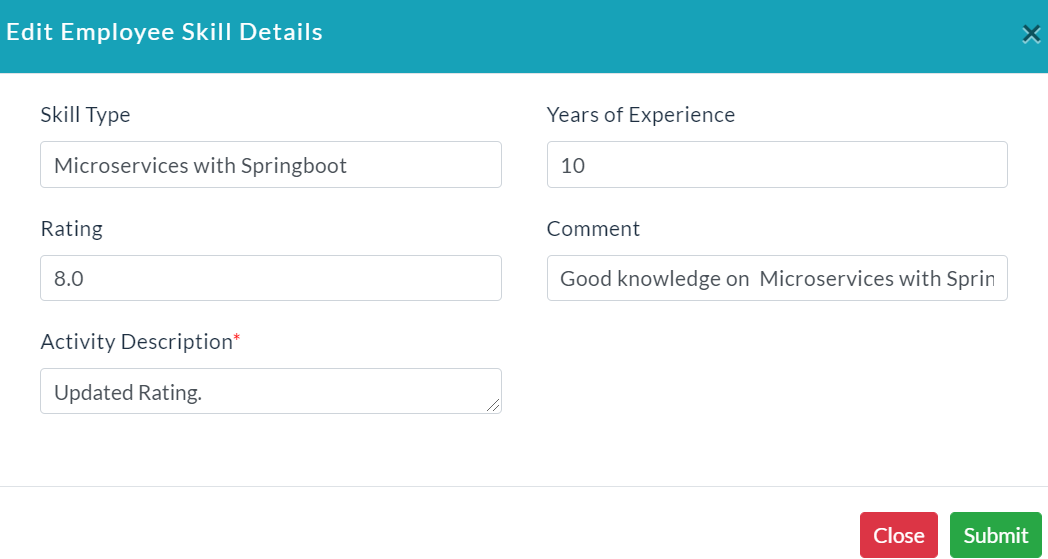
Delete Skill Set:
In the Action section, click the Delete (Bin Icon) option for deleting details of a specific skill set.

Qualifications:
Add Qualifications:
To add the qualifications of an employee, follow the below steps.
- Click Add Qualifications.
- Click Add Row for adding additional qualifications to an employee.
- Enter the educational qualifications of an employee.
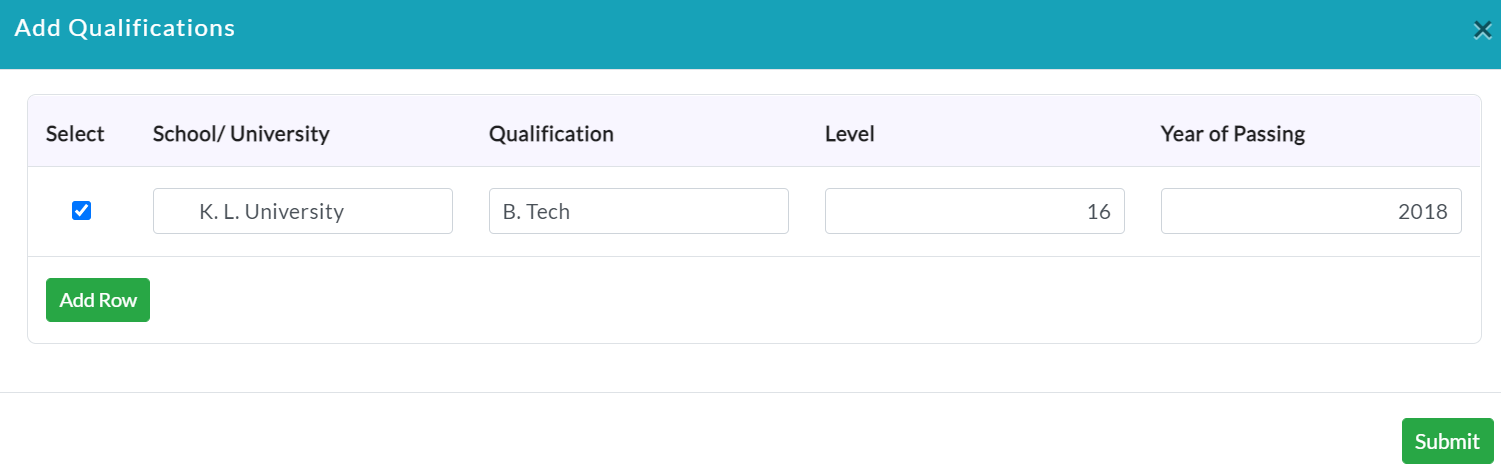
- Click Submit.
- A list of qualifications of the specific employees is displayed.
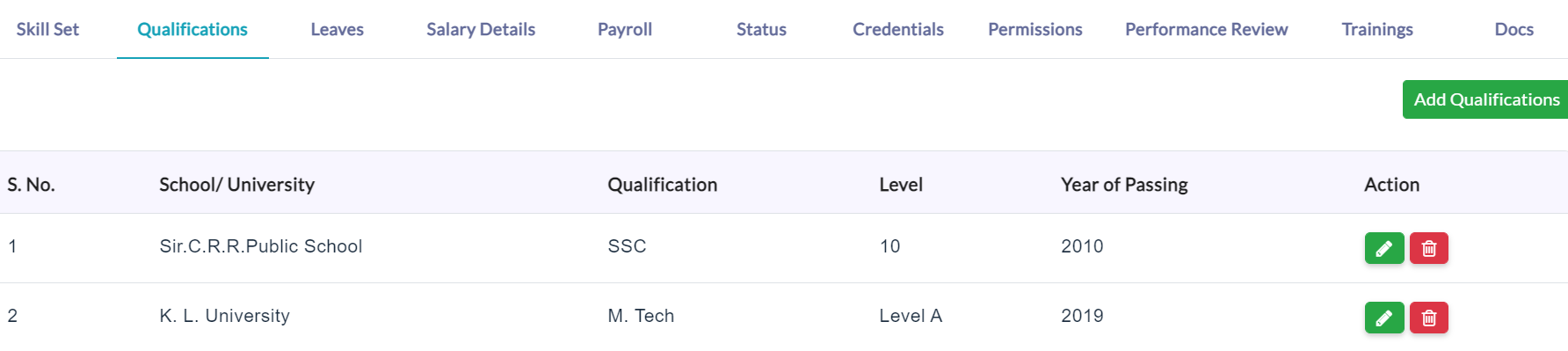
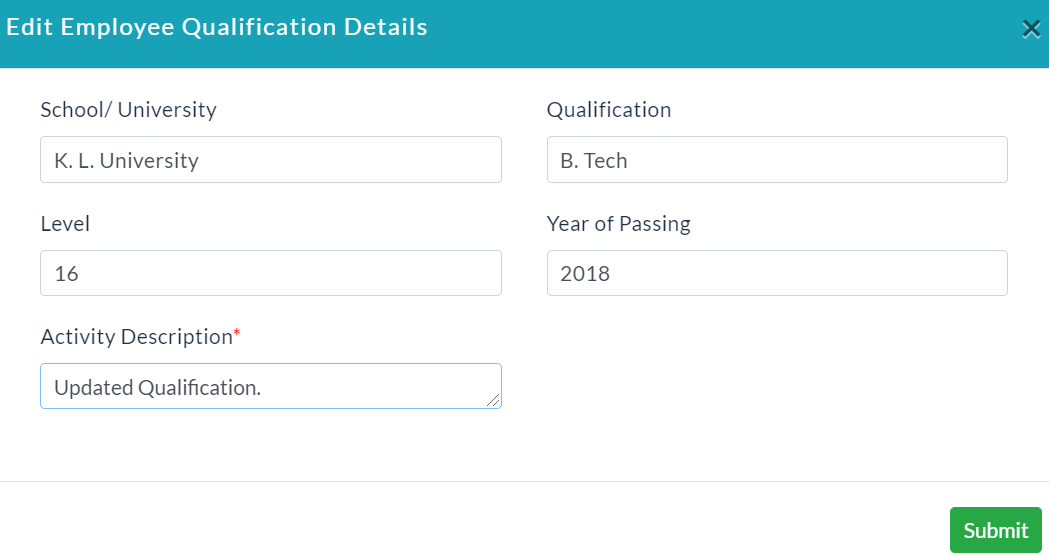
Edit Qualification Details:
- In the Action section, click the Edit (Pencil Icon) option for editing details of qualification.
- Click Submit.
Delete Qualification Details:
In the Action section, click the Delete (Bin Icon) option for deleting details of a specific qualification.

Leaves:
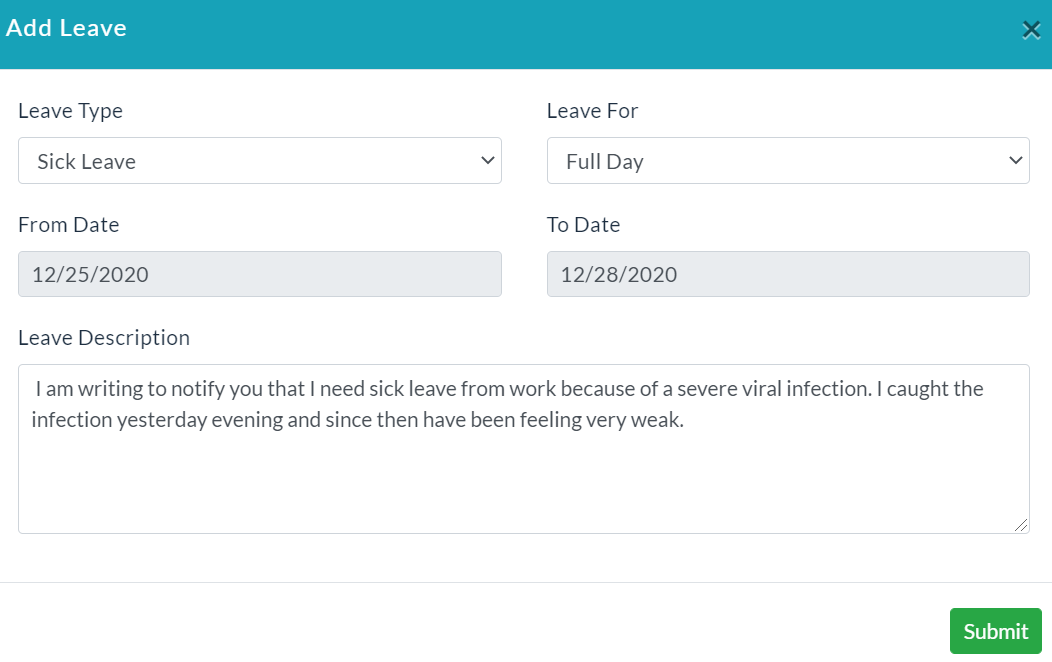
Add Leave:
- Click Add Leave.
- Enter relevant data to apply for a leave.
- Click Submit.
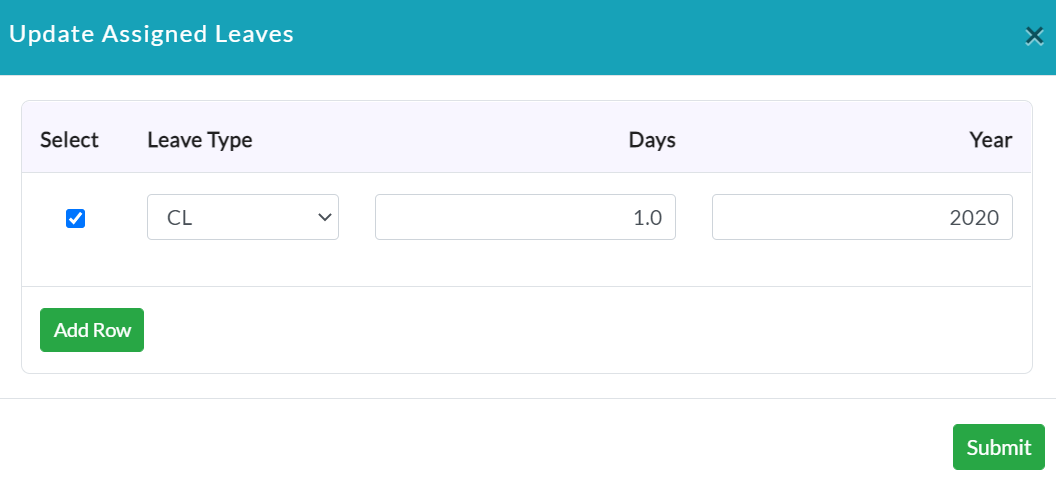
Update Assigned Leave:
- Click Update Assigned Leaves.
- Enter relevant data for updating assigned leaves.
- Click Submit.
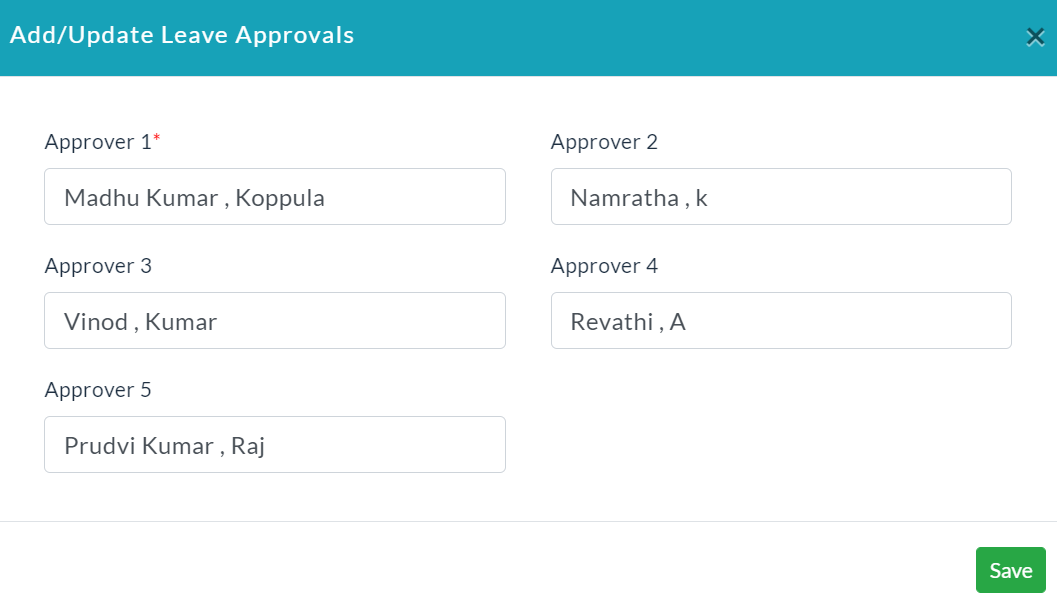
Add/ Update Leave Approvals:
- Click Add/ Update Leave Approvals.
- Enter relevant data for updating/ adding leave approvals.
- Click Submit.
- A list of applied leaves to an employee is displayed.
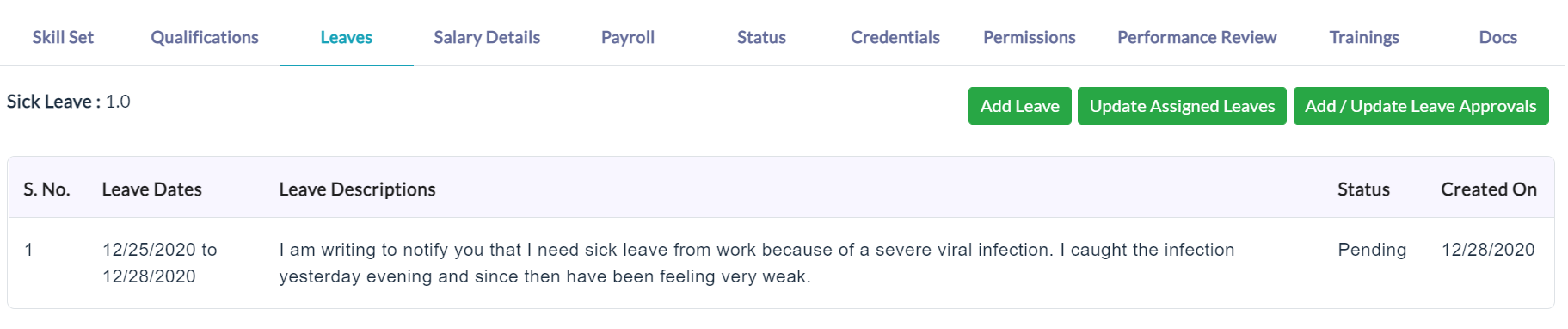
Salary Details:
Add Salary Details:
- Click Add Salary Details.
- Enter the required data.
- Click Submit.
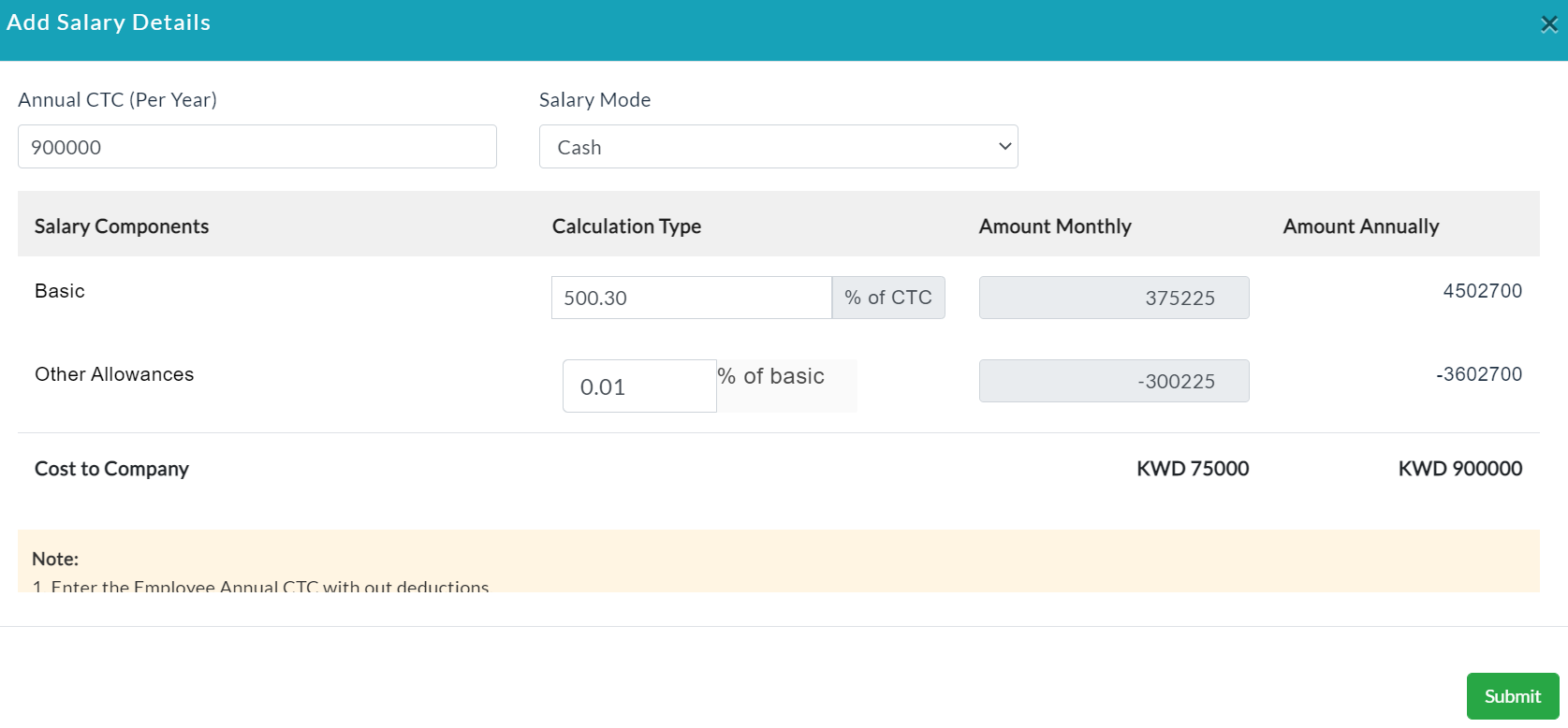
- A list of an employee's salary details is displayed.
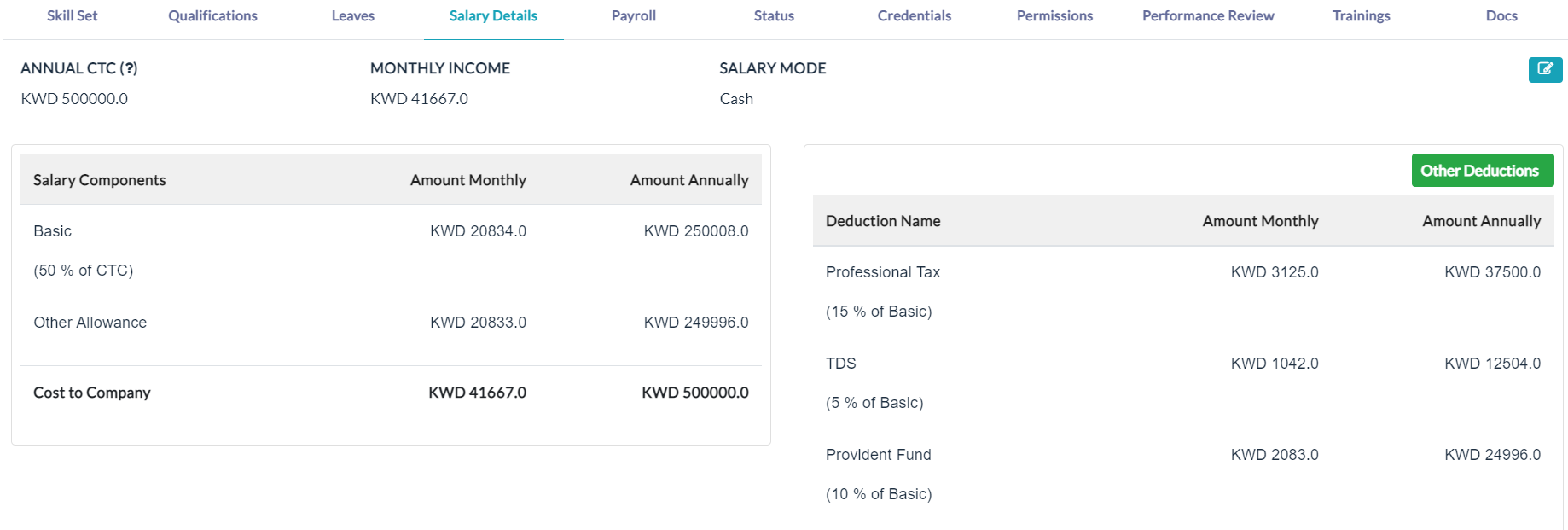
Add Salary Deductions:
- Click Other Deduction.
- Enter relevant data required for employee salary deductions
- Click Submit.
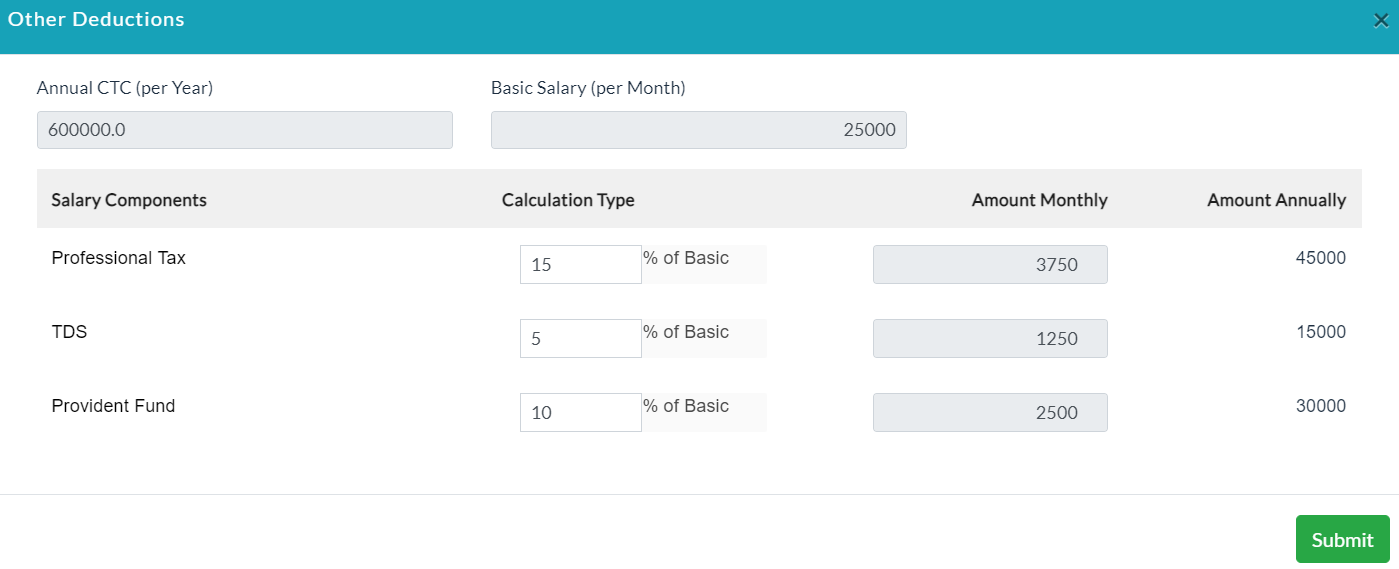
- A list of salary details of an employee is displayed.
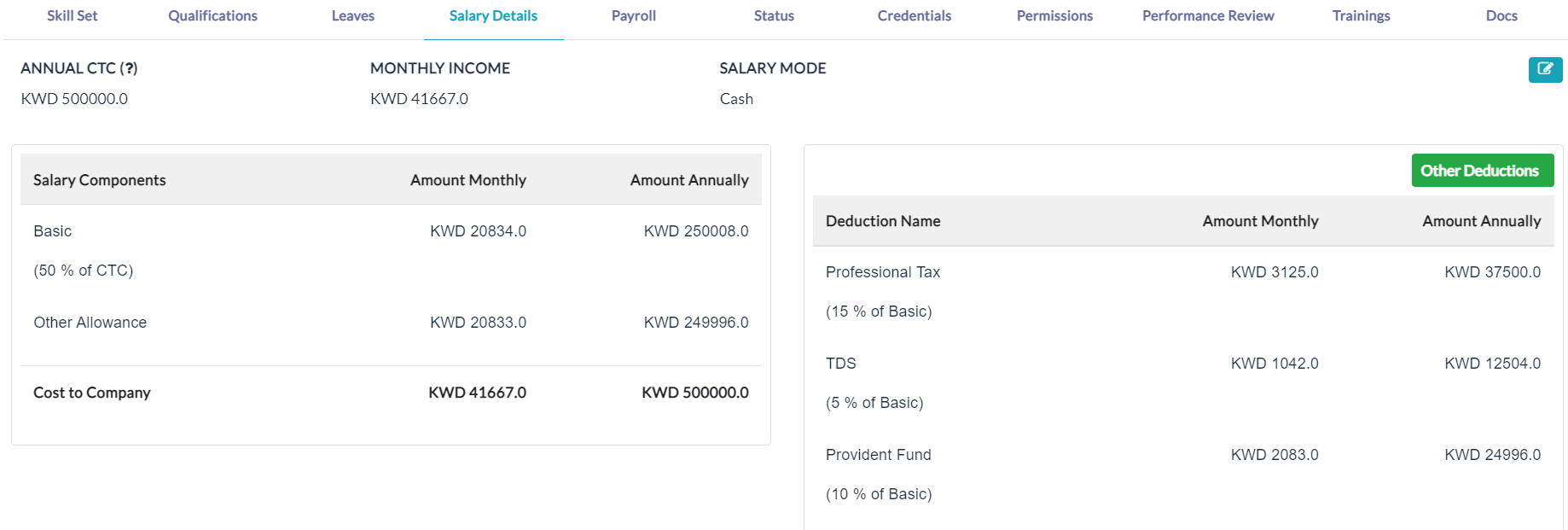
Edit Employee Salary Details:
a. Click the Edit (Pencil Icon) option.
b. Enter relevant data.
c. Click Submit.
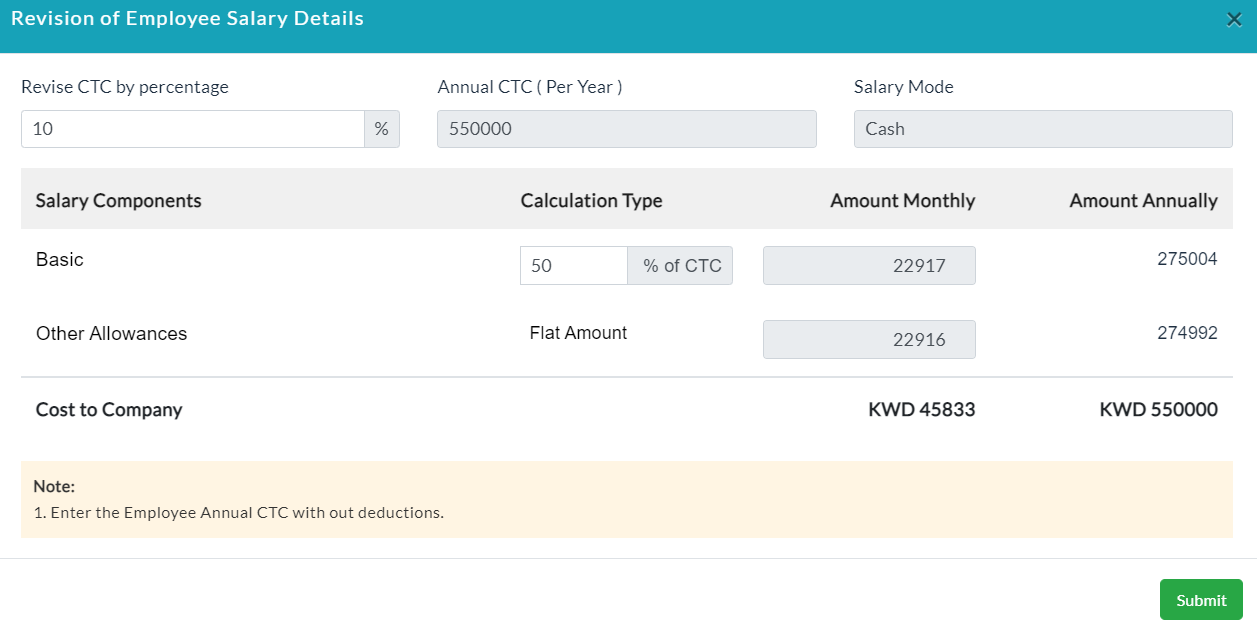
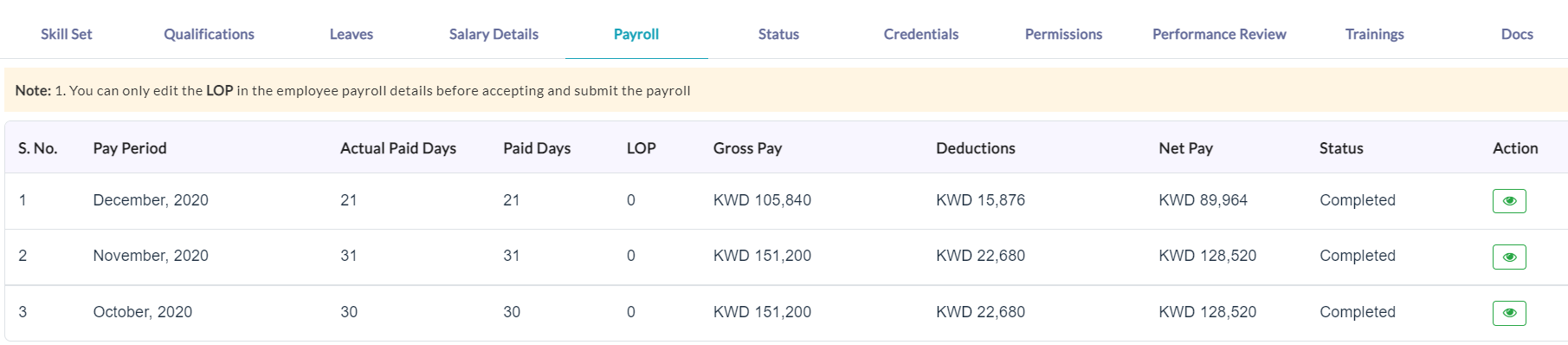
Payroll:
- Lists of payroll-related to the specific employee are displayed.
- In the Action section, click the View (Eye Icon) option for viewing payslips of specific payroll.
Status:
Add Status:
- Click Add Status.
- Enter the data required for status.
- Click Submit.
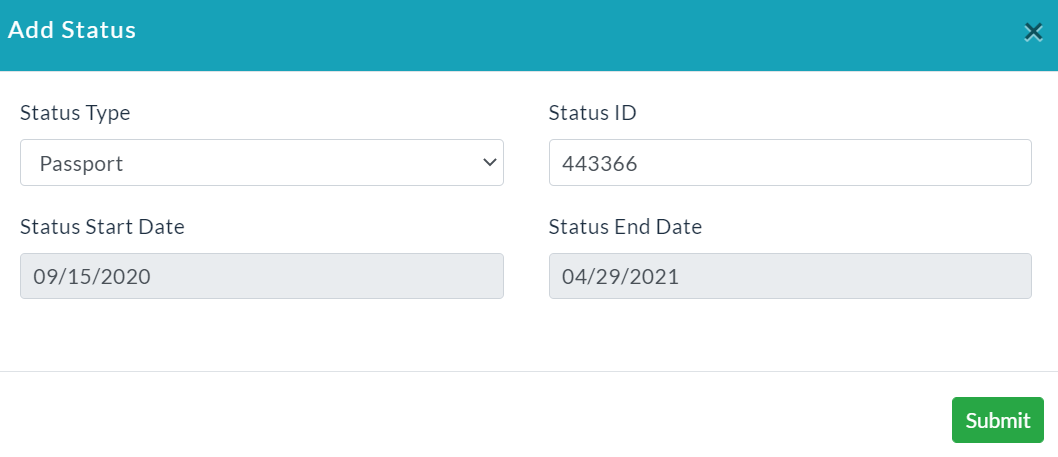
- Lists of status details are displayed.

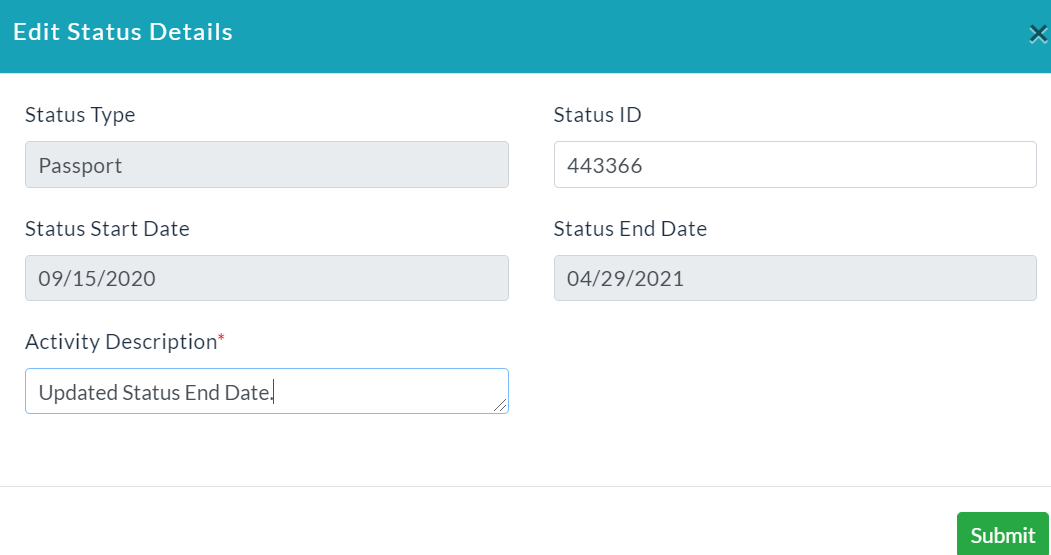
Edit Status:
- In the Action section, click Edit (Pencil Icon) option.
- Enter details of employee status.
- Click Submit.
Delete Status:
In the Action section, click the Delete (Bin Icon) option for deleting details of the specific status type.

Credentials:
- Click Create Credentials.

- Enter the user name.
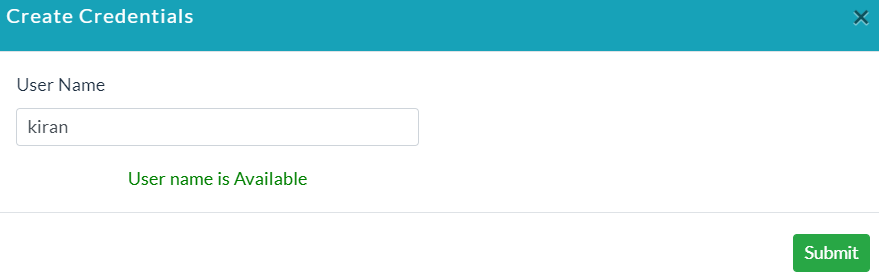
- Click Submit.
- The details of the credentials are displayed.

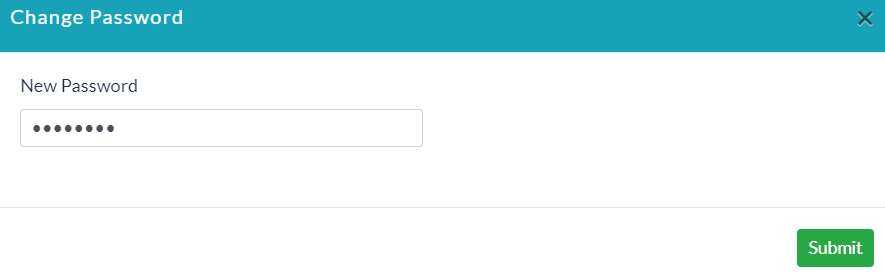
- Click Change Password.
- Enter the new password.
- Click Submit.
Permissions:
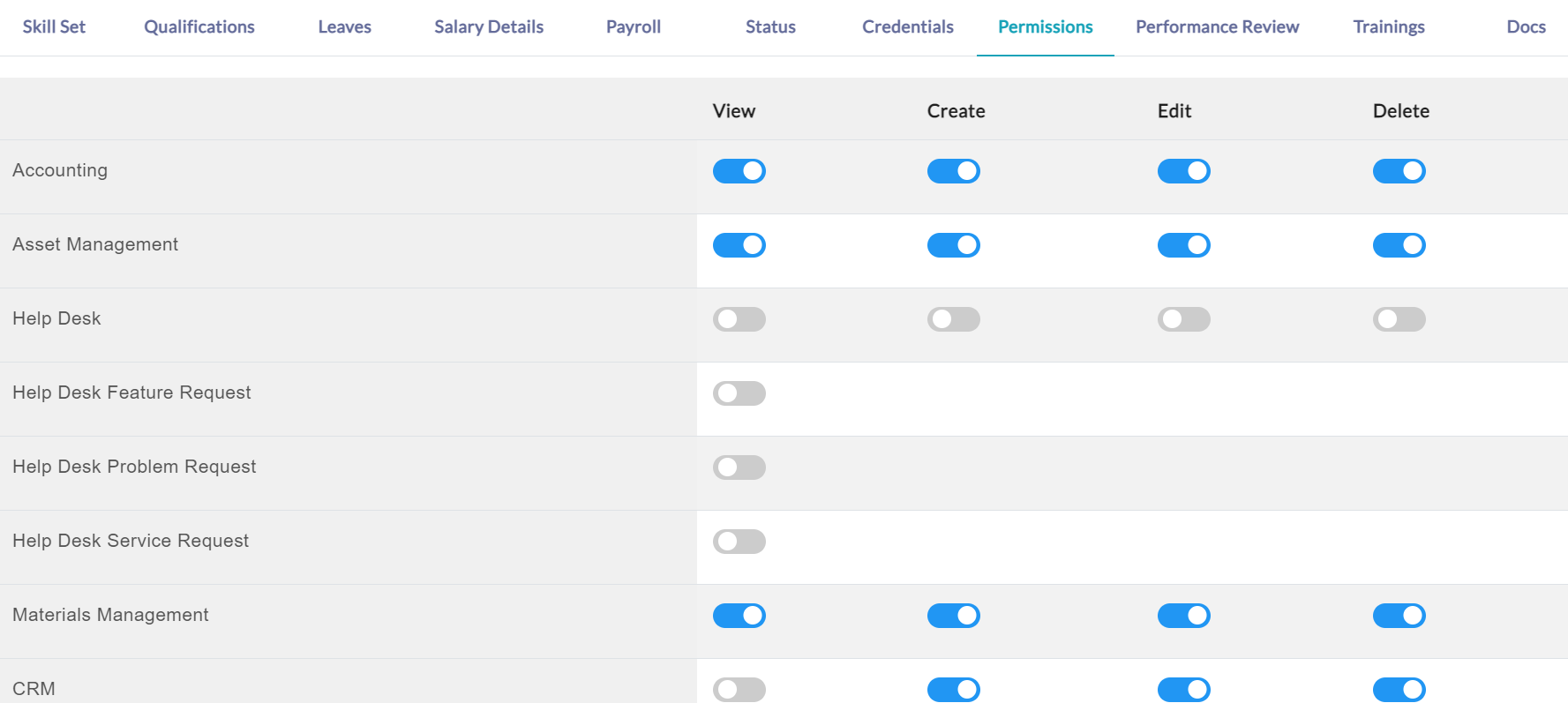
- In permissions, you have a list of modules like Accounting, Asset Management, etc, and functionalities i.e., view, create, edit, delete.
- The permissions are given to a specific employee, select the Allow (Button Icon) option.
Performance Reviews:
- In the HRM menu, click Performance Review.
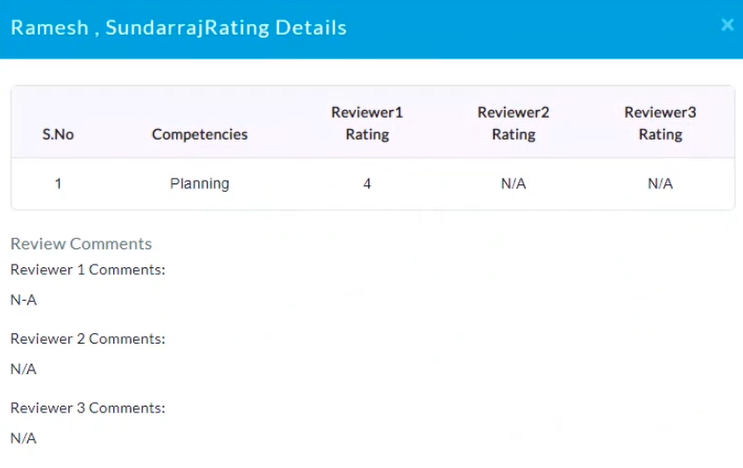
- Add Performance Reviews for a specific employee. That specific employee performance details are displayed here.

- In the Action section, click the View (Eye Icon) option to view details of the performance review.
Training's:
The specific employee has participated in specific training's. The lists of training details are displayed.

Docs:
Click Add Files, select the relevant file to upload. Click Submit.

In the Action section, click the Delete (Bin Icon) option for deleting uploaded files.

Inactive Employee List:
- The list of employees whose status is inactive is displayed.
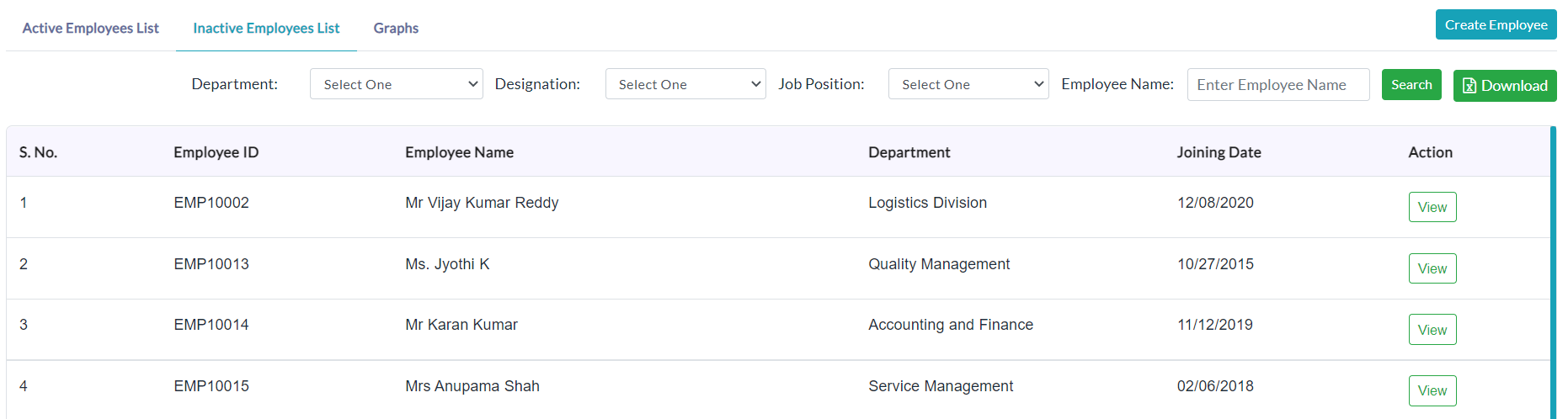
- In the Action section, click View.
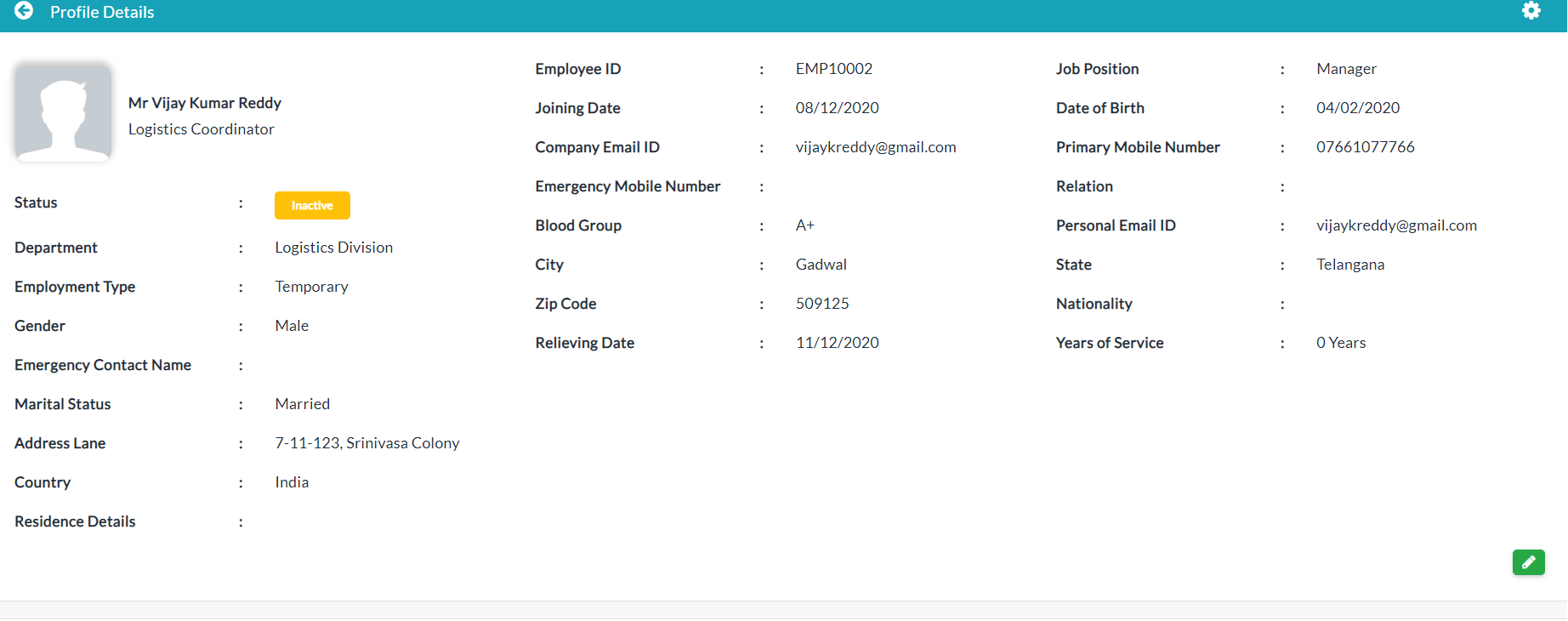
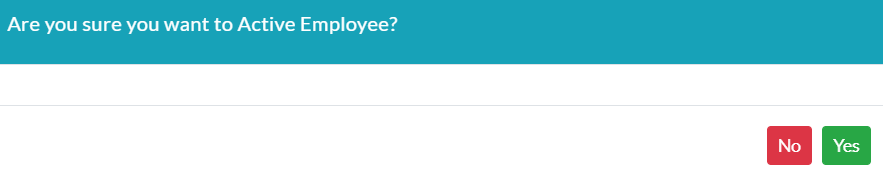
- If you want to convert inactive employees into active employees, click Inactive in the Status column.
- Click Yes.
Created with the Personal Edition of HelpNDoc: Produce online help for Qt applications