Customers Creation
Customers:
Create Customer:
In the Sales Management menu, click Customers Option. For adding customer details follow the below steps.
- Click Create Customer.
- Enter the details of the customer.
- Click Submit.
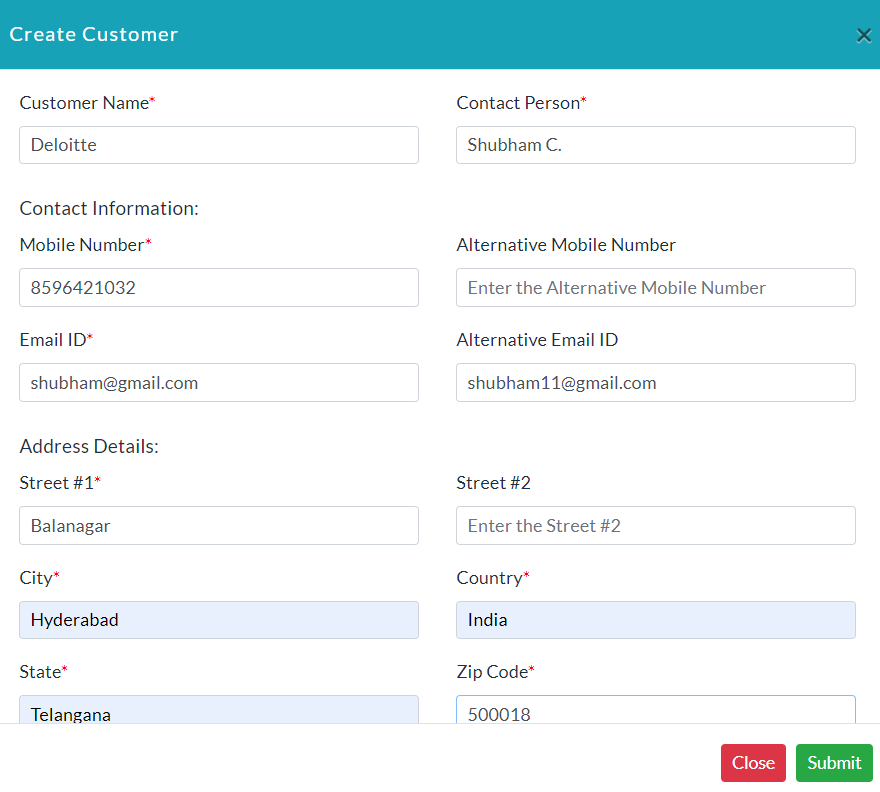
Customers List:
The list of existing customer details is displayed in the Customer Details section.
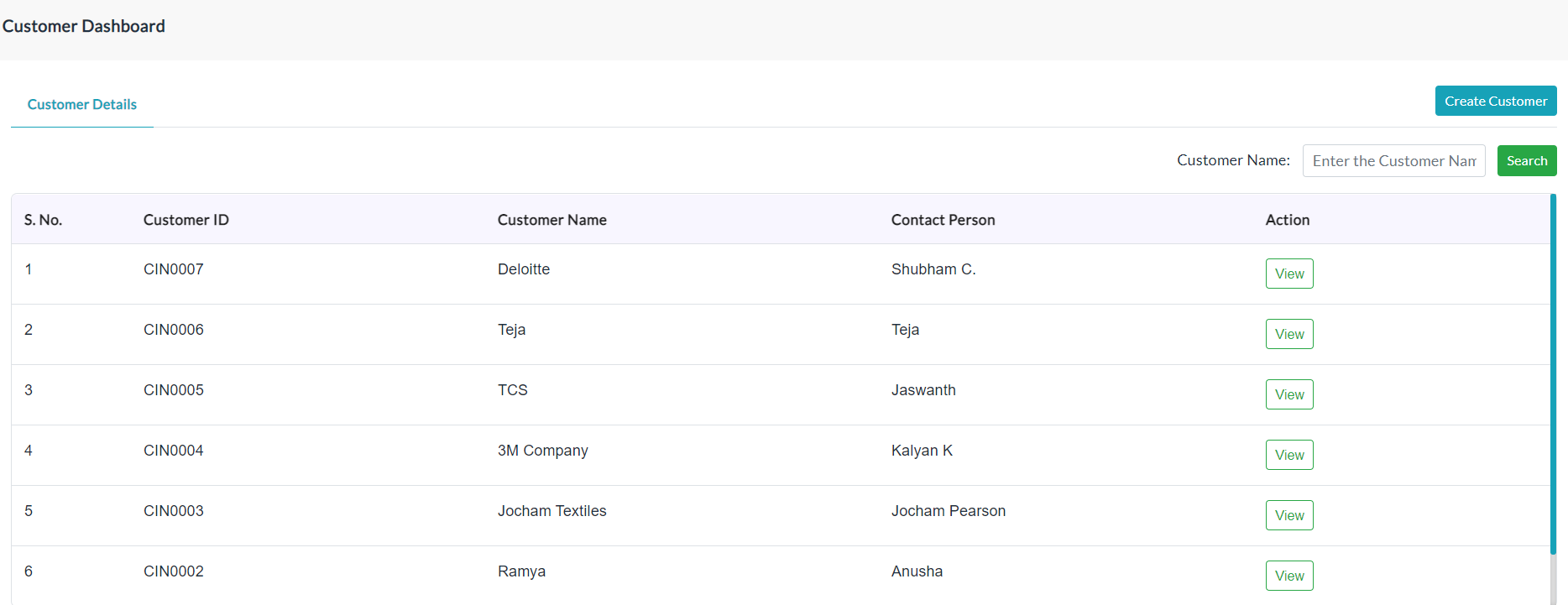
View Customer Details:
For anyone of the customer details in the list, click View in the column of Action and able to view complete customer details.
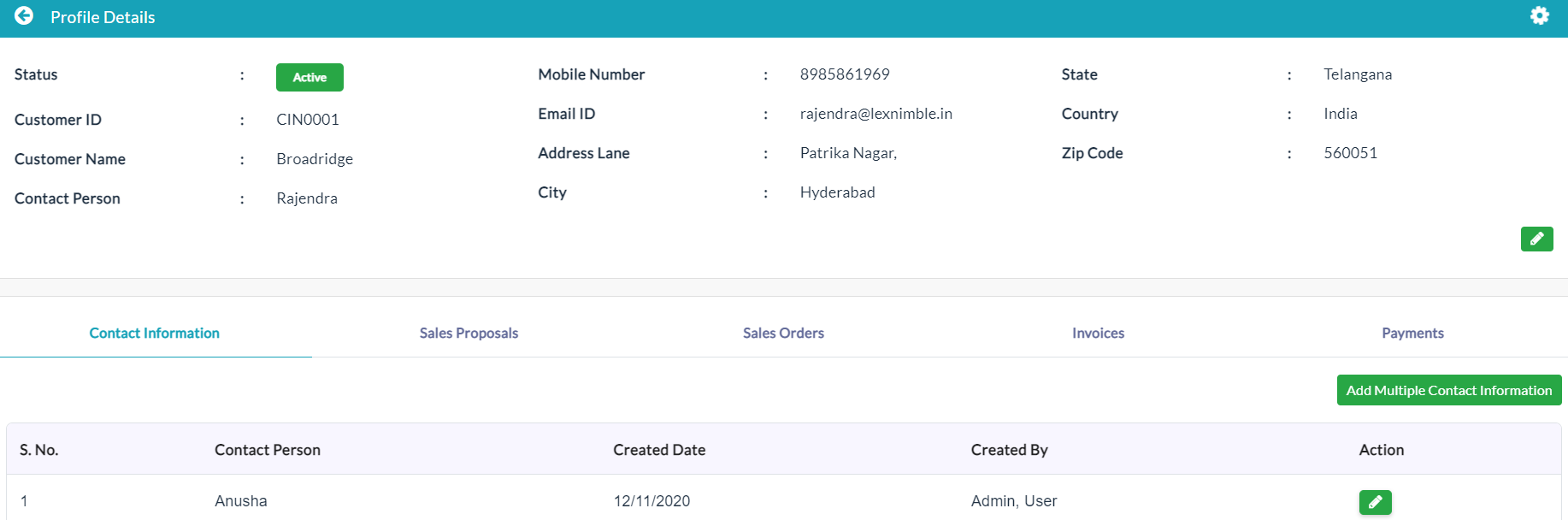
If the status of the customer is Active.
- Click on the Active button.
- Popup will be displayed with YES and NO options.
- Click on the YES button, then the status becomes Inactive.

If the status of the contact is Inactive.
- Click on the Inactive button.
- Popup will be displayed with YES and NO options.
- Click on the YES button, then the status becomes Active.

Contact information:
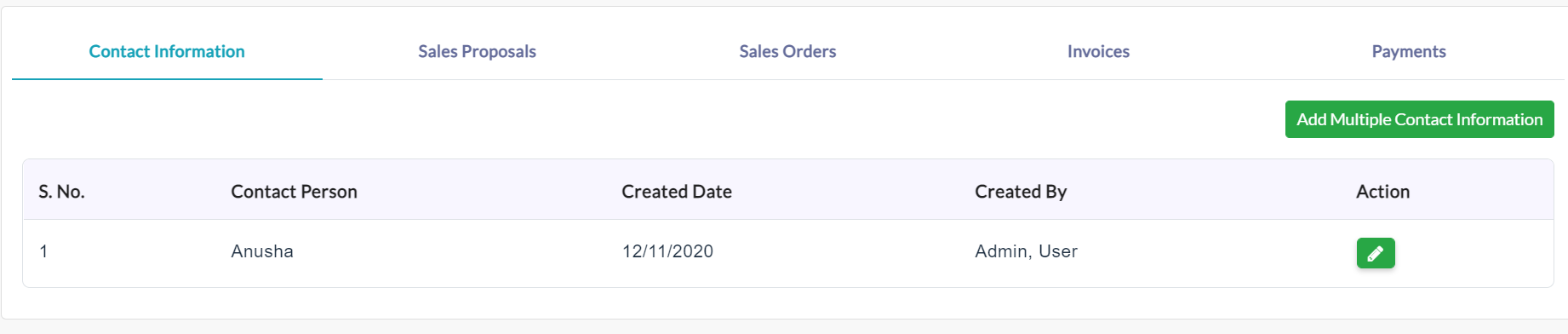
Add Multiple Contact Information:
- Click Add Multiple Contact Information.
- Enter the details of the contact person.
- Click Submit.
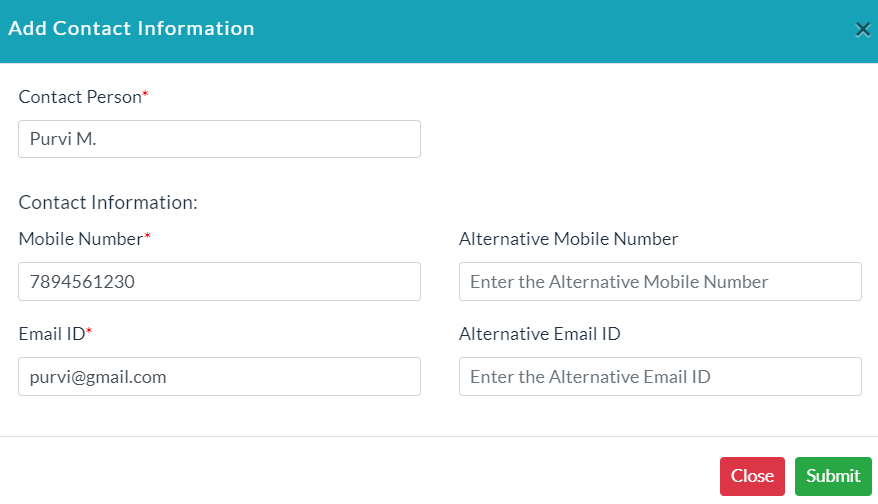
- A list of contact persons information is displayed.
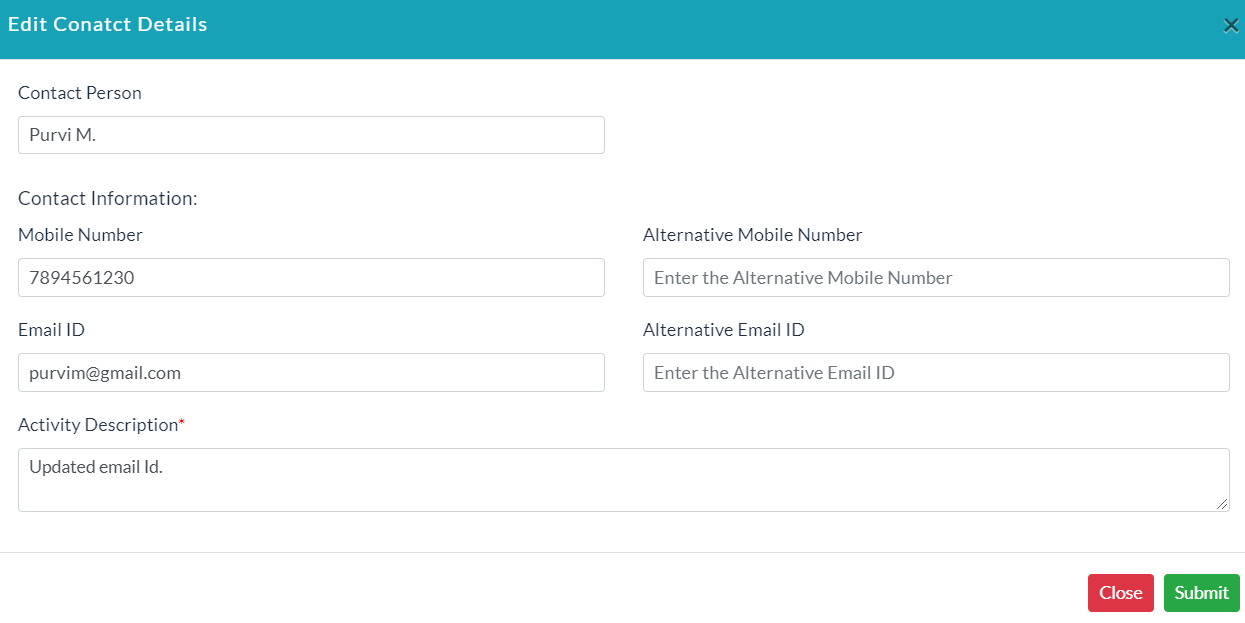
Edit Contact Details:
- In the Action column, click the Edit (Pencil Icon) option.
- Enter the details of the contact person.
- Click Submit.
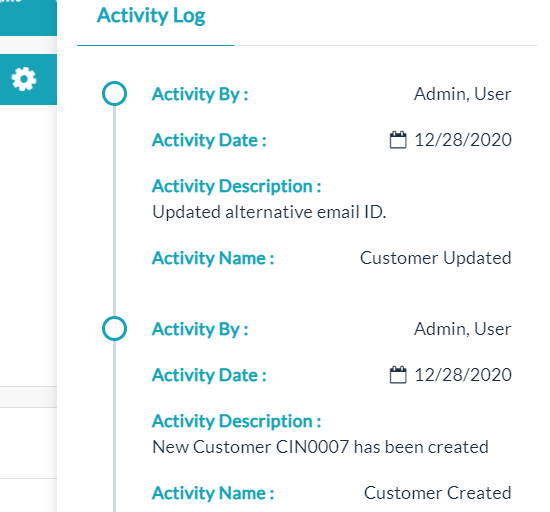
Activity Log:
- Click the View(Gear Icon) option to view details of activity log.
Sales Proposals:
In this section, able to view a list of specific customer sales proposal details.


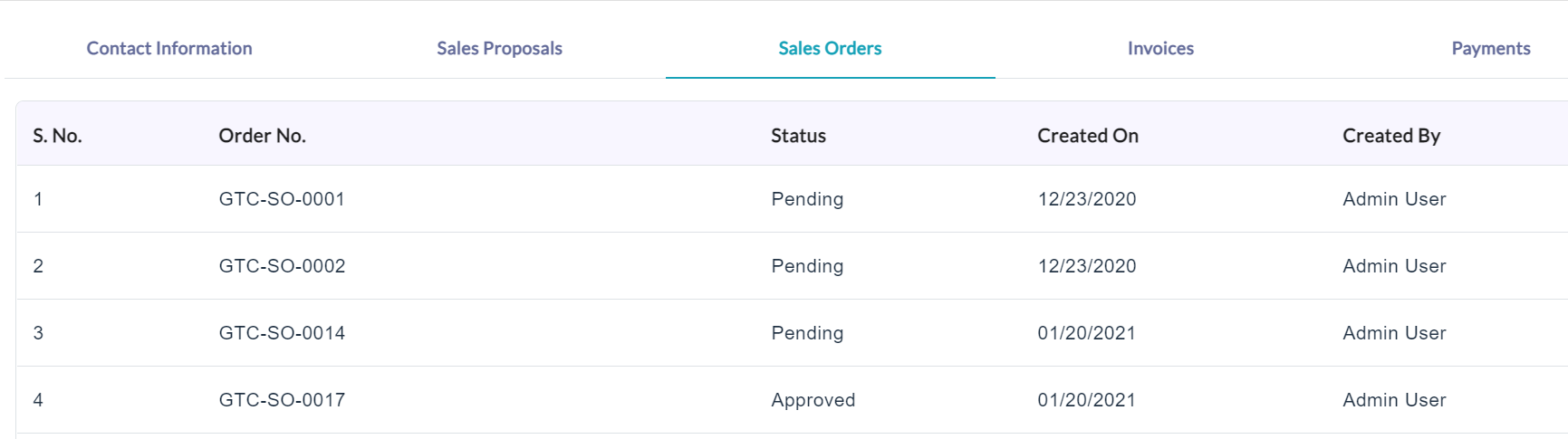
Sales Orders:
In this section, able to view a list of specific customer sales order details.
Invoices:
In this section, able to view a list of specific customer sales invoice details.

Payments:
In this section, able to view a list of specific customer sales payments details.

Created with the Personal Edition of HelpNDoc: Easily create PDF Help documents