Fixed Asset Details
Fixed Assets:
The term fixed assets generally refers to the long-term assets, tangible assets used in a business that is classified as property, plant, and equipment. Examples of fixed assets are land, buildings, manufacturing equipment, office equipment, machinery, fixtures, and vehicles.
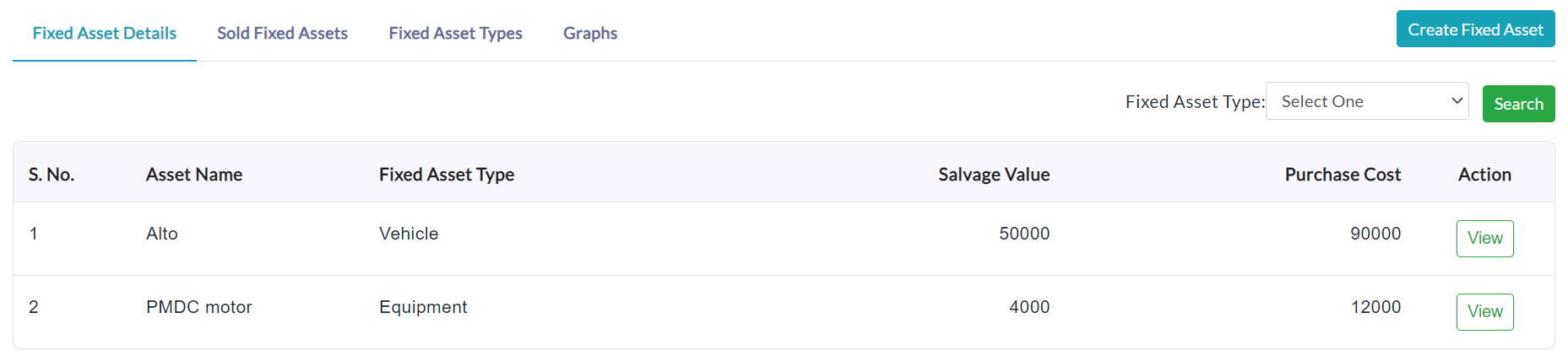
When you click on the Fixed Assets in the menu, you will get the Fixed Asset Dashboard. It consists of four (4) sections. They are:
- Fixed Asset Details
- Sold Fixed Assets
- Fixed Asset Types
- Graphs
Fixed Asset Creation:
Create Fixed Asset:
- In the Fixed Asset dashboard, click the Create Fixed Asset button.
- Create Fixed Asset form will be displayed.
- Enter an Asset Name.
- In the Fixed Asset Type, select a name for the asset type.
- In the Depreciation, select the depreciation method.
- Enter the details as required.
- Click Submit.
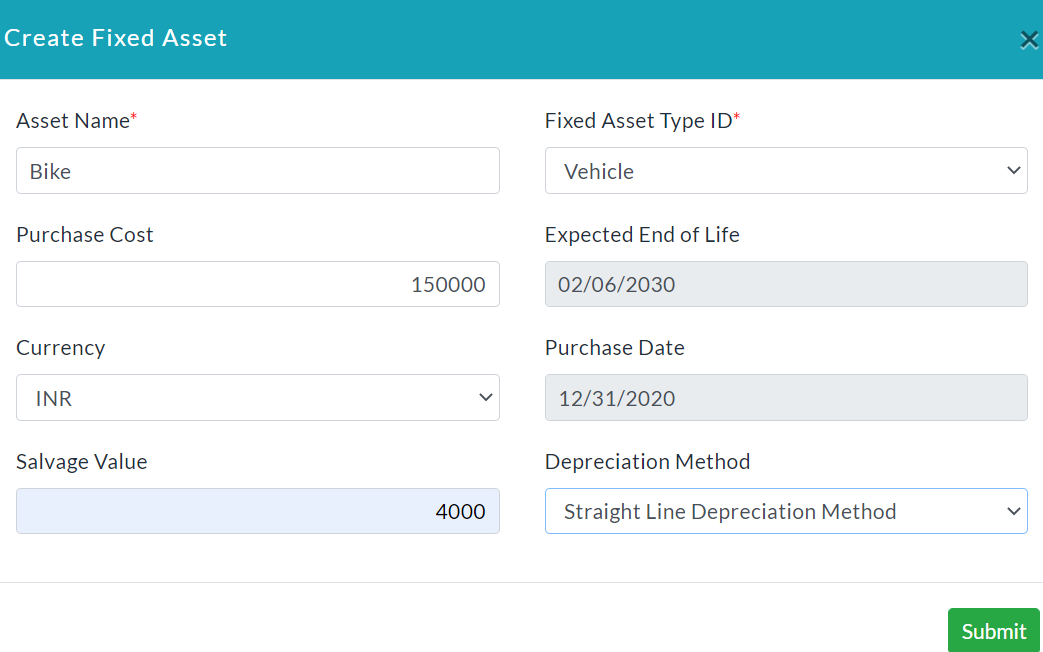
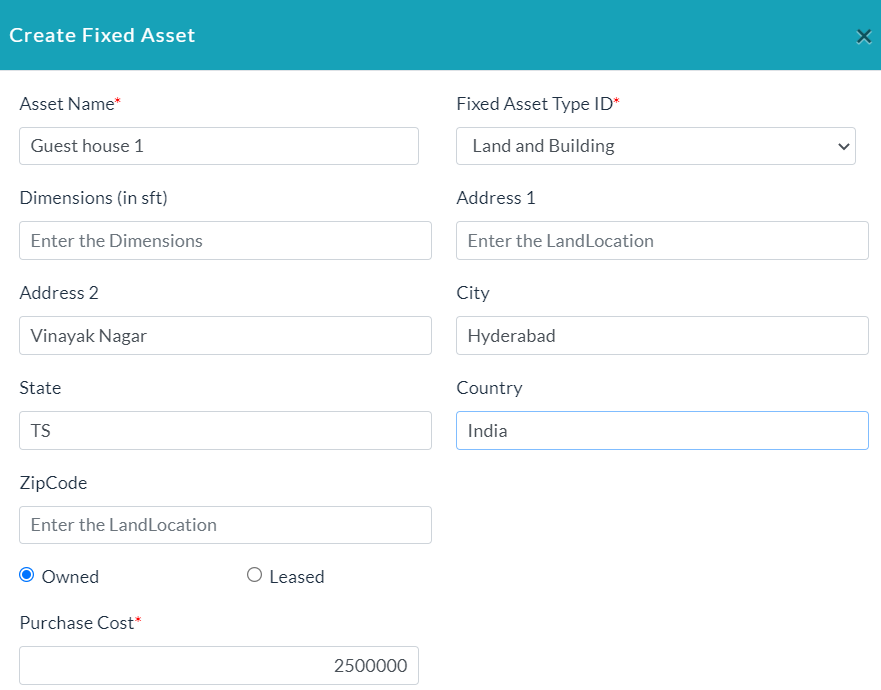
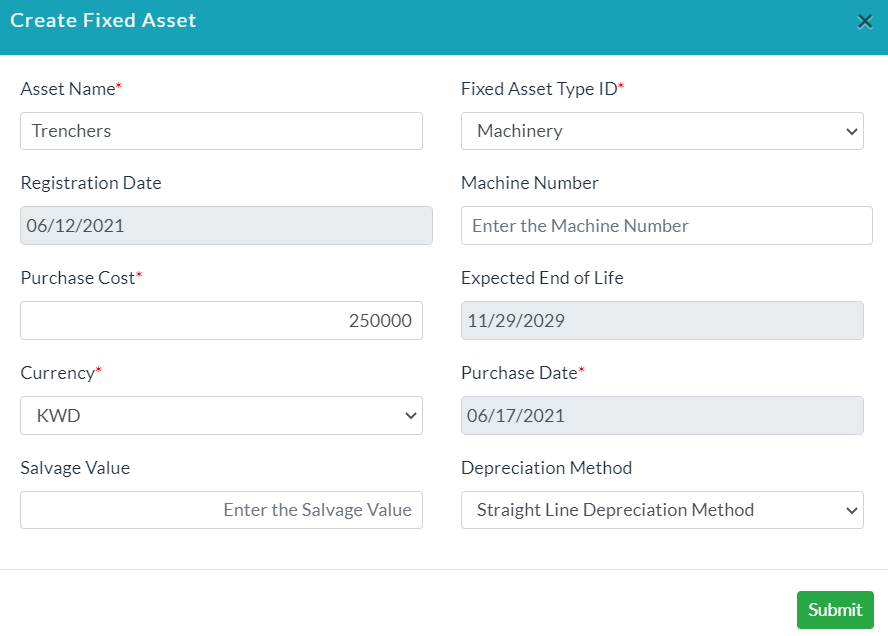
In this create fixed asset form, depending on the selection of Fixed Asset Type, the form changes.
On selecting a Fixed type or Vehicle type in the Fixed Asset Type drop-down, you will be able to add details to that particular asset with the following fields as shown in the below screenshot.
On selecting a Land and Building type in the Fixed Asset Type drop-down, you will be able to add details to that particular asset with the following fields as shown in the below screenshot.
On selecting a Machinery type in the Fixed Asset Type drop-down, you will be able to add details to that particular asset with the following fields as shown in the below screenshot.
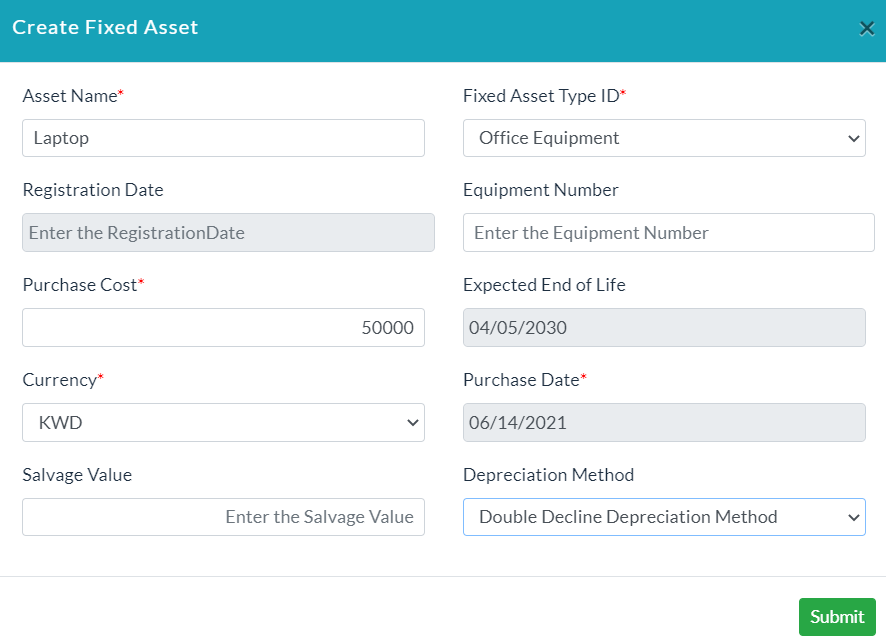
On selecting an Office Equipment type in the Fixed Asset Type drop-down, you will be able to add details to that particular asset with the following fields as shown in the below screenshot.
Fixed Asset Details:
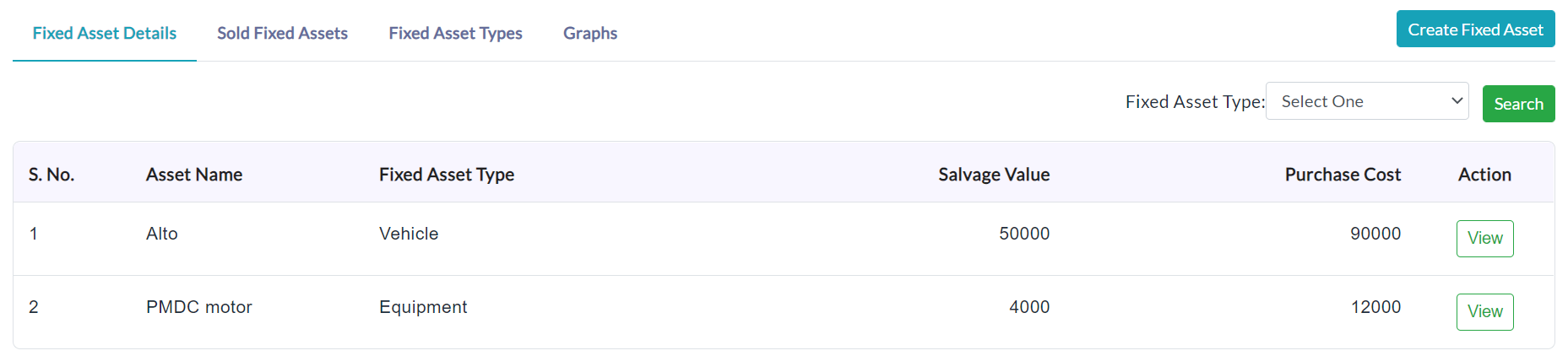
When you click on the Fixed Asset Details tab, it displays the list of assets created with the following asset details.
View Fixed Asset Details:
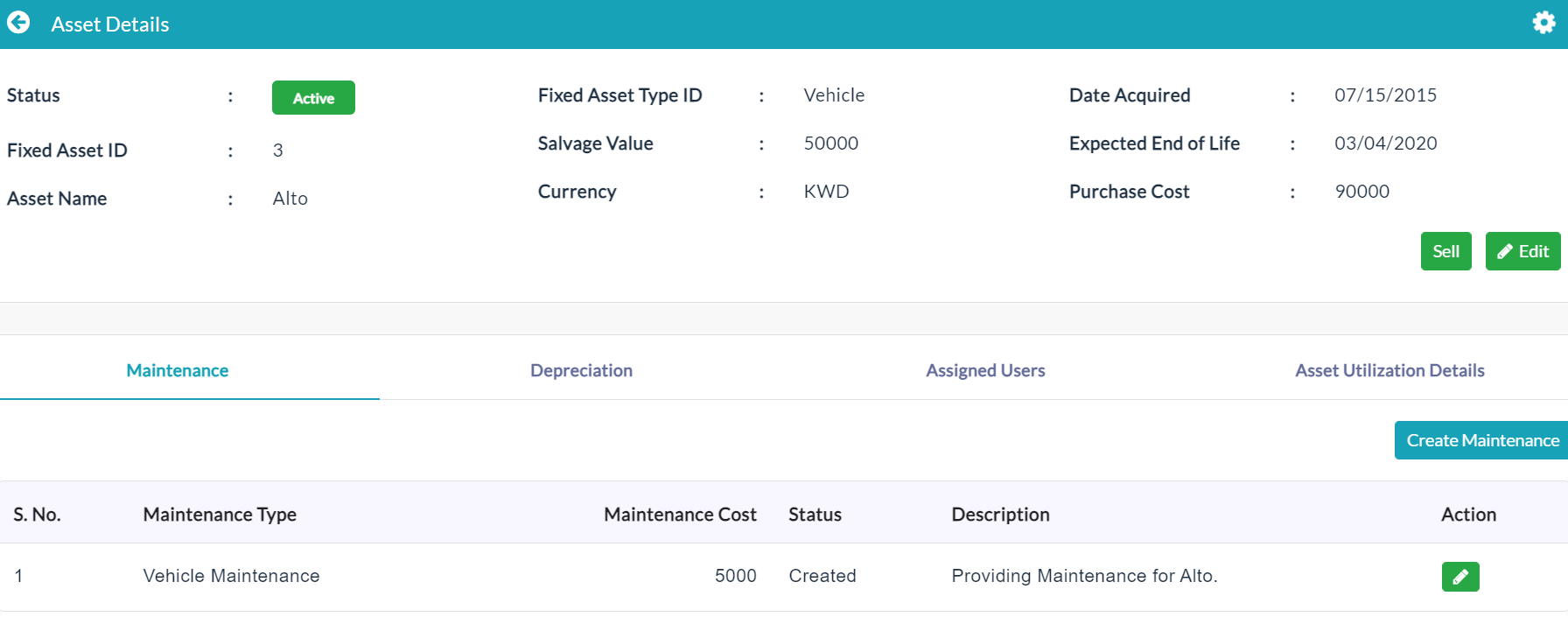
To View complete details of the particular asset:
- On the Fixed Asset Details tab, click the View button of the specific asset.
- The complete details of that asset will be displayed as shown in the below screenshot.
Edit Asset Details:
To edit fixed asset details, follow the below steps.
- In the asset details dashboard, click on the Edit (Pencil Icon) button.
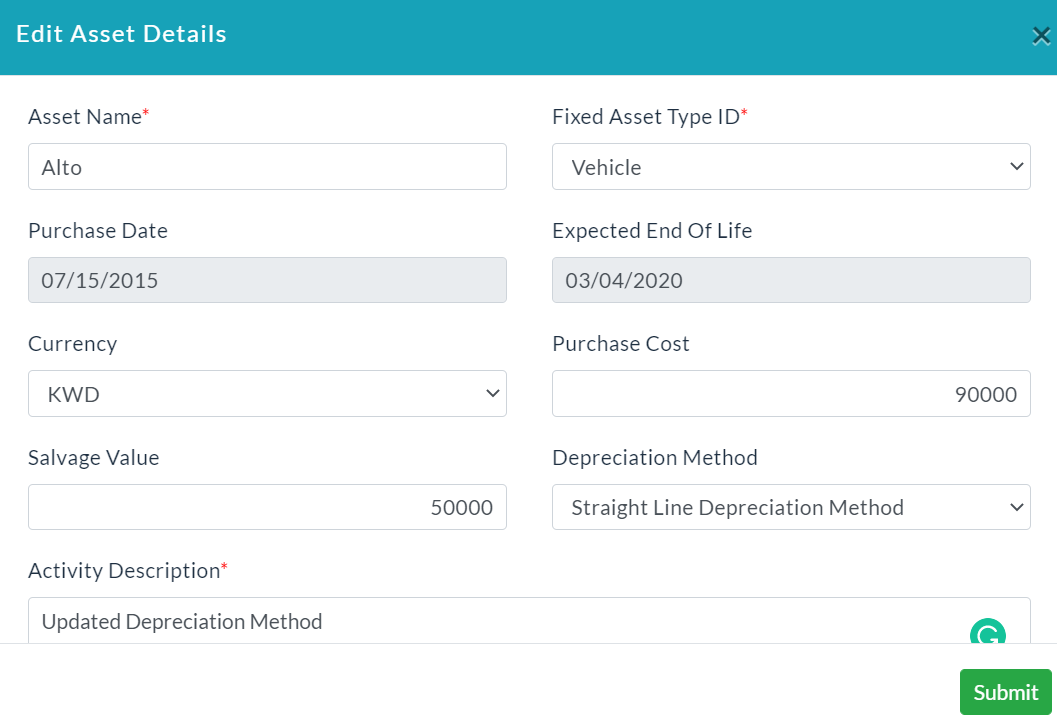
- Edit asset details form will be displayed.
- Make your changes, then click Submit.
The following screenshot shows the edit asset details form.
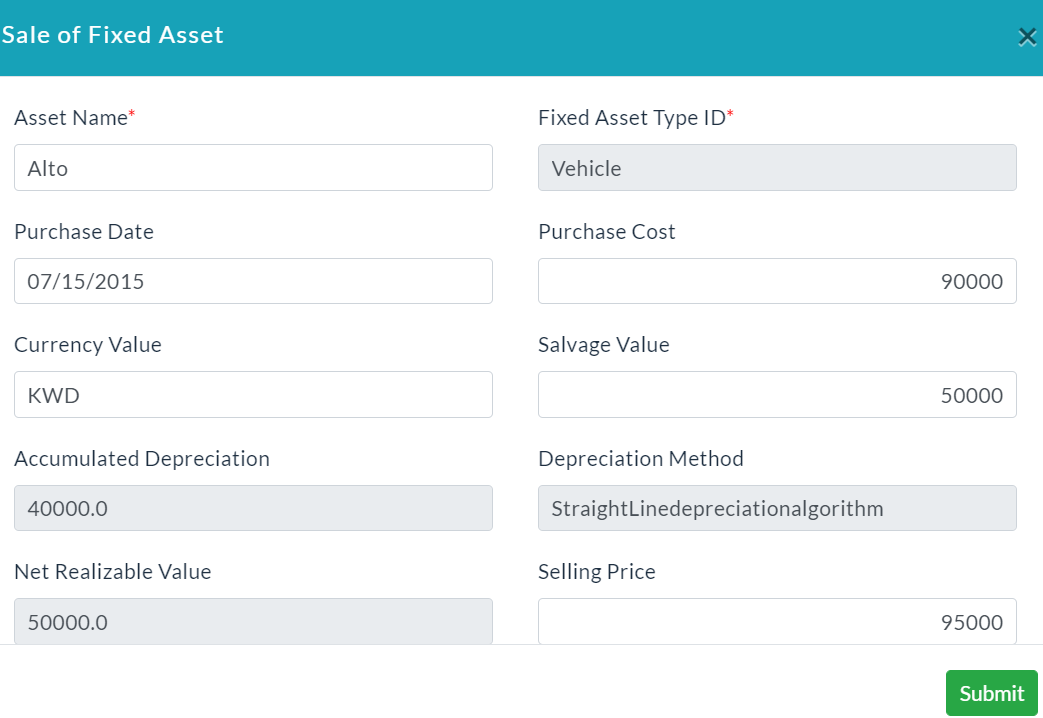
Sell Asset:
- In the Asset Details profile, click on the Sell button.
- Sale of Fixed Asset form will be displayed.
- Enter the selling price, then click Submit.
Maintenance:
Asset Maintenance can be defined as “a process of improvement strategy for improving the availability, safety, reliability, and longevity of physical assets”.
Create Maintenance:
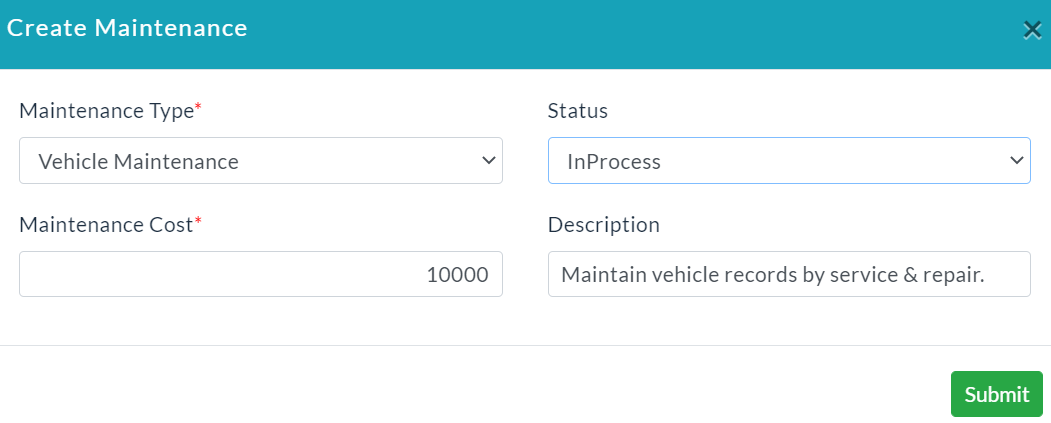
Follow the below steps to create a Maintenance.
- On clicking the Maintenance tab, click the Create Maintenance button.
- Create maintenance form will be displayed.
- Enter the maintenance details.
- Click Submit.
A list of the created maintenance details which is shown in the following screenshot.

Edit Maintenance Details:
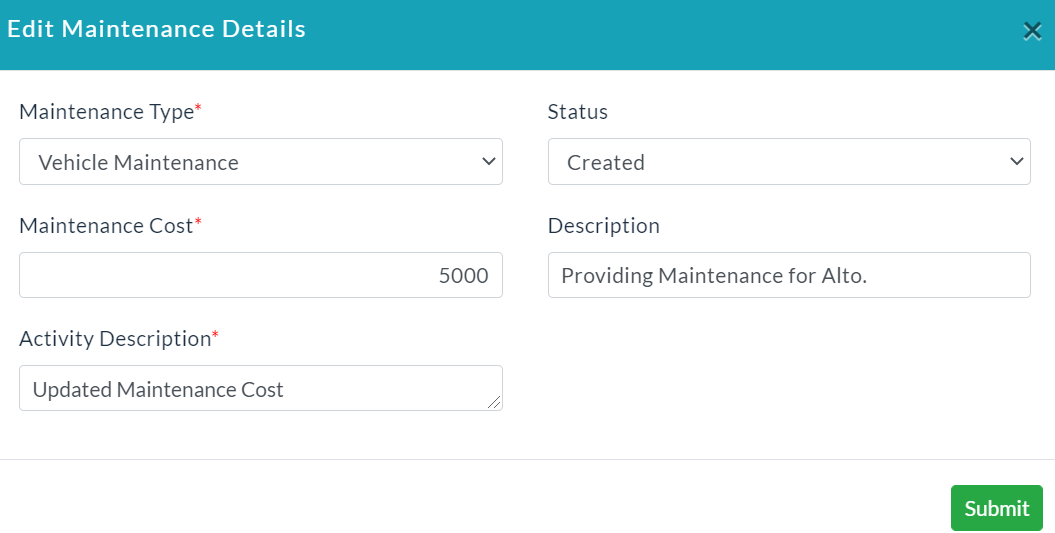
Follow the below steps to Edit Maintenance Details.
- In the Action column, click the Edit (Pencil Icon) option.
- Edit asset details form will be displayed.
- Make your changes, then click Submit.
Depreciation:
On clicking the Depreciation tab, it shows the calculated depreciation amount.
There are two methods of depreciation. They are
- Straight-line depreciation method.
- Double declining depreciation method.
- Straight-Line Depreciation Method:
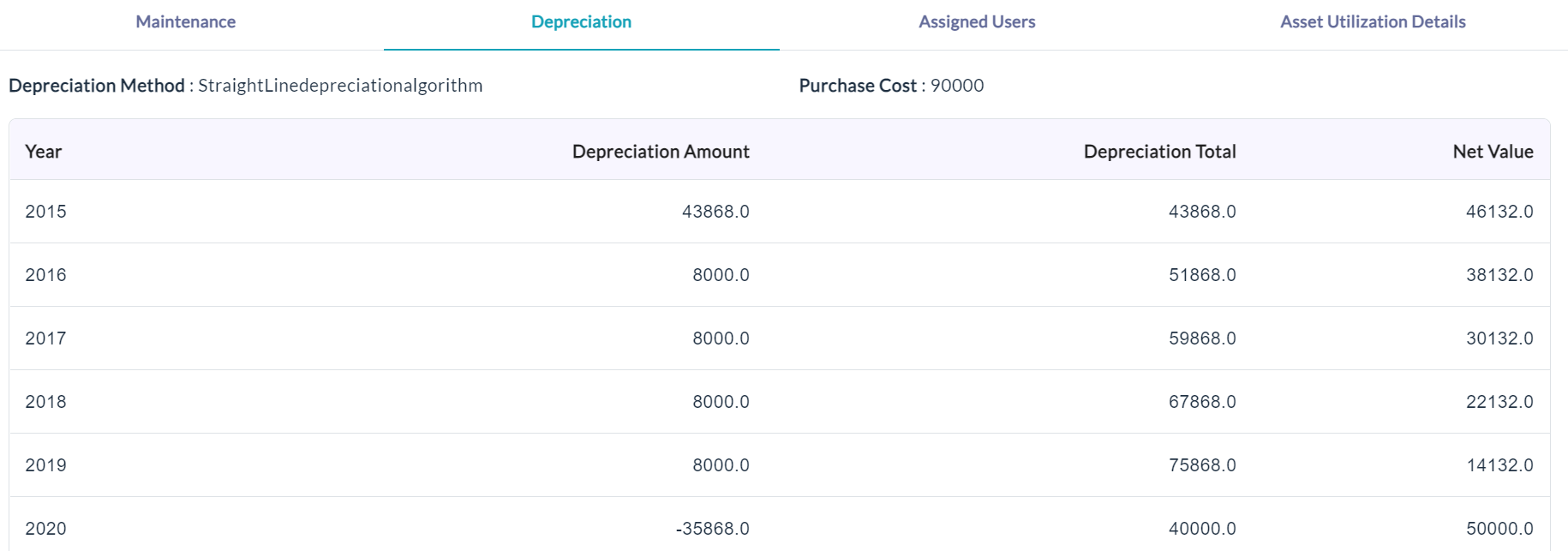
A Straight-line basis is a method of calculating depreciation and amortization. Also known as straight-line depreciation, it is the simplest way to work out the loss of value of an asset over time. A Straight-line basis is calculated by dividing the difference between an asset's cost and its expected salvage value by the number of years it is expected to be used.
If select the Straight-Line Depreciation Method when you create the fixed asset the depreciation calculation will be as shown in the below screenshot.
- Double-Decline Depreciation Method:
The double-declining depreciation method is an accelerated depreciation method that counts as an expense more rapidly (when compared to straight-line depreciation that uses the same amount of depreciation each year over an asset's useful life).
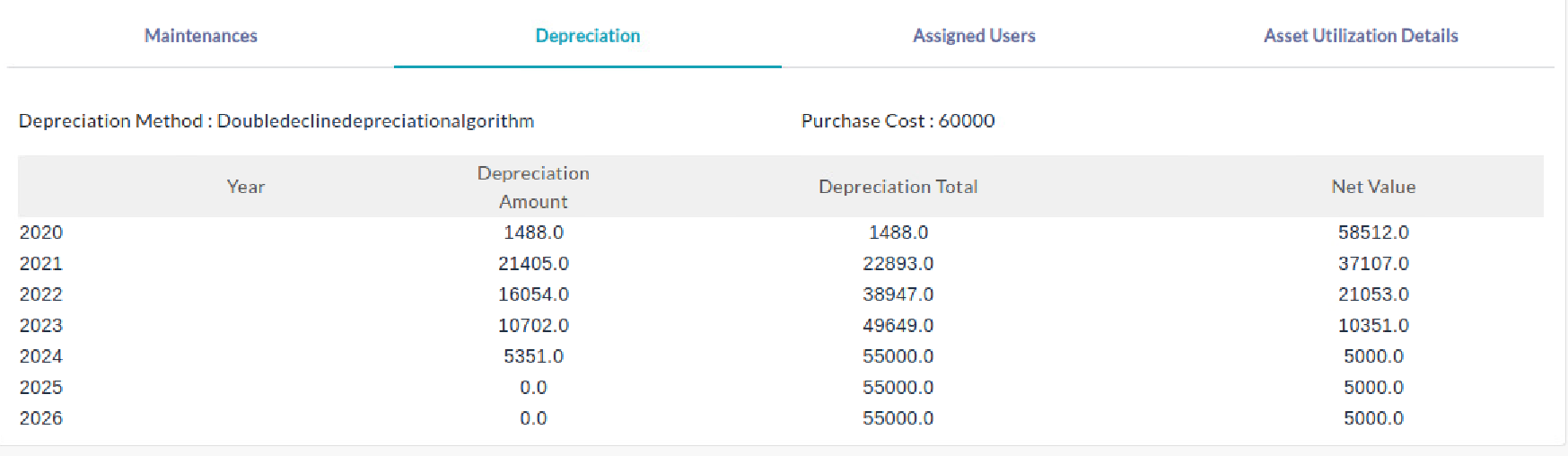
If you select the Double-Decline Depreciation Method when you create the fixed asset the depreciation calculation will be as shown in the below screenshot.
Assigned Users:
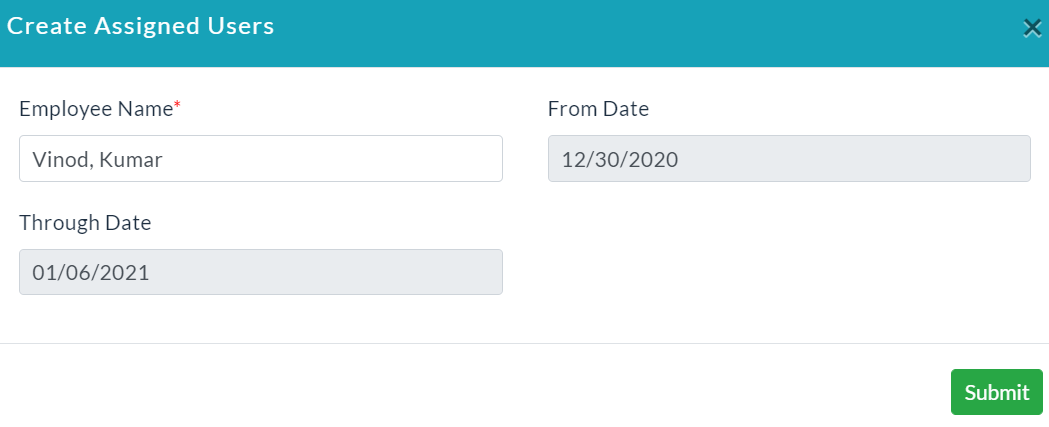
- Click the Create Assigned User button.
- Create Assigned Users form will be displayed.
- Enter the required details.
- Click Submit.
The list of the assigned employee details are displayed which is shown in the following screenshot.

Asset Utilization Details:
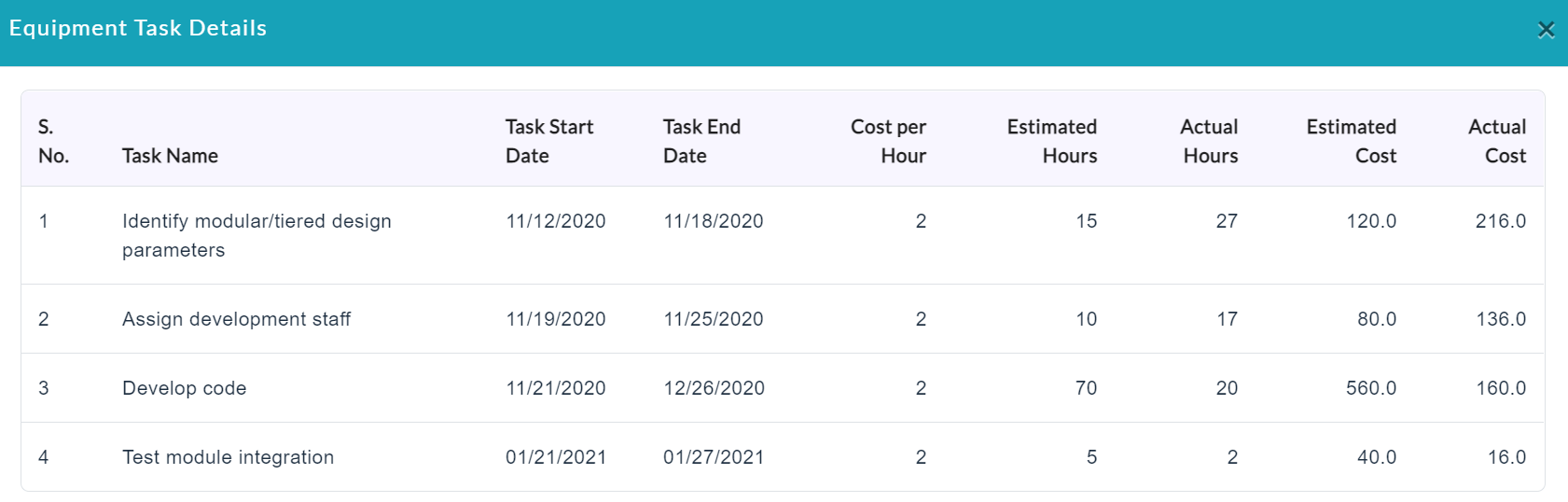
On clicking the Asset Utilization Details tab, it shows project details of the particular asset will be displayed.

On clicking the View button, a popup will be displayed. It shows task details of the particular asset will be displayed as shown in the below screenshot.
Created with the Personal Edition of HelpNDoc: Easily create EPub books